Adding it to your shop
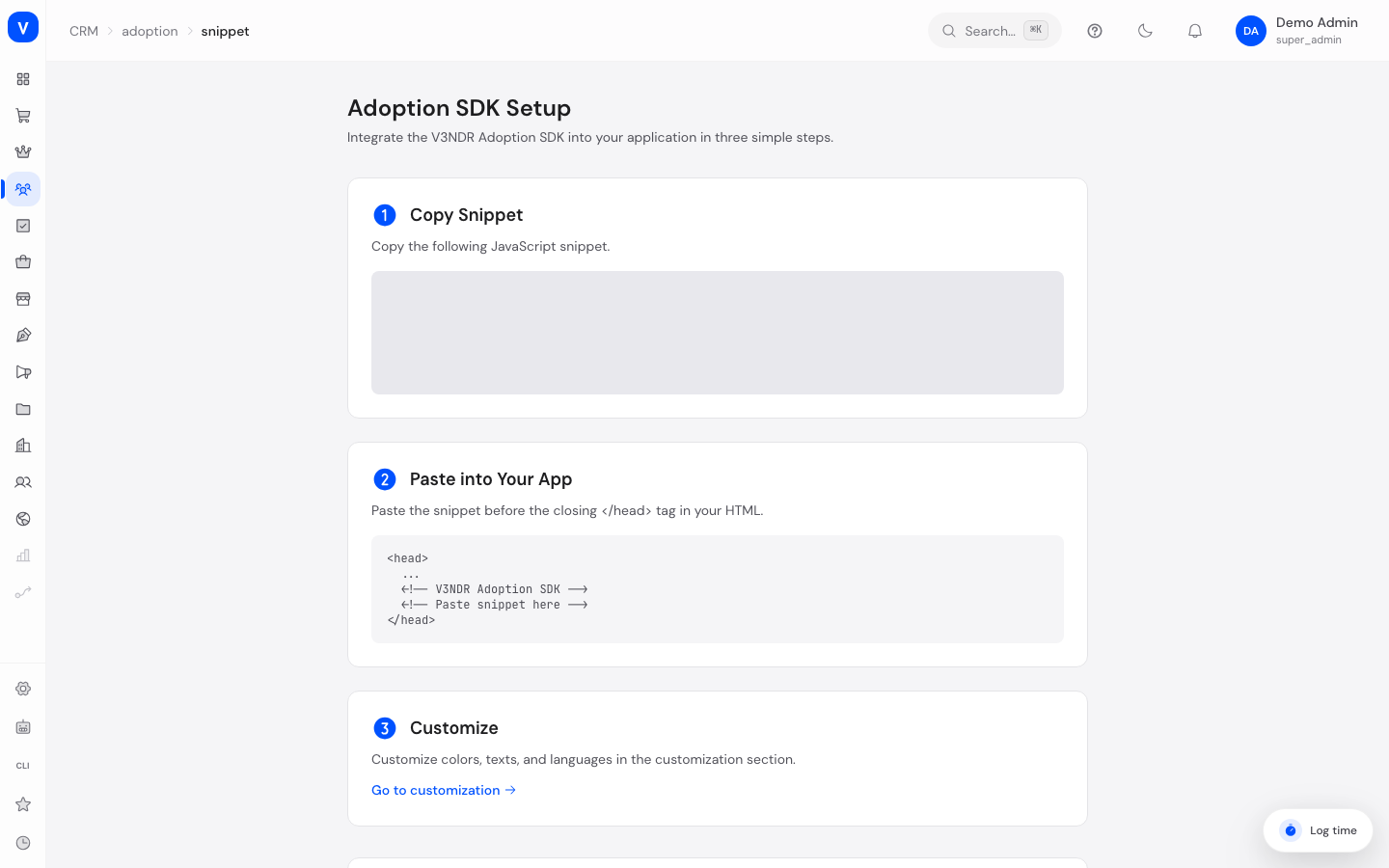
For guides, tooltips, the resource center, and announcements to appear in your online shop at all, a small piece of code (a snippet) needs to be added to your shop once. This page shows you the ready-made code as well as your personal property ID.
What can I do here?
- Copy your personal setup code
- View your property ID, which uniquely identifies your shop
- Read how and where the code is added to your shop
- Look up the available SDK commands
/crm/adoption/snippetStep by step
Add the snippet
- Click Copy to copy the code shown.
- Paste the code into your shop just before the closing
</head>tag. - Once the code is in place, published guides, tooltips, and announcements can appear in the shop.
- Then use Go to customization to adjust the widget's colors, texts, and languages.
Fields explained
| Field | Meaning | Notes/Effect |
|---|---|---|
| Property ID | A unique identifier for your shop | Generated automatically the first time you open this page; already included in the copied code |
| Snippet | The ready-made code block to paste into your shop | The property ID is already inserted into it |
Values & status
This page has no status or value lists of its own — there's just the one code block and your property ID.
Common questions
Exactly where do I need to paste the code?
Just before the closing </head> tag of your shop's page.
Do I need to add the code again for every new guide?
No, the code only needs to be added once. New guides, tooltips, and announcements appear automatically once they are published.
What is the property ID?
A unique identifier the system uses to recognize your shop and deliver the right content. It's generated automatically and is already included in the snippet.
What do the SDK commands at the bottom of the page mean?
These are additional, optional commands for developers that let the widget be controlled directly, for example to open it or to start a specific guide right away.