Element-Matching Rules
When you link a hint, a tooltip, or a guide step to a specific element on your shop page (like a button or a menu item), the system needs to be able to reliably recognize that element. These rules define which characteristics of an element may be used for that — and which should be avoided.
What can I do here?
- Create rules that define which characteristics of an element may be used for recognition (Include) or should explicitly be avoided (Exclude)
- Search rules by attribute and description, and filter by type and status
- Set the order in which rules are applied (priority)
- Edit, activate/deactivate, and delete rules
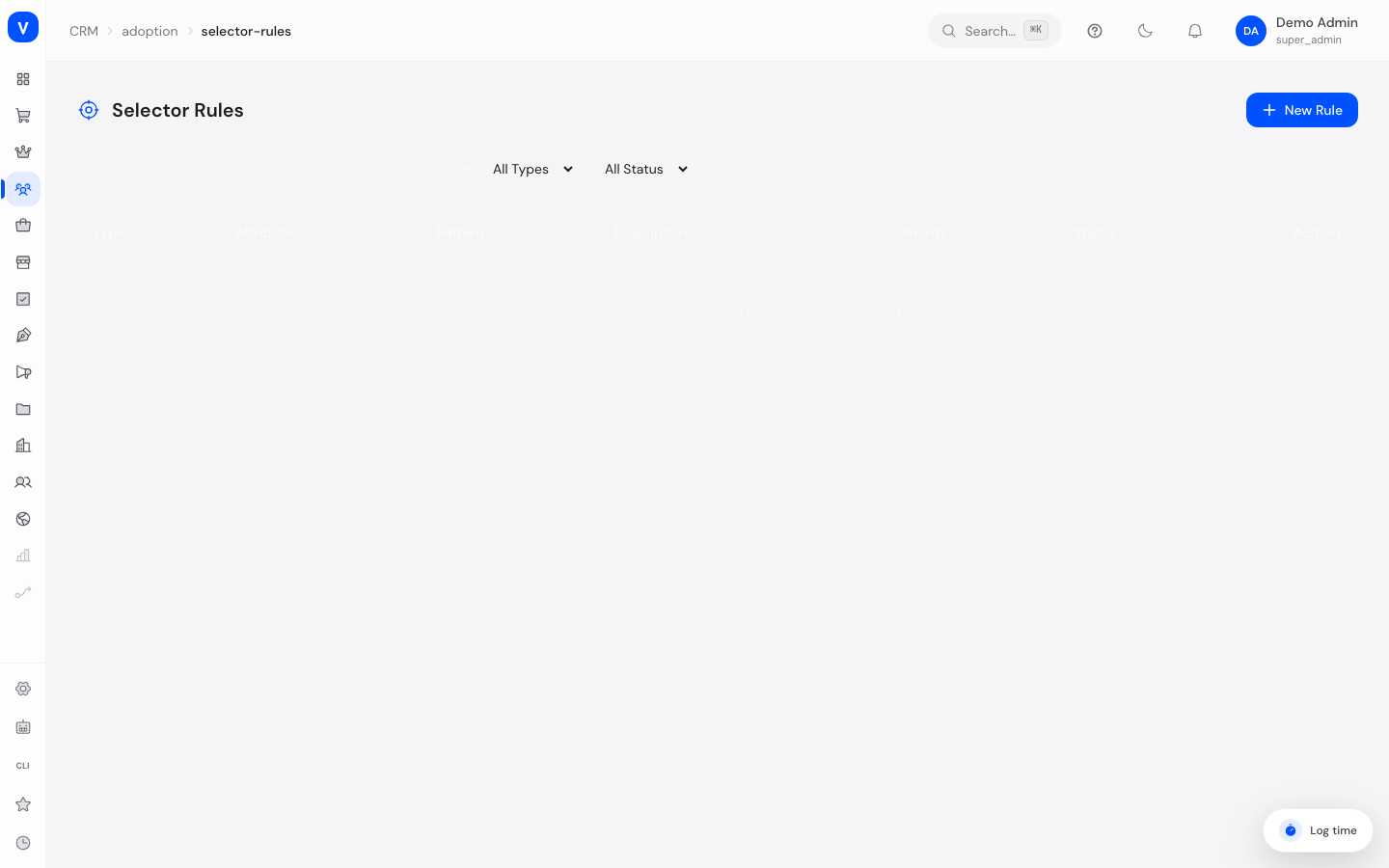
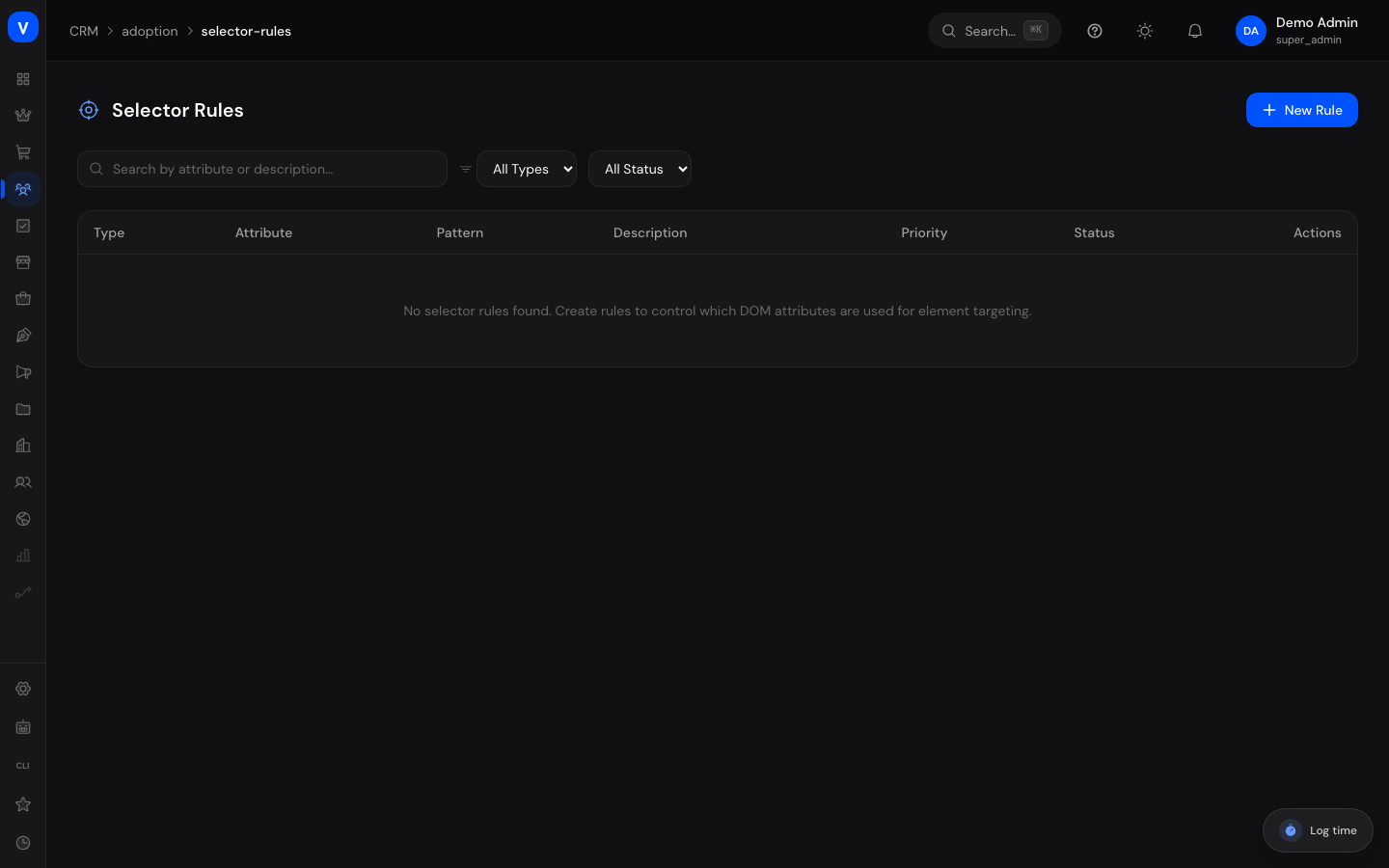
/crm/adoption/selector-rulesStep by step
Create a new rule
- Click New rule.
- Choose the type: Include if the characteristic may be used, or Exclude if it should be avoided.
- Enter the attribute (e.g.
class,data-testid,id,role). - Optional: narrow down which values of this attribute are meant with a pattern.
- Set a priority (higher number = applied first) and save.
Deactivate a rule instead of deleting it
- Open the rule using the pencil icon.
- Uncheck "Active" and save.
- The rule is kept but is no longer applied.
Fields explained
| Field | Meaning | Notes/Effect |
|---|---|---|
| Type | Whether the characteristic may be used (Include) or should be avoided (Exclude) | See Values & status below |
| Attribute | The element characteristic this rule concerns | Required, e.g. class, id, data-testid, role |
| Pattern | An optional pattern that narrows down which values of this attribute are meant | Free text (regular expression) |
| Description | An explanation of what the rule is for | Optional, makes it easier to understand later |
| Priority | The order in which rules are applied | Values 0–1000; higher priority is applied first |
| Status | Whether the rule is currently in effect | See Values & status below |
Values & status
Type
| Value | Meaning | What happens |
|---|---|---|
| Include | The given characteristic may be used to recognize an element | Preferred for linking hints to elements |
| Exclude | The given characteristic should not be used for recognition | Prevents unstable or auto-generated characteristics from being used as a basis |
Status
| Value | Meaning |
|---|---|
| Active | The rule is applied |
| Inactive | The rule is ignored but stays saved |
Common questions
Why do I even need these rules?
They make sure hints and guide steps reliably appear on the right element in the shop, even if the page's appearance changes slightly later on.
What happens if I delete a rule?
It is permanently removed. If you only want to switch off a rule temporarily, deactivate it instead.
What exactly does priority mean?
If several rules could apply, the one with the higher priority is considered first.
Do I have to fill in the pattern field?
No, it's optional. Without a pattern, the rule applies to the entire given attribute.