Adoption Guides
Guides are step-by-step walkthroughs that appear directly inside your online shop and show your customers how to use a particular feature. A guide is made up of several steps that are shown one after another — for example a short introduction after signing up, or instructions for a new feature.
What can I do here?
- Create new guides and assign them to a chapter
- Search guides by title and filter by status and chapter
- Add, edit, and delete the steps of a guide
- Publish, unpublish, or archive a guide
- See at a glance how complete a guide is (quality indicator)
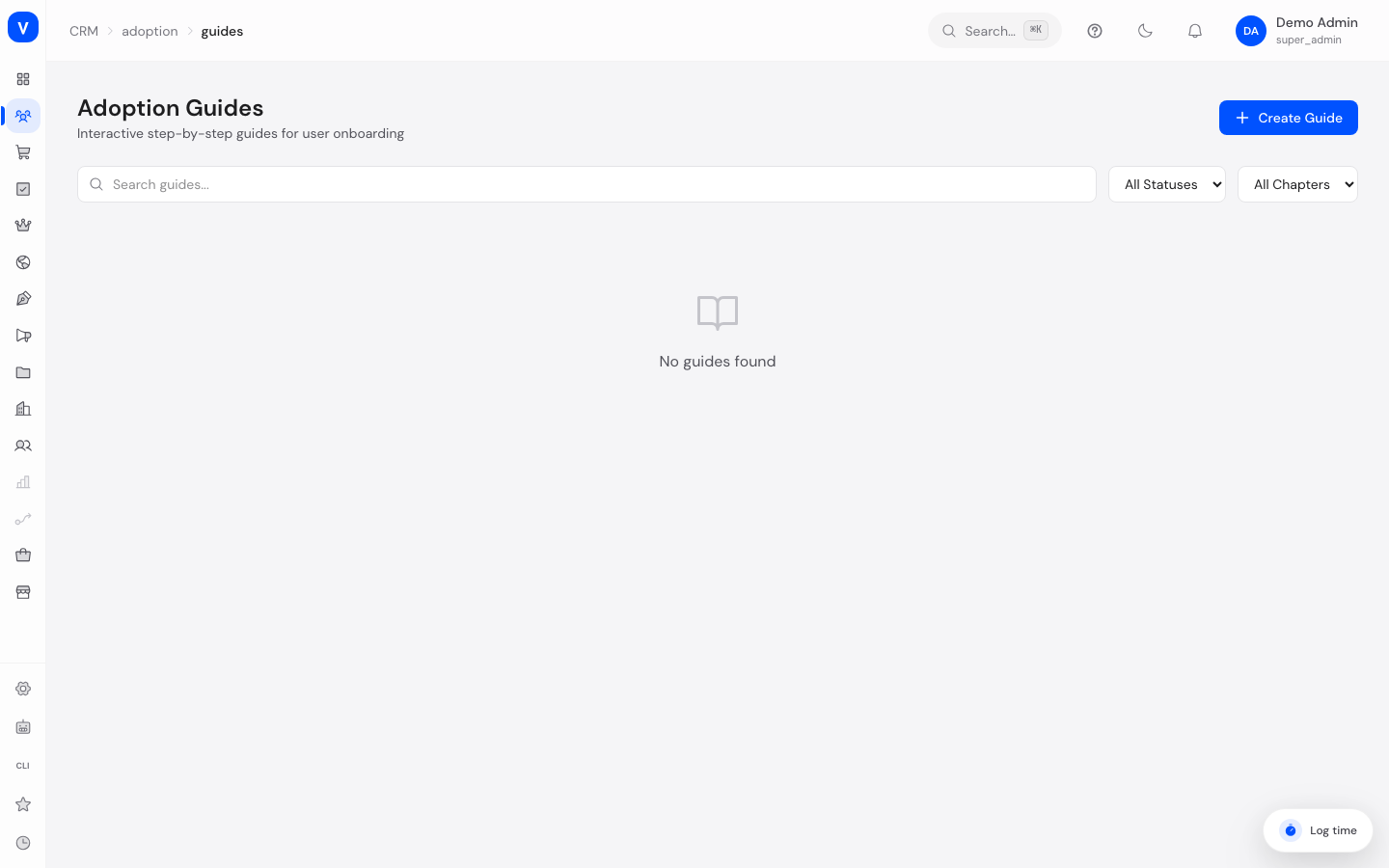
/crm/adoption/guidesStep by step
Create a new guide
- Click Create guide.
- Enter a title and optionally choose a chapter to group the guide under.
- Confirm with Create — the guide is created as a draft and opens for editing.
Add steps and publish a guide
- Open the guide using the arrow in the list.
- Click Add step and choose a step type (e.g. tooltip or highlight).
- Set which element on the page the step should point to, along with the step's title and description.
- Repeat for all the steps you want.
- Go back to the guide list and click Publish — a guide needs at least one step before it can be published.
- Title
- First steps in the inbox
- Chapter
- Getting started
- Status
- Draft
| Steps | Title | Step Type | Target Selector |
|---|---|---|---|
| 1 | Welcome | Tooltip | .inbox-header |
| 2 | Choose a channel | Tooltip | .channel-filter |
| 3 | Send a reply | Tooltip | .reply-box |
/crm/adoption/guides/:idFields explained
| Field | Meaning | Notes/Effect |
|---|---|---|
| Title | The guide's internal name | Required |
| Chapter | The grouping the guide is filed under | Optional; chapters are managed elsewhere |
| Status | The guide's current publication status | See Values & status below |
| Steps | Number of steps contained in the guide | A guide with no steps cannot be published |
| Health | A percentage showing how complete the guide is | Takes into account things like title, description, number of steps, and publication status |
Step fields
| Field | Meaning | Notes/Effect |
|---|---|---|
| Step type | How the step is displayed (see values below) | Determines the look in the shop |
| Target selector | What identifies the element on the shop page the step points to | Free text, e.g. a CSS class or ID |
| Title | Heading shown inside the step | Optional |
| Description | Explanatory text of the step | Optional |
| Tooltip position | Which side of the target element the speech bubble appears on | Only relevant for the "tooltip" step type |
Values & status
Guide status
| Value | Meaning | What happens |
|---|---|---|
| Draft | The guide is still being worked on | Not visible to customers in the shop |
| Published | The guide is live | Customers see the guide in the shop, provided the setup snippet is installed |
| Archived | The guide is no longer active | Not visible to customers, but kept for later reuse |
Step types
| Value | Meaning | What happens |
|---|---|---|
| Tooltip | A small hint with an arrow pointing to an element | Appears next to the target element |
| Modal | A larger window with content | Appears centered over the page |
| Highlight | The target element is visually emphasized | Draws the customer's attention to it |
| Action | An automatic action is triggered | E.g. a click or a navigation |
| Wait | The guide pauses until a condition is met | Useful for waiting on a customer action |
Common questions
Why can't I publish a guide?
A guide must contain at least one step before it can be published.
What does the quality indicator mean?
It shows how complete a guide is — the more information present (title, description, several steps, published status), the higher the value.
Will my customers see the guide as soon as I publish it?
Yes, once the guide's status is "Published" it can be shown in the shop — provided the setup snippet has been added to your shop.
Can I unpublish a guide that's already live?
Yes, Unpublish returns the guide to draft status without losing any content.
What is "Archive" for?
Archived guides are no longer visible but remain saved in case you want to reuse them later.
How the quality indicator is calculated
The quality indicator is a value from 0 to 100% that shows how complete a guide is set up. It does not measure how well the guide performs with customers (that lives in Content Analytics) — only whether all recommended details are present. It is recalculated immediately on every change — there is nothing to refresh manually.
The value is the sum of fixed point shares, capped at 100:
| Condition | Points |
|---|---|
| The guide has a title | +20 |
| The guide has a description | +10 |
| The guide has at least one step | +20 |
| The guide has three or more steps | +10 |
| All steps have a title | +20 |
| The guide is published | +20 |
So a fully filled-in, published guide with at least three titled steps reaches the full 100%.
How to improve the quality indicator
Ordered by impact (point share):
- Add a title and at least one step (+20 each): the fastest jump upward.
- Give every step a title (+20): as soon as one step has no title, this share is lost entirely.
- Publish (+20): a guide left as a draft loses this share — publishing also counts as a quality signal.
- Grow to three or more steps (+10) and add a description (+10): rounds the value out to 100%.