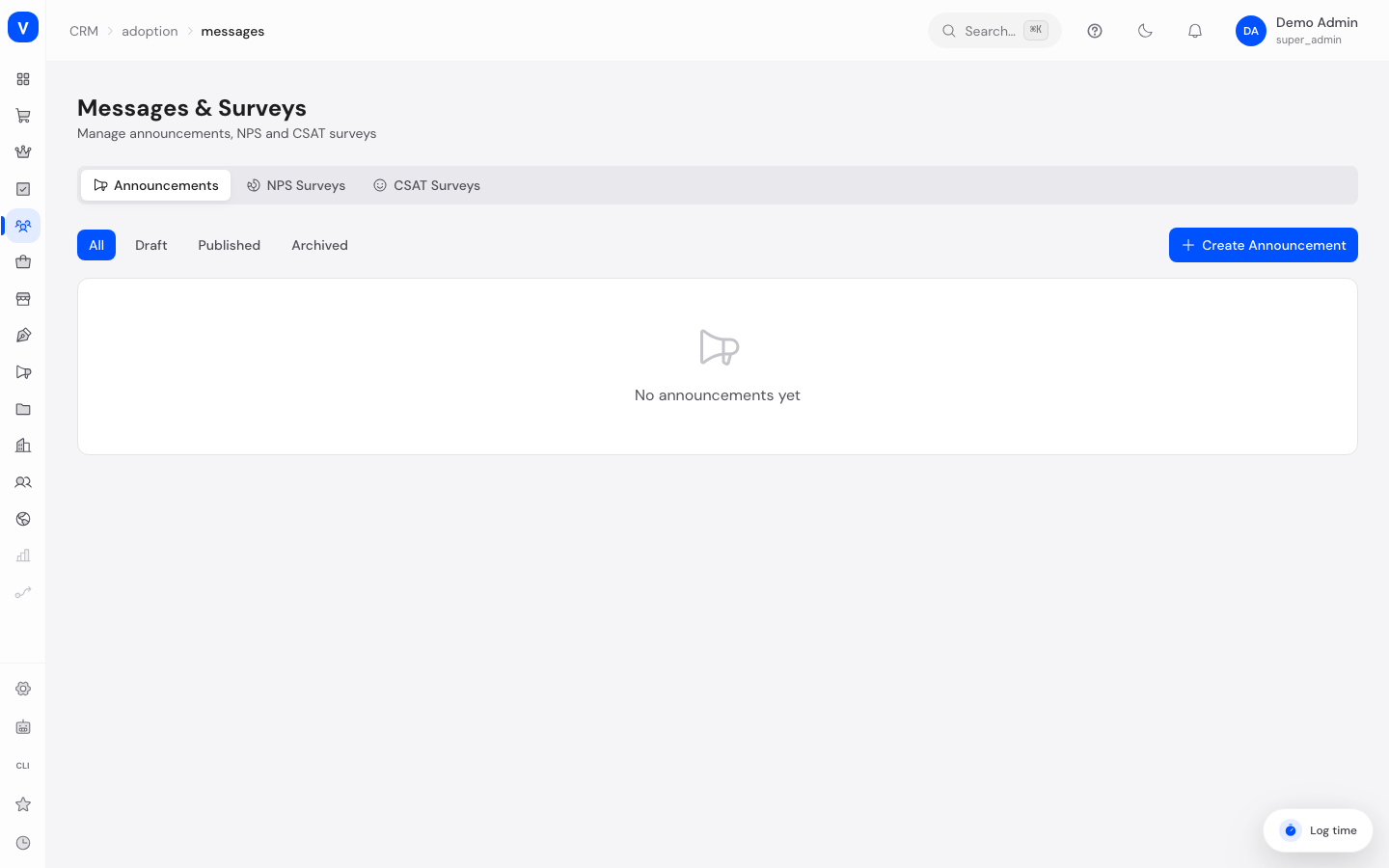
Messages & Surveys
Here you manage announcements and surveys that are shown to your customers directly inside your online shop. Announcements share news, while NPS and CSAT surveys show you how satisfied your customers are.
What can I do here?
- Create, edit, pin, publish, and unpublish announcements
- Create and publish NPS surveys (likelihood to recommend) and CSAT surveys (satisfaction)
- View responses and analytics for surveys
/crm/adoption/messagesStep by step
Publish an announcement
- Switch to the Announcements tab and click Create announcement.
- Fill in the title and content, choose a category, and optionally add an image and a link.
- Optionally narrow down which customers (audience segment) and on which pages (page segment) the announcement should appear.
- Save the announcement — it is initially created as a draft.
- Click the eye icon Publish in the list to make the announcement visible in the shop.
Set up an NPS or CSAT survey
- Switch to the NPS surveys or CSAT surveys tab and click Create survey.
- Enter a title and adjust the question if needed.
- Optionally narrow down the audience and page.
- Save, then click Publish so customers see the survey in the shop.
- Open View analytics to see responses and results.
| Question | Responses |
|---|---|
| Promoters (9-10) | 96 |
| Passives (7-8) | 58 |
| Detractors (0-6) | 32 |
/crm/adoption/messagesFields explained
Announcement
| Field | Meaning | Notes/Effect |
|---|---|---|
| Title | Announcement heading | Required |
| Content | Descriptive text | Required |
| Category | Topical classification | See Values & status below |
| Image URL | Optional image shown alongside the text | Optional |
| Link URL / Link label | A link customers can click | Optional, both fields belong together |
| Audience segment | Only customers in this audience see the announcement | Optional; see Audiences |
| Page segment | Only visible on matching pages | Optional |
| Scheduled for | Intended time for showing the announcement | Saved with the record; publishing itself still happens via the Publish button |
Survey (NPS/CSAT)
| Field | Meaning | Notes/Effect |
|---|---|---|
| Title | Internal name of the survey | Required |
| Question | The question shown to customers | Pre-filled with a default question, can be customized |
| Type | NPS or CSAT | Set by the tab you created it on and cannot be changed afterwards |
| Audience segment / Page segment | Narrows down who/where the survey is shown | Optional |
Values & status
Category (announcement)
| Value | Meaning |
|---|---|
| New feature | Introducing a new feature |
| Update | A change to an existing feature |
| Maintenance | Notice about planned maintenance |
| General | Other messages |
Status (announcement & survey)
| Value | Meaning | What happens |
|---|---|---|
| Draft | Still being worked on | Not visible to customers |
| Published | Live | Visible in the shop to matching customers |
| Archived (announcement only) | No longer active | Not visible to customers |
| Closed (survey only) | The survey no longer accepts responses | Can no longer be edited or republished |
NPS results
| Value | Meaning |
|---|---|
| Promoters (9-10) | Customers very likely to recommend you |
| Passives (7-8) | Satisfied but not enthusiastic customers |
| Detractors (0-6) | Dissatisfied customers |
| NPS score | Percentage of promoters minus percentage of detractors, a value from -100 to 100 |
CSAT results
Responses are grouped into five mood icons: Angry, Sad, Neutral, Happy, Love. The CSAT score shows the average rating.
Common questions
Why don't my customers see my announcement?
Check whether the announcement is published and whether an audience or page segment is restricting who sees it.
Can I reopen a closed survey?
No, a closed survey can no longer be edited or republished.
What does "pin" do for an announcement?
Pinned announcements are shown first in the list and in the shop.
How do I decide whether a survey is NPS or CSAT?
The type is determined by the tab you create the survey on — NPS surveys and CSAT surveys are managed separately.
Where do I see my customers' responses?
Via View analytics on the relevant survey — it shows the key metrics as well as the most recent responses.
How the NPS and CSAT scores are calculated
Both survey types collect a rating from 0 to 10 per response. The metrics are calculated directly from all responses received so far, each time you open the analysis.
NPS (likelihood to recommend) — each response falls into one of three groups:
| Response value | Group |
|---|---|
| 9–10 | Promoters |
| 7–8 | Passives |
| 0–6 | Detractors |
- NPS score = share of promoters (in %) minus share of detractors (in %), rounded to a whole number. Passives deliberately do not count.
- The score ranges from -100 (all detractors) to +100 (all promoters). With no responses it is 0.
- Example: 60% promoters, 30% detractors, 10% passives → NPS = 60 − 30 = +30.
CSAT (satisfaction)
- CSAT score = the average of all response values (0–10), rounded to two decimal places.
- For the mood icons, each response is mapped to an emoji: Angry 0–2, Sad 3–4, Neutral 5–6, Happy 7–8, Love 9–10.
You also see the response rate and the score distribution (how often each value 0–10 was given). Note: the response rate is currently an estimate (it assumes roughly three times as many impressions as responses), because the exact number of times a survey was shown is not yet tracked separately.
How to improve the NPS and CSAT scores
The most effective lever is to reduce detractors — they hit the NPS twice (a missing promoter and a subtracted detractor). Ordered by impact:
- Read the detractors' comments: open View analysis and read the most recent low-score responses — they usually contain the concrete reason.
- Right audience and right moment: narrow the survey via Audiences and a page segment so you ask satisfied customers at the fitting moment.
- Collect more responses: a broader base of responses makes the score more stable and meaningful; single outliers then weigh less.
- Word the question clearly: an unambiguous question reduces accidental low ratings caused by misunderstanding.