Audiences
Audiences (segments) determine which customers see guides, tooltips, announcements, and surveys. There are two kinds: user segments (based on properties of the customer) and page segments (based on which page of the shop is currently shown).
What can I do here?
- Create, edit, and delete user segments and page segments
- Define rules with AND/OR logic that determine which customers belong to a segment
- See a live count of how many customers currently match a user segment
- Activate or deactivate segments
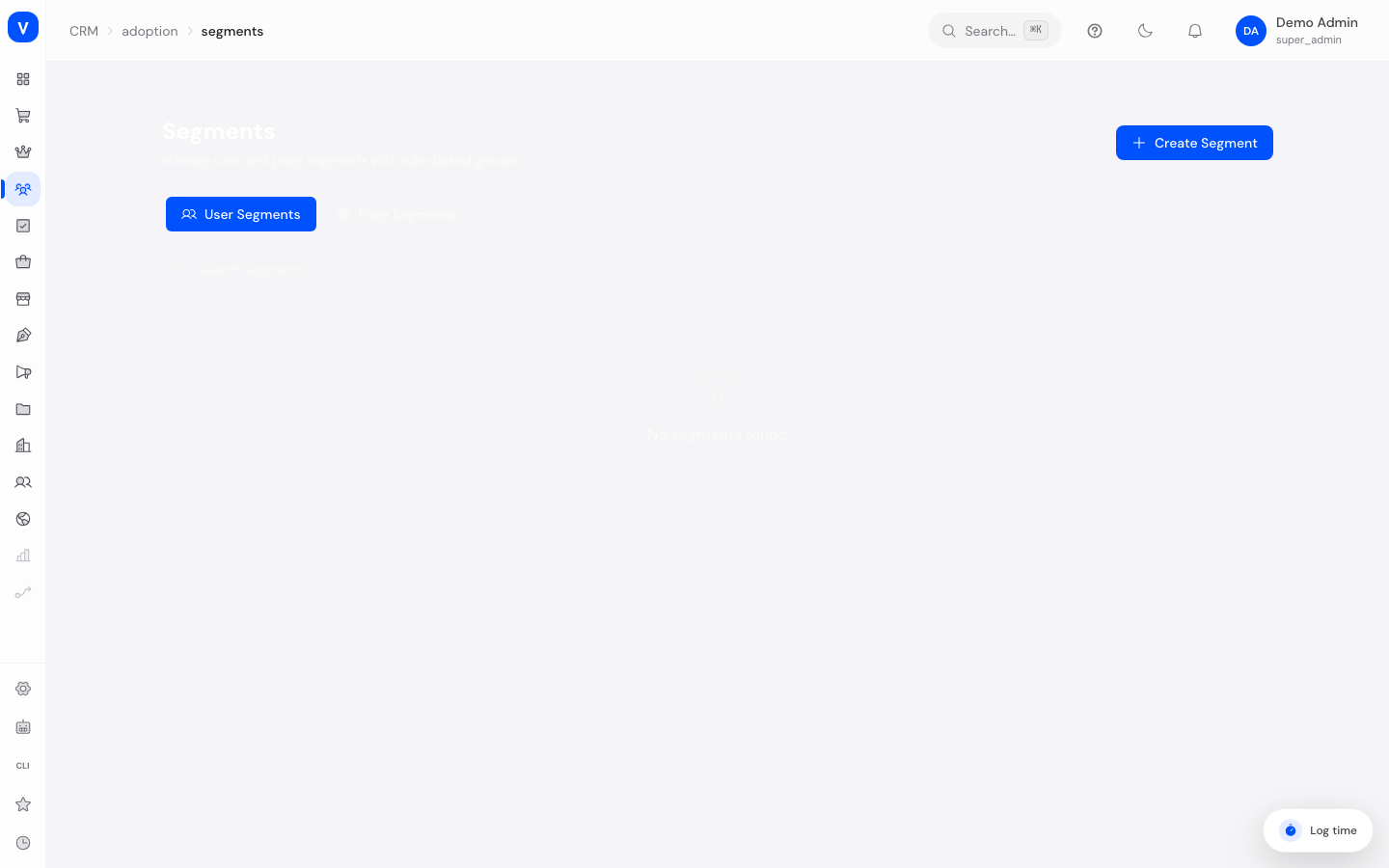
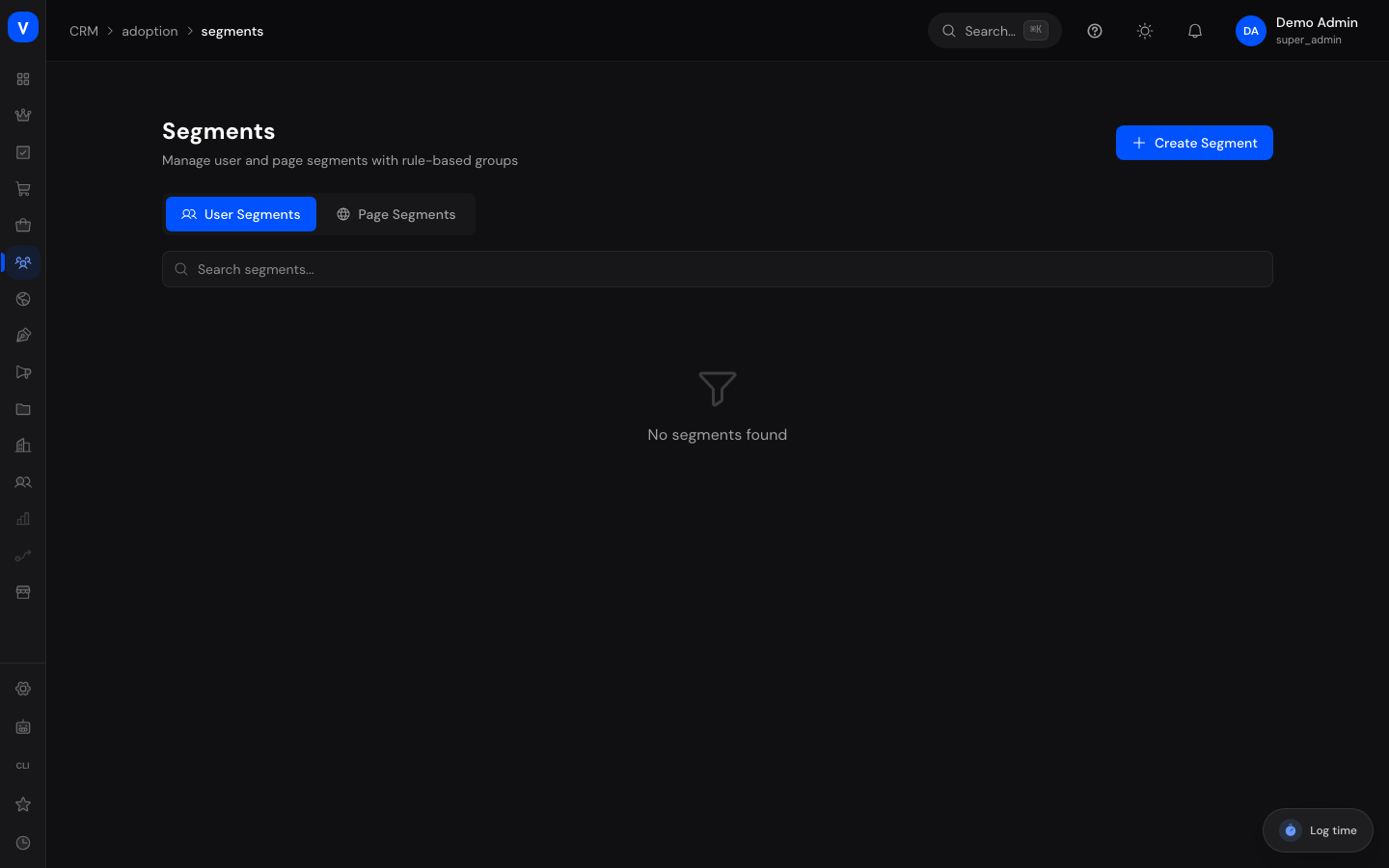
/crm/adoption/segmentsStep by step
Create a user segment
- Switch to the User segments tab and click Create segment.
- Enter a name and, optionally, a description.
- Build a rule group: click Add rule to add a condition, e.g. a field, a comparison, and a value.
- Add further rules or rule groups if needed, and choose whether they are combined with AND or OR.
- Check the "Matching users" panel to see how many customers currently match, then save.
Create a page segment
- Switch to the Page segments tab and click Create segment.
- Enter a name and description.
- Under URL patterns, enter one or more page addresses (one pattern per line;
*and**can be used as wildcards). - Optionally add further rules, then save.
| Field | Comparison | Value |
|---|---|---|
| Signed up for | less than | 30 |
| Role | equals | Administration |
/crm/adoption/segmentsFields explained
| Field | Meaning | Notes/Effect |
|---|---|---|
| Name | The segment's name | Required |
| Description | Short description of what the segment is for | Optional |
| URL patterns | Page addresses the page segment applies to | Page segments only; one pattern per line |
| Group connector | Whether the rule groups overall are combined with AND or OR | Determines whether all or just one group needs to match |
| Rule groups | One or more groups of rules | Each group can also use AND or OR internally |
| Active | Whether the segment is currently in use | Inactive segments are ignored by guides, tooltips, etc. |
| Matched | Number of customers currently matching the user segment | User segments only; refreshed via the live preview |
Values & status
Rule comparison
| Value | Meaning |
|---|---|
| equals / not equals | Value matches exactly / does not match |
| greater than / greater or equal | Value is greater / greater than or equal |
| less than / less or equal | Value is less / less than or equal |
| contains / not contains | Value contains a text / does not contain it |
| starts with / ends with | Value starts / ends with a text |
| is set / is not set | The field has a value / has no value |
Status
| Value | Meaning | What happens |
|---|---|---|
| Active | The segment is taken into account | Can be assigned to guides, tooltips, announcements, and surveys |
| Inactive | The segment is ignored | Stays saved but is no longer applied anywhere |
Common questions
What's the difference between a user segment and a page segment?
A user segment describes who the customer is (based on their properties), a page segment describes which page of the shop they're currently on.
What does "Matching users" mean?
It's a live preview showing how many customers currently match the user segment's rules.
Can I combine several conditions?
Yes, rule groups with AND/OR logic let you build arbitrarily complex conditions.
Where are audiences used?
Audiences can be selected on announcements, surveys, tooltips, and guides to limit who sees them.
What happens if I deactivate a segment?
It's kept, but no longer taken into account when deciding what content to show.
Can I edit a segment on a phone?
Yes. Since 28/08/2026 the edit panel takes the full screen width on narrow screens instead of pushing the page sideways. It closes with the cross in the top right or with the Escape key; while it is open your input stays inside it, so you cannot accidentally type into the list behind it. On tablets and computers it is unchanged - a panel on the right edge.