Escalation
This page controls what happens automatically when a support ticket stays unanswered for too long, and defines when your team is actually available. It has two sections: Escalation Policies (who gets notified or has the ticket reassigned to them when too much time passes) and Business Hours (your working hours, including holidays).
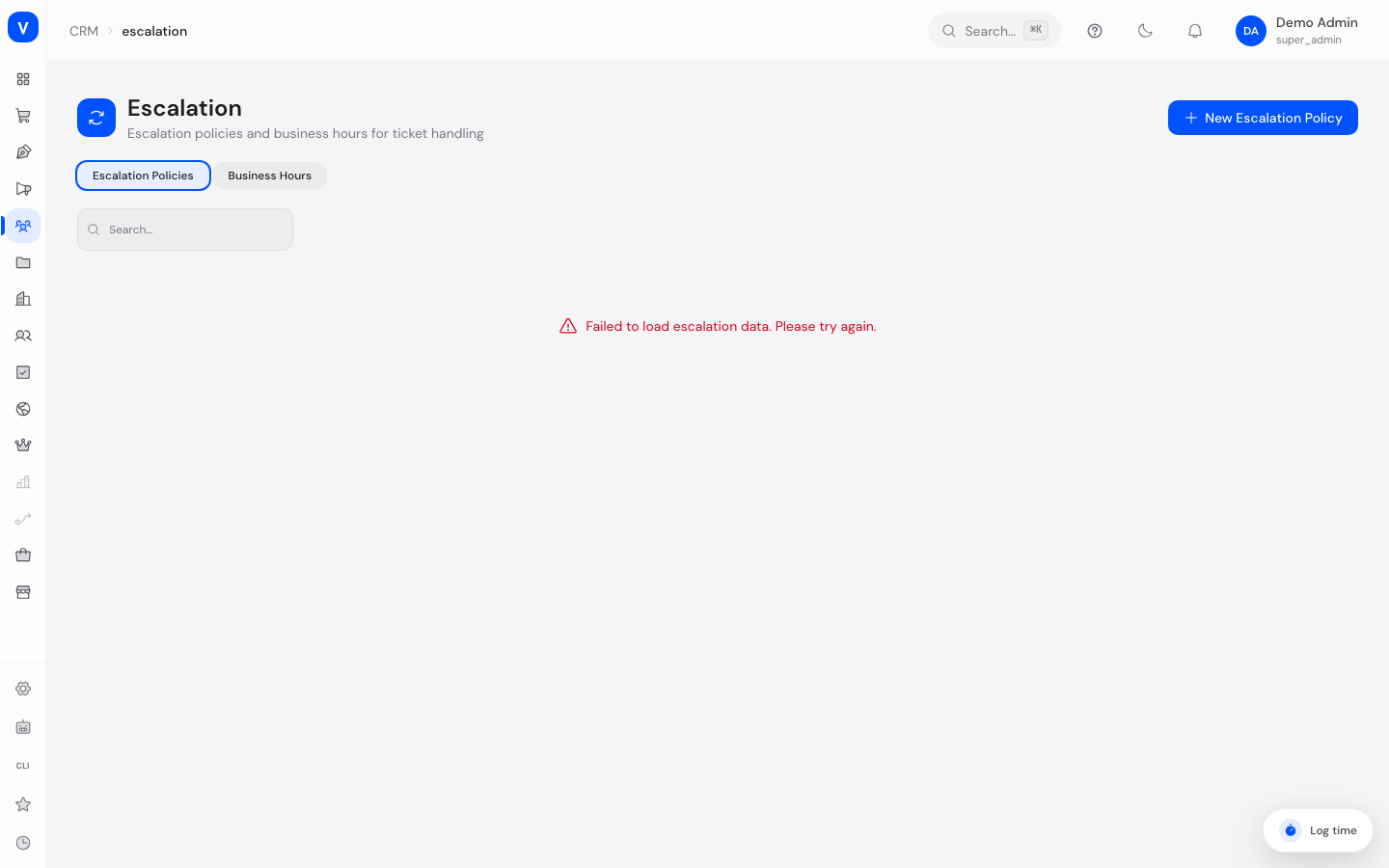
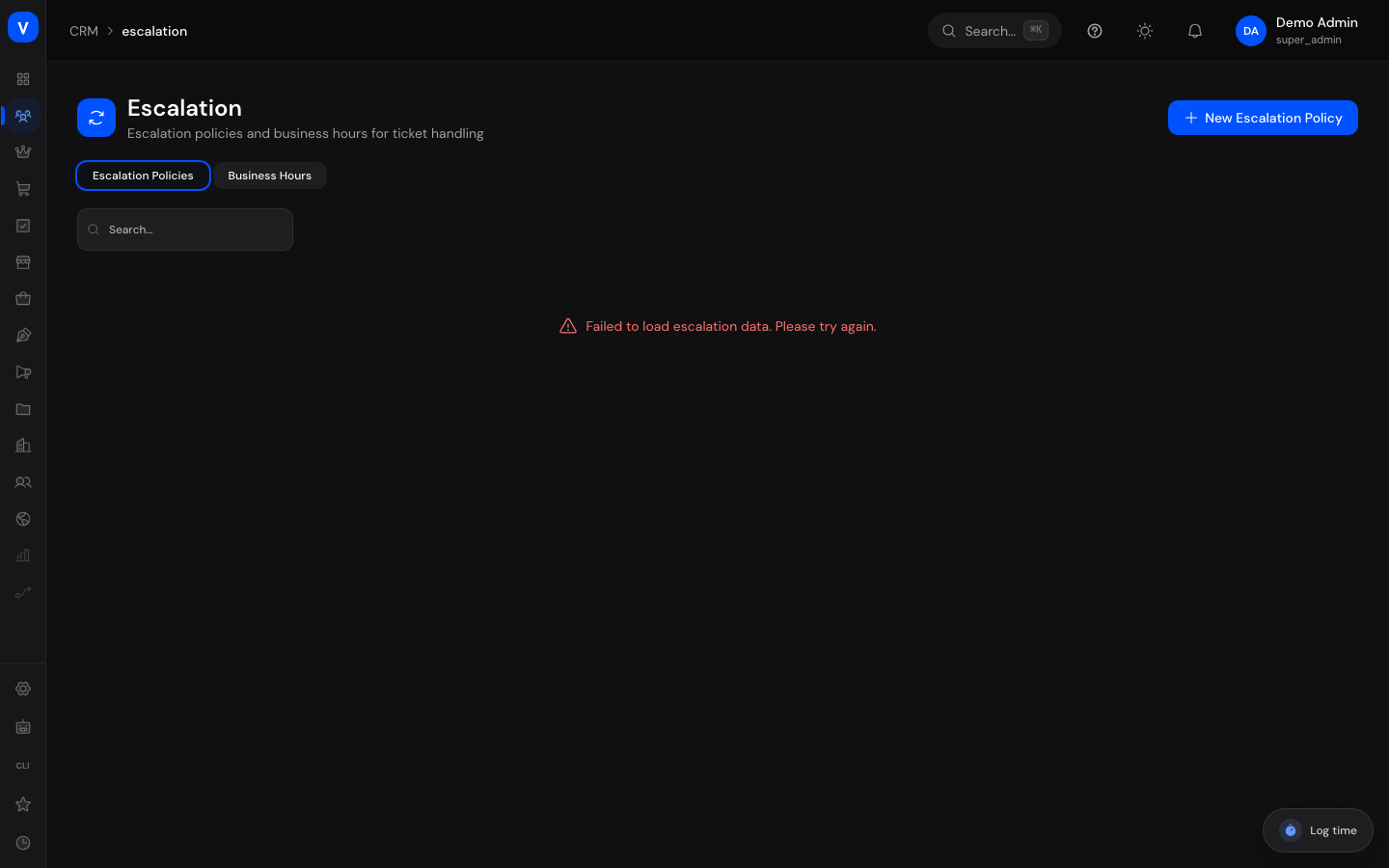
/crm/escalationWhat can I do here?
- Create multi-level escalation policies (e.g. "notify after 60 minutes, reassign after 240 minutes")
- Define which agent group or which email addresses get notified on an escalation
- Define which group a ticket automatically gets reassigned to on an escalation
- Activate/deactivate policies
- Define business hours per weekday (including time zone)
- Add holidays to a business hours configuration
- Mark a business hours configuration as the default
Step by step
- Create a new escalation policy: Switch to the "Policies" tab and click "New Escalation Policy". Enter a name and add at least one level: time to escalation (in minutes), action (Notify / Reassign / Both), and the group or email addresses to notify/reassign to.
- Add more levels: Click "Add Level" to define, for example, a stricter second level after a longer wait. Reorder levels with the arrow buttons.
- Create business hours: Switch to the "Business Hours" tab and click "New Business Hours". Choose a time zone and enter start/end times for each weekday, or mark the day as closed.
- Add a holiday: Open a business hours configuration and enter a name and date in the "Add Holiday" section. Enable "Recurring" for holidays that repeat on the same date every year.
/crm/escalation| Escalation Levels | Escalate After | Action | Notify group |
|---|---|---|---|
| 1 | 60 minutes | Notify | Technical support |
| 2 | 240 minutes | Notify & Reassign | Support team leads |
- Active
- Active
- Created
- 04 Feb 2026
/crm/escalation- Timezone
- Europe/Berlin
| Name | Start | End |
|---|---|---|
| Monday | 08:00 | 17:00 |
| Tuesday | 08:00 | 17:00 |
| Friday | 08:00 | 15:00 |
| Saturday | •Closed | •Closed |
/crm/escalation| Name | Date | Recurring yearly |
|---|---|---|
| New Year's Day | 01 Jan 2027 | Yes |
| Company shutdown | 24 Dec 2026 | No |
/crm/escalationFields explained
Escalation Policies
| Field | Meaning | Notes/Effect |
|---|---|---|
| Name | Display name of the policy | — |
| Description | Free text explaining its purpose | Optional |
| Active | Whether the policy is currently applied | Only active policies are considered during the automatic check |
| Level | Sequential number of the escalation level within the policy | Determines the order |
| Escalate After (minutes) | How long a ticket may stay open before this level triggers | Measured from ticket creation |
| Action | What happens when the level is reached | See value list below |
| Notify Group | Agent group whose members get notified by email | Only relevant for action "Notify" or "Both" |
| Assign To Group | Agent group the ticket gets automatically reassigned to | Only relevant for action "Reassign" or "Both"; a random active member of the group receives the ticket |
| Notify Emails | Additional, freely entered email addresses for the notification | Comma-separated |
Business Hours
| Field | Meaning | Notes/Effect |
|---|---|---|
| Name | Display name of the business hours configuration | — |
| Time Zone | Time zone the opening hours apply in | Chosen from common time zones; the list has a search box, type "Berlin", "Europe" or the technical identifier "Europe/Berlin" |
| Use as Default | Marks this configuration as the default business hours | Shown as a "Default" badge in the list |
| Weekly Schedule | Opening hours (start/end) per weekday, or "Closed" | Configurable per day |
| Holidays | List of stored holidays with dates | Each holiday can be marked "recurring" |
| Active | Whether the configuration is currently in use | — |
Values & Status
Action (Escalation Level)
| Value | Meaning | What happens |
|---|---|---|
| Notify | Only a notification is sent | The selected group or the entered email addresses receive an email about the escalation; the ticket stays with its current assignee |
| Reassign | The ticket gets automatically redistributed | A random active member of the selected group becomes the new assignee of the ticket |
| Notify & Reassign | Both at once | A notification is sent AND the ticket is reassigned |
Weekday (Business Hours)
| Value | Meaning |
|---|---|
| Monday – Sunday | Regular weekday with individually configurable opening hours or "Closed" |
Status (Policy / Business Hours)
| Value | Meaning | What happens |
|---|---|---|
| Active | Currently applied | Included in the automatic check/display |
| Inactive | Deactivated | Ignored by the automatic check but kept for history |
How automatic escalation works
The system periodically checks all open tickets in the background and compares their age against the levels of the active escalation policy. As soon as a ticket crosses a level's threshold and has not yet been escalated, the configured action is executed and recorded in the ticket's history.
Important prerequisite: the automatic check only considers tickets that already have an SLA policy assigned. Tickets without an SLA policy are not picked up by automatic escalation, no matter how old they are or how many active escalation policies exist.
flowchart TD
    A[Ticket is created] --> B{Ticket has an SLA policy,<br/>is still open,<br/>and not yet escalated?}
    B -- No --> Z[No escalation]
    B -- Yes --> C{Ticket age ≥<br/>escalation level reached?}
    C -- No --> W[Wait, re-check on<br/>the next run]
    C -- Yes --> D{Level's action}
    D -- Notify --> E[Email to group/<br/>configured addresses]
    D -- Reassign --> F[Random active group<br/>member takes the ticket]
    D -- Both --> G[Send email<br/>AND reassign]
    E --> H[Recorded in ticket history<br/>+ marked as escalated]
    F --> H
    G --> H
Frequently asked questions
How often are due escalations checked?
Automatically every few minutes in the background — you don't need to trigger anything manually.
What happens if I create multiple escalation policies?
The automatic check uses the longest-existing active policy. It's therefore recommended to generally maintain only one active policy to avoid confusion.
Can a ticket be escalated more than once?
During an automatic run, a ticket is escalated only once, to the highest level reached that hasn't been executed yet. After that, it's marked as escalated and won't be touched again by the automatic check.
What are business hours actually used for?
They define when your team is regularly available — for instance as a reference for customers and response-time expectations. Holidays can also be stored here.
What if I delete an agent group used in an escalation level?
That level then points to nothing. Before deleting a group, check whether it's used in an escalation policy and adjust the policy if needed.
Can I create an escalation level without a group or email address?
Technically yes, but the action then has no effect (e.g. no notification is sent because no recipient is configured).
Why isn't this ticket escalating even though an active escalation policy exists?
First check whether the ticket has an SLA policy assigned at all — without an SLA policy, a ticket is never picked up by automatic escalation, no matter its age. Other possible reasons: the ticket has already been escalated (the automatic run won't touch it again), or it's already resolved/closed.