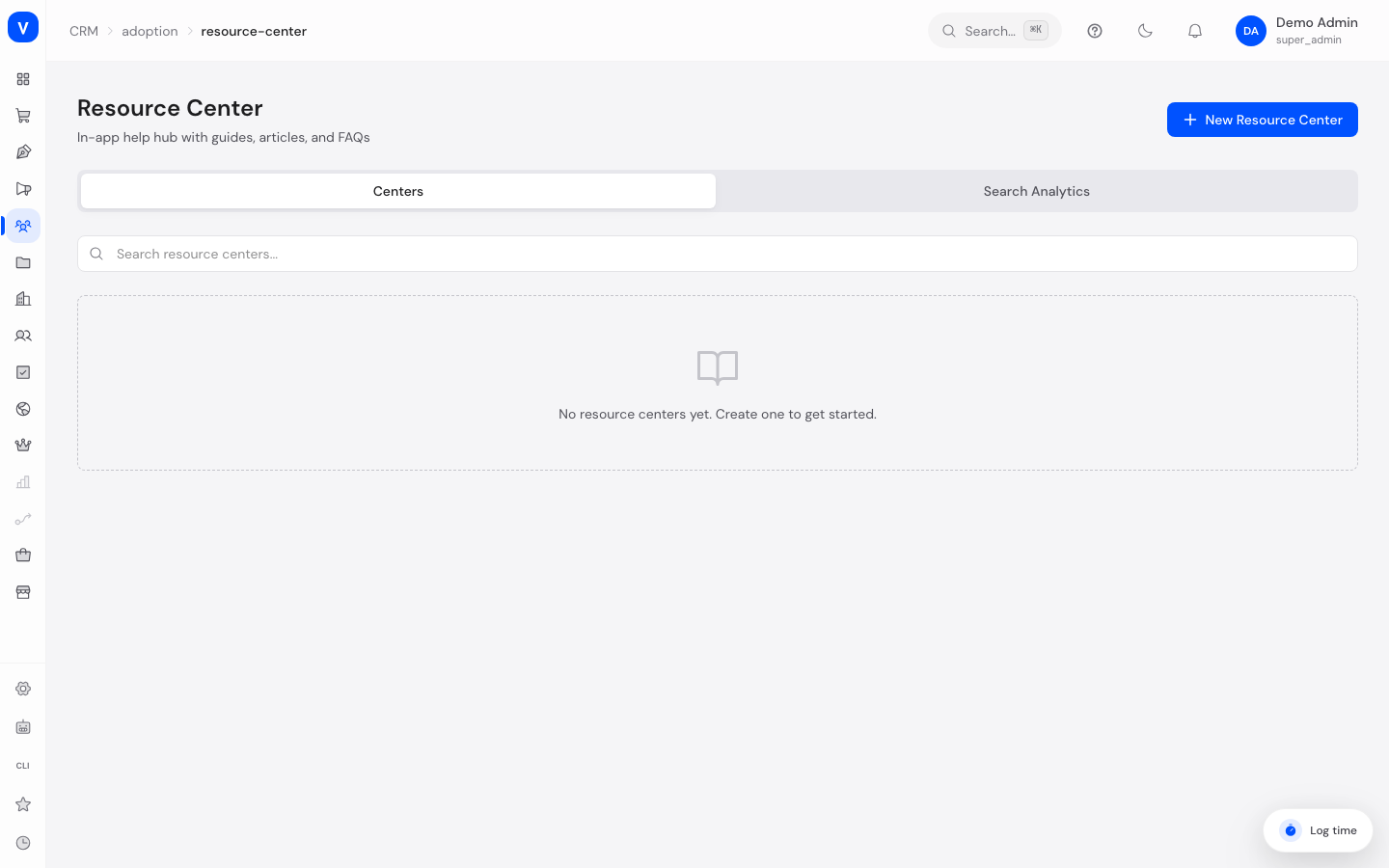
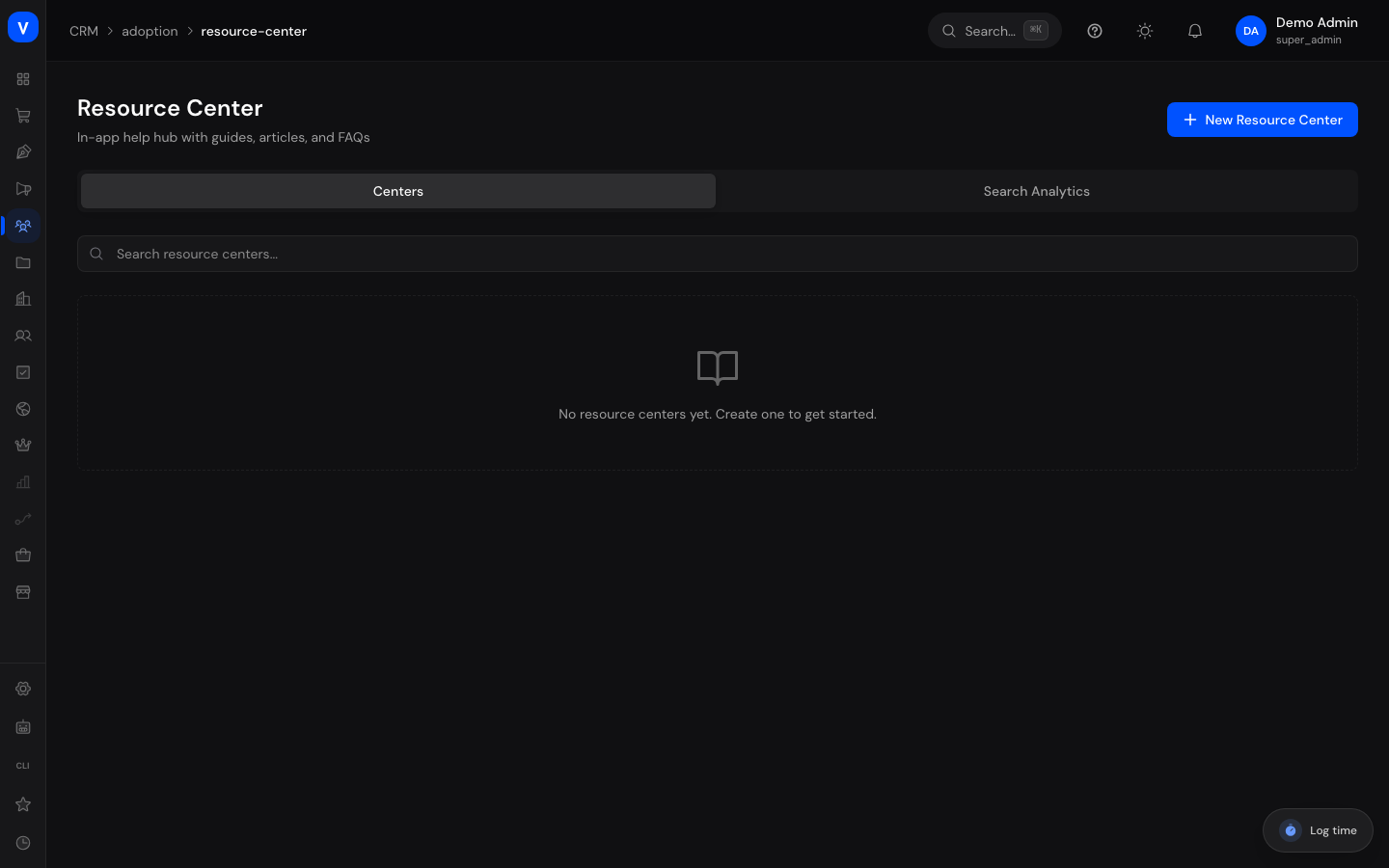
The Resource Center is an embeddable help widget for your online shop. It brings together guides, articles, videos, and links in one place so your customers can find answers themselves without having to contact support.
What can I do here?
Create one or more resource centers and set their look (position, icon, color)
Create and reorder sections inside a resource center
Add and reorder items (guides, articles, videos, links, announcements) within a section
See what customers are searching for inside the Resource Center (search analytics)
View: /crm/adoption/resource-center
Step by step
Set up a resource center
Click New resource center.
Give it a name, and choose the widget's position, icon, and primary color.
Turn on the "Enabled" toggle and save.
Fill in sections and items
Click a resource center in the list to expand it.
Click Add section, give it a title, and save.
Expand the section and click Add item.
Choose the item type (e.g. article or video), fill in the title and content or URL, and save.
Reorder sections and items as needed using the arrow icons.
Illustration
Sections
CentersSearch Analytics
Section Title
Position
Items
Getting started
1
4
Frequently asked questions
2
6
Title
Item Type
views
Set up the inbox
Guide
312
What is a ticket?
Article
208
Tour of the interface
Video
96
Rebuilt excerpt of the view: /crm/adoption/resource-center
View search analytics
Select a resource center from the list.
Switch to the Search analytics tab.
Choose the period (7, 30, or 90 days) to see the most common search terms as well as searches with no results.
Fields explained
Resource center
Field
Meaning
Notes/Effect
Name
The resource center's name
Required
Description
Short description
Optional
Widget position
Where the widget appears in the shop
See Values & status below
Icon
The widget's icon
Chosen from a preset list
Primary color
The widget's color
Freely selectable via color picker or hex code
Enabled
Whether the resource center is visible in the shop
Disabled resource centers are not shown
Section
Field
Meaning
Notes/Effect
Section title
The section's heading
Required
Description
Short description
Optional
Icon
The section's icon
Optional
Visible
Whether the section is shown in the shop
Hidden sections are kept but not shown
Item
Field
Meaning
Notes/Effect
Item type
The kind of item (see values below)
Determines which further fields are shown
Title
The item's title
Required
Description
Short description
Optional
Content
Full text content
Article and guide only
URL
Target link
Video and link only
Tags
Comma-separated keywords
Make the item easier to find via search
Views
Number of times this item has been viewed
Counted automatically
Values & status
Widget position
Value
Meaning
Bottom right
Widget appears in the bottom right of the shop
Bottom left
Widget appears in the bottom left of the shop
Right side
Widget appears anchored to the right edge of the screen
Item type
Value
Meaning
Guide
Reference to an adoption guide
Article
Text content with its own body
Video
A linked video
Link
An external or internal reference
Announcement
Reference to an announcement
Common questions
Why don't my customers see the resource center? Check whether the resource center is enabled and whether the setup snippet has been added to the shop.
What are the search analytics for? They show what customers are searching for inside the Resource Center — searches with no results in particular point to missing content.
Can I create more than one resource center? Yes, you can create as many resource centers as you like, for example for different areas of your shop.
What happens if I hide a section instead of deleting it? The section and its items are kept but are no longer visible to customers. You can show it again at any time.