Support Settings
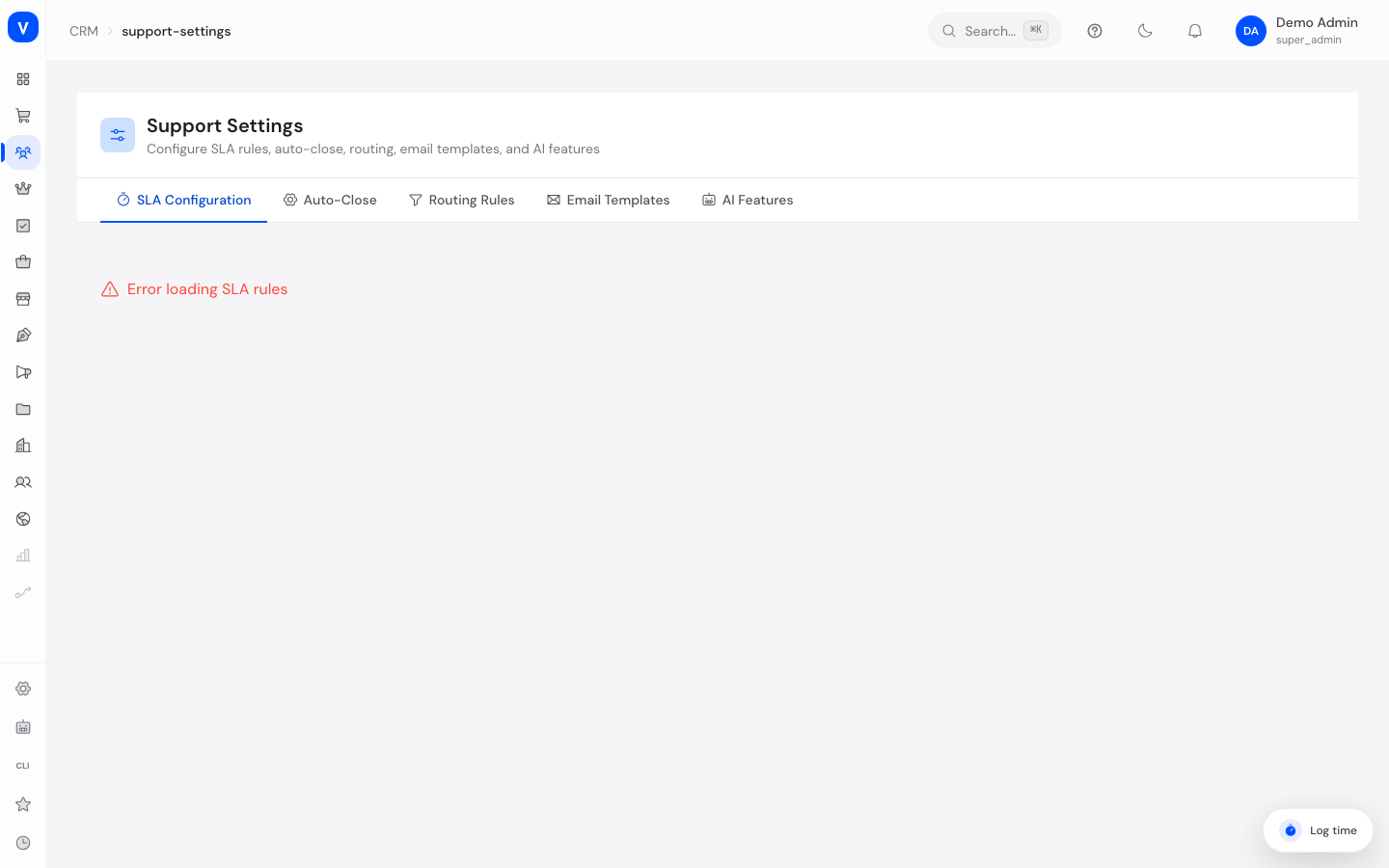
This is where you configure the basic rules for the entire support/ticket area: how fast tickets must be handled, when inactive tickets are closed automatically, how tickets are distributed to agents, which automatic emails are sent, and which AI features are active in the ticket system. The page has five tabs.
/crm/support-settingsWhat can I do here?
- Create and edit Service Level Agreement (SLA) rules and set a default rule
- Turn SLA-breach escalation on/off and optionally notify the team lead
- Configure automatic closing of inactive tickets (reminder → auto-resolved → auto-closed)
- Decide what happens when a customer replies to an already-closed ticket
- Adjust the weighting used for automatic ticket routing to agents
- Edit automatic system email templates and preview their content
- Turn individual AI features in the ticket system on or off
Step by step
- Create an SLA rule: open the "SLA Configuration" tab → "New SLA Rule" → enter a name, first-response time and resolution time in hours, optionally set per-priority overrides → Save. Use "Set as default" to decide which rule applies to new tickets automatically.
- Set up auto-close: open the "Auto-Close" tab → set the inactivity period and grace period in days (after the inactivity period the customer gets a reminder; after the grace period the ticket is automatically set to "Resolved") → in the "Ticket Lifecycle" section, also set how many days after "Resolved" a ticket auto-closes and what happens if a customer replies to a closed ticket → Save.
- Adjust routing weights: open the "Routing Rules" tab → enable auto-routing and move the sliders for skill match, language match, workload and level bonus → Save.
3a. Define the agent pool: in the "Agent pool" section, tick the staff members who should be auto-assigned tickets → Save. With no selection, only staff with maintained skills are eligible — a support ticket is never handed to "just anyone" in the company.
3b. Assign the existing backlog: "Assign all open tickets now" distributes every open, unassigned ticket in one run (oldest first, max. 200 per run — repeat for larger backlogs). - Edit an email template: open the "Email Templates" tab → click the desired template → edit the subject and HTML content, use "Preview" to check the result with sample data → Save.
Fields explained
| Field | Meaning | Notes/Effect |
|---|---|---|
| Name (SLA) | Name of the SLA rule | Shown in the rule table and when assigning |
| First-Response Time (hours) | How fast an agent must respond for the first time | Breaching it triggers a warning when escalation is enabled |
| Resolution Time (hours) | How fast the ticket must be finally resolved | Applies on top of the first-response time |
| Business Hours Only | The SLA clock only runs during business hours | Without this, the deadline runs around the clock |
| Priority Overrides | Different first-response/resolution times per priority (Urgent/High/Normal/Low) | Overrides the rule's default times for that priority |
| Escalation Enabled | Turns SLA escalation on | Without it an SLA breach is not reported |
| Notify Team Lead | Additional notification to the team lead on escalation | Only effective when escalation is enabled |
| Inactivity Period (days) | Days without a customer reply before a reminder is sent | Part of the auto-close flow |
| Grace Period (days) | Days after the reminder before auto-resolving | Only runs when auto-close is enabled |
| Auto-Resolve After (days) | Alternative rule: days in "waiting for customer" until auto-resolve | Part of the ticket lifecycle |
| Auto-Close After (days) | Days after "Resolved" until the ticket is automatically "Closed" | After this the ticket is permanently closed |
| On Reply to Closed Ticket | Behavior when a customer replies to a closed ticket | Either creates a new ticket or reopens the old one |
| Auto-Routing Enabled | Turns automatic distribution of new tickets on | Without it, assignment is manual |
| Agent pool | Which staff members are auto-assigned tickets | Empty = only staff with at least one maintained skill are eligible |
| Assign all open tickets now | Distributes the existing backlog of unassigned tickets | Oldest first, max. 200 per run; the result is shown inline |
| Skill Match Weight | How strongly matching agent skills influence assignment | Slider 0–100; all weights together form the maximum score |
| Language Match Weight | How strongly the agent's matching language is weighted | Slider 0–100 |
| Workload Weight | How strongly an agent's current workload is considered | Slider 0–100 |
| Level Bonus (Priority) | Bonus for more experienced agents on high-priority tickets | Slider 0–100 |
| Penalty per Open Ticket | Score deduction per already-assigned open ticket | Prevents overloading individual agents |
| Subject (email template) | Subject line of the automatic email | May contain placeholders |
| HTML Content | Content of the automatic email | Filled with real ticket/customer data when sent |
| Active (email template) | Whether the template is actually used | Inactive templates are skipped when sending |
| Language Detection, Auto-Categorization, Sentiment Analysis, Routing Suggestion, Knowledge-Base Search, Summary | Individual AI features for new tickets | Each toggled independently; disabled features are skipped for new tickets |
| Help-center knowledge base | Ingested articles from the public help pages (support.sellerlogic.com) | Refresh via "Sync help pages now"; the articles feed the AI reply drafts, including source links |
Values & statuses
Tabs
| Value | Meaning | What happens |
|---|---|---|
| SLA Configuration | Response/resolution time rules | Controls deadlines and escalation |
| Auto-Close | Automatic closing of inactive tickets | Controls when tickets without customer response move forward automatically |
| Routing Rules | Automatic ticket distribution | Controls which agent receives a new ticket |
| Email Templates | Automatic system emails | Controls the content of automatically sent messages |
| AI Features | Ticket AI features (Google Gemini) | Controls which AI assistance is active |
On reply to closed ticket
| Value | Meaning | What happens |
|---|---|---|
| Create New Ticket | The customer reply creates a separate new ticket | The original ticket stays closed |
| Reopen Ticket | The customer reply reopens the existing ticket | The ticket moves back to an active status |
Frequently asked questions
What happens if I don't set a default SLA rule?
New tickets then get no automatic deadline monitoring until a matching rule is assigned.
Why don't I see a Save button in some sections?
The Save button only appears for users with the permission to manage the support area. Without that permission you can only view the settings.
Does saving an email template send it immediately?
No. You are only editing the content for future automatic sends. Use "Preview" to see the result beforehand without sending anything.
What's the difference between "auto-resolve" and "auto-close"?
"Resolve" is an intermediate step (status "Resolved"); after a further deadline it automatically moves to "Closed". Only "Closed" is the final completion of the ticket.
Does disabling an AI feature affect existing tickets?
No, the setting only applies to newly incoming tickets from the moment it is disabled.
How the routing score is calculated
When auto-routing is active, SELLERLOGIC Commerce Services calculates a score for every eligible agent and assigns the new ticket to the agent with the highest score. Only active agents are considered; if the ticket has a department set, only agents in that department. The score is made up of four components whose maximums you set with the sliders (defaults in brackets):
| Component | Slider (default) | How points arise |
|---|---|---|
| Skill match | 0–100 (40) | The agent has a skill matching the ticket (tags). Tiered by experience: junior ≈ 25 %, senior ≈ 62.5 %, expert 100 % of the slider value |
| Language match | 0–100 (20) | The agent speaks the ticket's language → full slider value, otherwise 0 |
| Workload | 0–100 (30) | Starts at the slider value; for each open ticket already assigned to the agent, the "deduction per open ticket" (default 5) is subtracted, down to a minimum of 0 |
| Level bonus | 0–100 (10) | Only for priority Urgent/High: experts get the full bonus, seniors half |
Total = skill match + language match + workload + level bonus. With the default values, at most 100 points are possible. The agent with the highest total wins and is assigned; a tie is broken by a fixed order.
When it is applied: the score is calculated once when a new ticket arrives. It is not a stored metric on the agent, just an assignment aid.
How to steer the assignment
- Weight workload higher when tickets pile up with individual agents — together with a higher "deduction per open ticket" this spreads the load more evenly.
- Increase the language match when customers write in several languages and the matching language should take priority.
- Increase skill match and level bonus when difficult or urgent tickets should go specifically to experienced agents.
- Maintain agents' skills and languages — without recorded skills/languages, skill and language match have no effect.