Live Chat
Live Chat lets customers reach your support team directly through a chat window on your website (or via WhatsApp/Messenger). On this page, support staff see and reply to all ongoing and completed chat conversations.
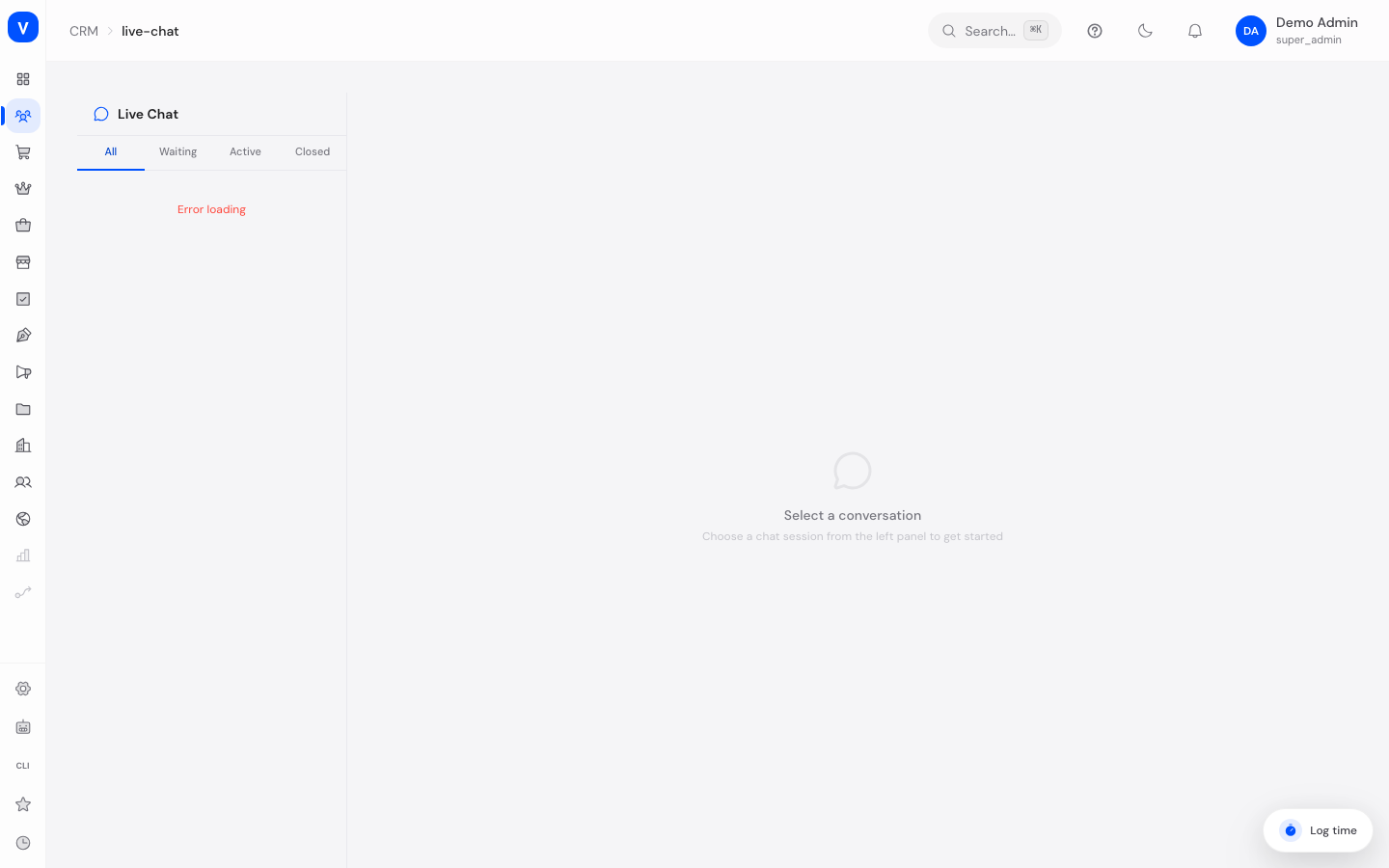
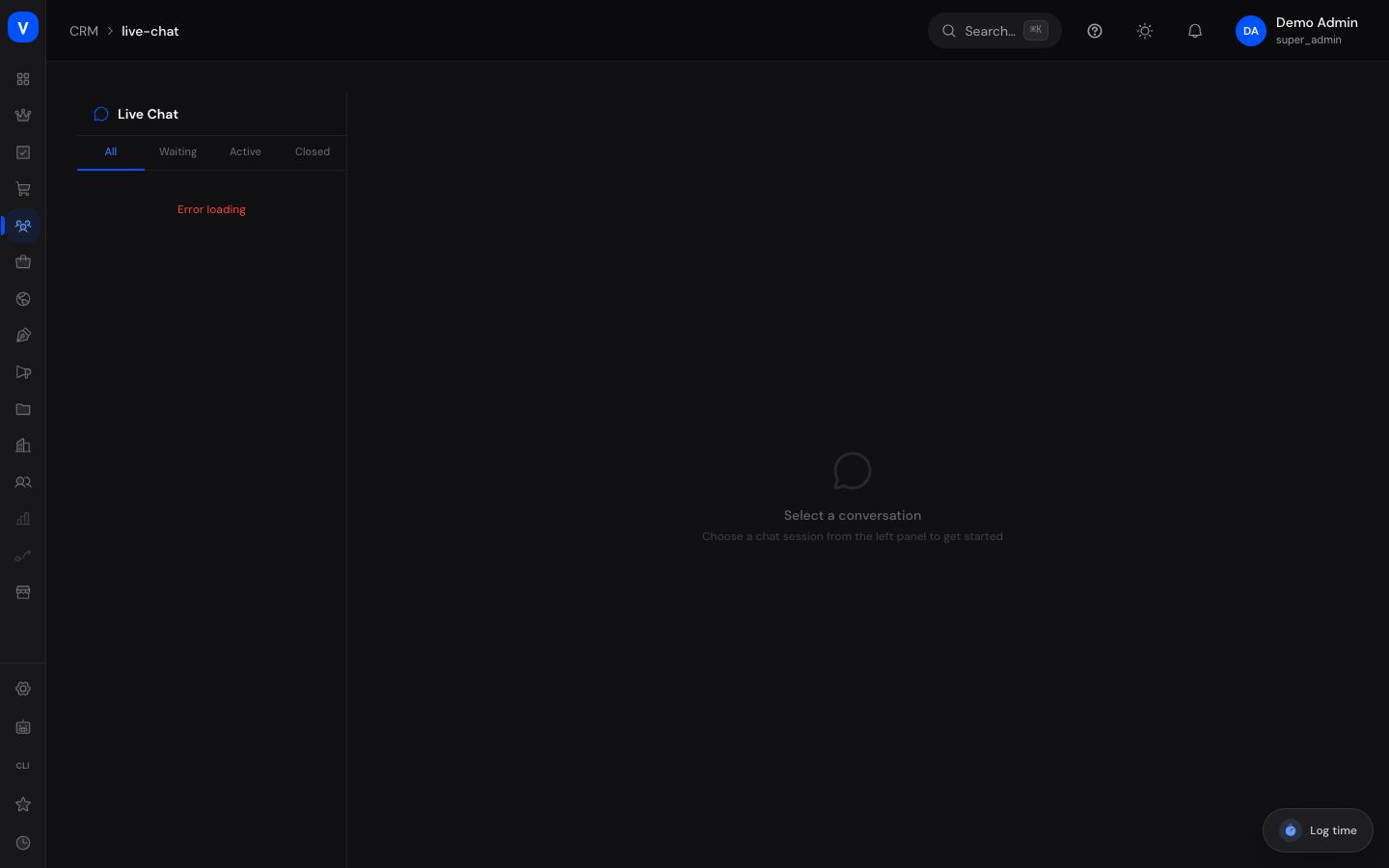
/crm/live-chatWhat can I do here?
- Filter all chat sessions by status (All / Waiting / Active / Closed)
- Pick up a waiting conversation and chat directly with the customer
- Send messages to the customer
- Assign a chat session to a specific agent
- Close a chat session
- Create a support ticket from a chat to follow up on the request
- View customer data, session details, and quick stats for the current conversation
Step by step
- Pick up a waiting chat: If at least one customer is in the queue, a yellow banner appears at the top. Click "Pick Up" to assign yourself the oldest waiting conversation.
- Send a message: Select a conversation from the list on the left, type your reply in the text box at the bottom, and press Enter (or click the send icon). Use Shift+Enter to insert a line break without sending.
- Assign a chat to an agent: Open the chat, enter the agent ID or name under "Assign Agent" in the right-hand info panel, and confirm.
- Create a ticket from a chat: Click "Create Ticket" in the chat window or in the right-hand info panel to continue the conversation as a regular support ticket (e.g. when the issue needs more time).
- Close a chat: Click "Close" or "Close Session" once the customer's issue is resolved.
/crm/live-chat/crm/live-chat- Customer
- A. Example
- Channel
- Live Chat
- Assigned To
- M. Sample
- Started At
- 17 Aug 2026, 10:02
- Duration
- 6 minutes
/crm/live-chatFields explained
| Field | Meaning | Notes/Effect |
|---|---|---|
| Customer | Name of the chat visitor | "Anonymous Visitor" if no name was given |
| Customer's email address (if known) | Stored encrypted; shown here decrypted for display | |
| Channel | Which channel the chat is conducted over | See value list below |
| Status | Current state of the chat session | See value list below |
| Started At | Timestamp the chat session began | — |
| Duration | How long the conversation has been running (or ran) | Updates continuously |
| Rating | Satisfaction rating the customer submitted (1–5) | Only shown if the customer rated the conversation |
| Assigned To | Support staff member currently responsible for this chat | — |
| Linked Ticket | Support ticket created from this chat | Created automatically as soon as a chat starts, and can additionally be linked/created manually |
| Messages (quick stats) | Total number of messages in the conversation | — |
| Unread | Number of unread messages in the session list | Shown as a red count badge |
Values & Status
Status (Chat Session)
| Value | Meaning | What happens |
|---|---|---|
| Waiting | Customer started the chat, but no agent has picked it up yet | Appears in the queue, can be assigned via "Pick Up" |
| Active | An agent is assigned and the conversation is ongoing | Messages can be sent in both directions |
| Closed | The conversation has ended | No new messages can be sent and no agent can be assigned anymore |
Channel
| Value | Meaning |
|---|---|
| Widget | Chat window embedded directly on your website |
| Conversation conducted over WhatsApp | |
| Messenger | Conversation conducted over a messenger service |
Sender Type (Message)
| Value | Meaning |
|---|---|
| Customer | Message written by the customer |
| Agent | Message written by a support staff member |
| Bot | Message generated automatically (e.g. by a chatbot) |
| System | Automatic system message (e.g. "Session closed") |
Frequently asked questions
Why do I see a yellow banner at the top of the page?
It means at least one customer is currently waiting in the chat queue and hasn't been assigned to an agent yet. Click "Pick Up" to take over the customer who has been waiting the longest.
Does the chat view refresh automatically?
Yes, the session list, statistics, and messages are automatically refreshed in the background at regular intervals — you usually don't need to manually reload the page.
What happens when I close a session?
The customer can no longer send new messages in that conversation, and no agent can be assigned anymore. The conversation remains visible for reference.
Is a ticket automatically created for every chat?
Yes, a linked support ticket is automatically created in the background when a chat starts. You can additionally use the "Create Ticket" button to generate a ticket containing the full chat transcript as its description, if one doesn't already exist.
Can I send files in the chat?
The attach-file button is present, but the feature is not yet available.
Where can I see how many customers are currently waiting?
Directly in the yellow banner at the top, as well as in the statistics footer of the session list under "Waiting".
Can anyone read someone else's chat transcript?
No. When a conversation starts, the chat window on your website receives a session proof that stays in that one browser. Without it, SELLERLOGIC answers no request about a conversation - not even for someone who knows the conversation's identifier. The proof is valid for that single conversation with that single tenant and expires after 24 hours.
Does the visitor have to sign in for this?
No. The chat stays sign-in free; the proof is issued and sent in the background, with nothing for the visitor to enter or confirm.
A visitor says her chat window stopped responding after the change - what now?
A chat window left open from before the change does not know about the proof. Reloading the page is enough: the window then starts a new conversation. The previous transcript stays fully visible to your team under CRM → Live Chat.