Vendors (Marketplace)
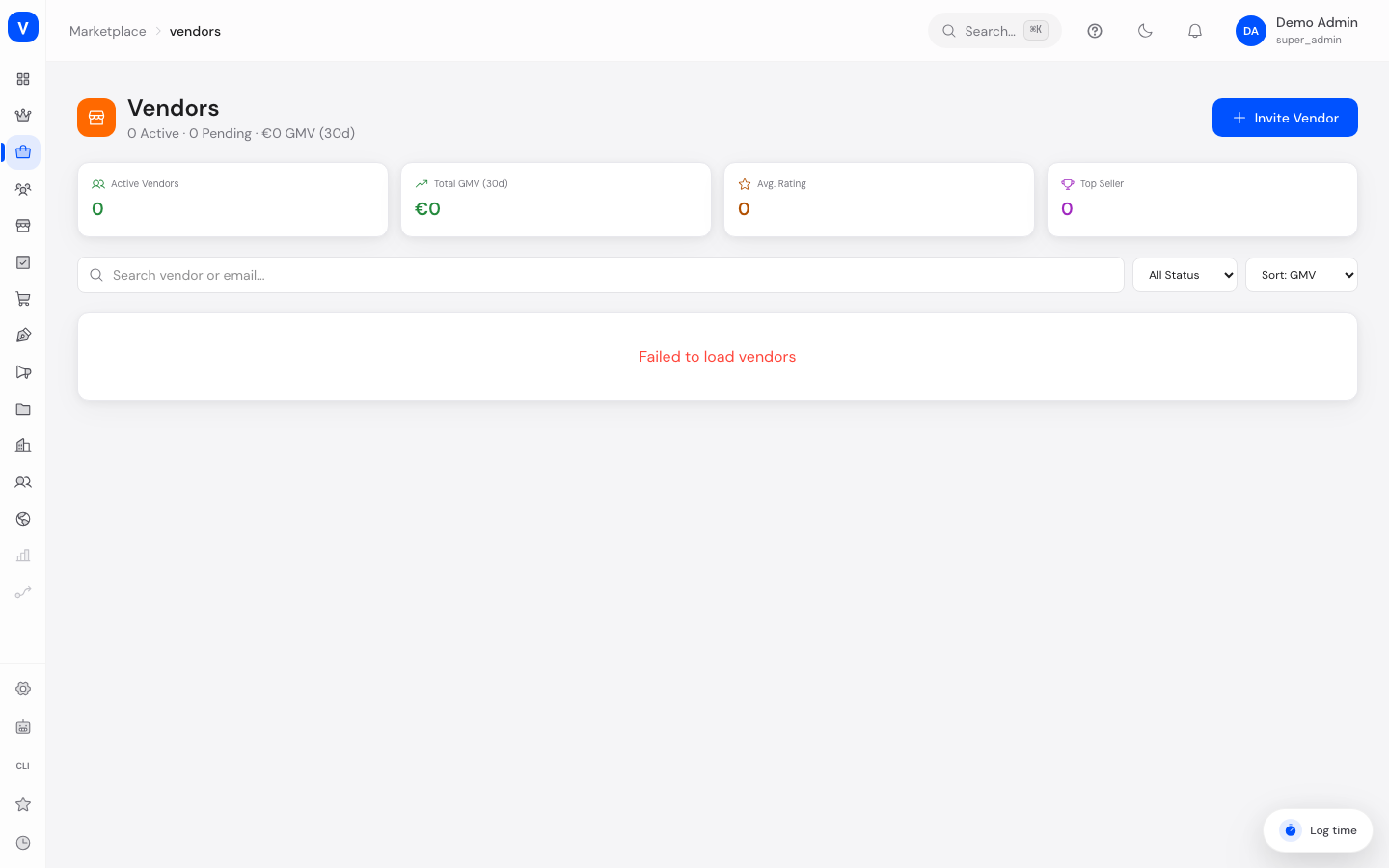
This is where you manage every vendor selling products on your marketplace. You see applications, active partners and their metrics, approve or reject new vendors, and invite new partners directly by email.
/marketplace/vendorsWhat can I do here?
- View all vendors with status, rating, listings, revenue, and other metrics
- Search by name or email and filter by status
- Sort by GMV, rating, name, or join date
- Approve or reject new vendor applications
- Suspend active vendors or reactivate suspended ones
- Create a new vendor directly via an email invitation
- Send an email to a vendor or open their detail view
Step by step
Review a vendor application
- Filter by status "Pending" at the top right, or click "Review" on the banner "X vendor applications pending review."
- Check the applicant's name, rating, planned listings, and fulfillment figures in the table.
- Click the green checkmark icon in the row to approve, or the red X icon to reject.
Suspend or reactivate a vendor
- Find the vendor in the list (search field or status filter "Active").
- Open "Suspend" from the row's action menu. The status immediately switches to "Suspended."
- To unlock a suspended vendor again, choose "Reactivate" in their row.
Invite a new vendor
- Click "Invite Vendor" at the top right.
- Enter Name, Email, the desired Commission (%), and optionally a personal message.
- Click "Send Invitation". The new vendor immediately appears in the list with status "Pending."
Fields explained
| Field | Meaning | Notes/Effect |
|---|---|---|
| Vendor | Vendor's name and email address | — |
| Status | Current approval status (see Values & Status) | Controls whether the vendor's listings can be visible |
| Rating | Vendor's average customer rating | Calculated from product reviews |
| Listings | Total number of the vendor's listings | Includes inactive listings too |
| GMV 30d | Gross merchandise volume over the last 30 days | Basis for commission calculation |
| Commission | Vendor's currently stored commission rate | Set at invitation time, adjustable later |
| Fulfillment | Share of orders fulfilled on time/successfully | Reliability indicator |
| Languages | Number of languages the vendor maintains listings in | — |
| Top Seller | Marker for especially successful vendors | Counted separately in the "Top Seller" KPI tile |
Values & Status
Vendor status (vendor_status)
| Label | Meaning | What happens then |
|---|---|---|
| Active | Vendor is approved and can sell | Listings can go live |
| Pending | Application submitted but not yet reviewed | Vendor cannot sell actively yet |
| Suspended | Vendor has been temporarily deactivated | The vendor's active listings are automatically paused |
| Rejected | Application was rejected | Vendor still appears in the list but cannot sell |
Frequently asked questions
What happens to the listings when I suspend a vendor?
All of that vendor's active listings are automatically set to "Paused" and are no longer visible to buyers.
Can I change an individual vendor's commission?
Yes, a vendor's individual commission rate can be adjusted independently of the general per-category commission rules.
Where do I see how much a vendor is still owed?
A vendor's running payout balance is tracked separately — the actual payout happens on the "Payouts" page.
What's the difference from the vendors under "Marketplace-as-a-Service"?
This page manages vendors and listings of the live SELLERLOGIC marketplace with real data. The related payout list under "Payouts" currently consists of sample data, though (see the note there), so it isn't connected to real revenue yet. The "Vendors" list under Marketplace-as-a-Service is a separate list for the operator platform. See Marketplace Overview.