Listings (Marketplace)
A listing is a single product offer from a vendor on your marketplace. Here you review and moderate new listings, pause or activate existing ones, mark top products as "Featured," and assign the Buy Box.
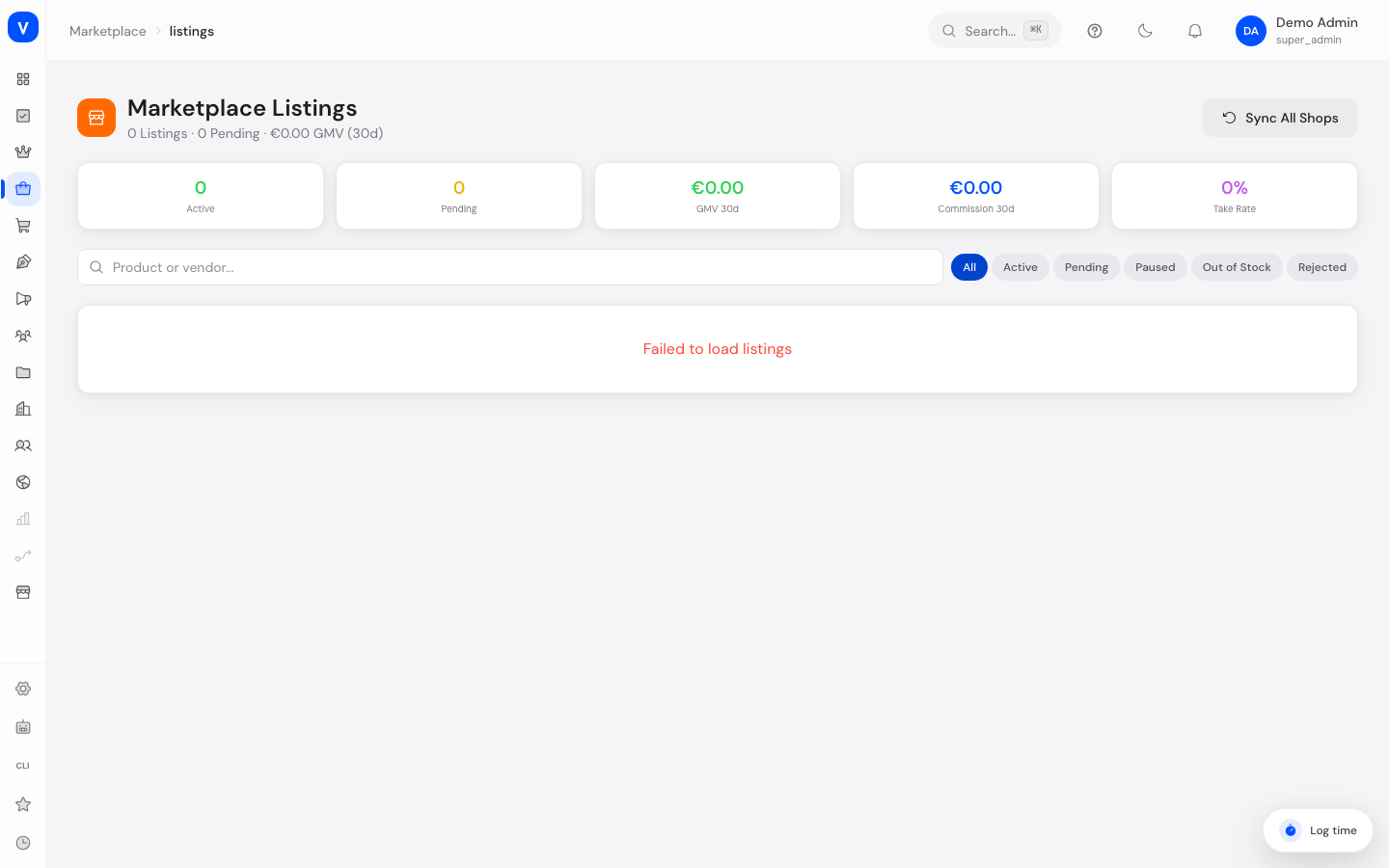
/marketplace/listingsWhat can I do here?
- View all listings with product name, vendor, category, price, stock, and status
- Search by product or vendor, filter by status and category
- Approve new listings or reject them with a stated reason
- Pause active listings or reactivate paused ones
- Mark/unmark a listing as "Featured"
- Assign or remove the Buy Box on a listing
- Sync listings from all active vendors' shops
Step by step
Approve or reject a new listing
- Filter by status "Pending" at the top, or click "Check Now" on the notice banner.
- Review the product images, description, and price in the row.
- Click the green checkmark to approve — the listing goes active immediately.
- Click the red X to reject: in the "Reject Listing" window, choose a rejection reason (e.g. "Poor product images," "Insufficient description," "Suspicious pricing"), optionally add details, and decide whether to notify the vendor by email.
Pause or reactivate a listing
- Find the listing in the list.
- Click "Pause" in the action menu — the listing disappears from the shop but remains in the system.
- To reactivate, click "Resume."
Sync all shops
- Click "Sync All Shops" at the top right.
- The platform refreshes listing data from all active vendor shops. The process shows "Syncing..." and then reports success or failure.
Fields explained
| Field | Meaning | Notes/Effect |
|---|---|---|
| Product | Name of the offered product | Imported from the vendor's shop |
| Vendor | Vendor offering the product | Links to the vendor list |
| Status | Approval status of the listing (see Values & Status) | Controls visibility in the shop |
| Price | Current selling price | — |
| Stock | Available quantity | At 0, the status switches to "Out of Stock" |
| Rating | Average product rating | From customer reviews |
| Revenue 30d | Revenue generated by this listing over the last 30 days | — |
| Comm. | Commission amount/rate for this listing | Derived from the category commission rule |
| Featured | Marker for a promoted product | Then also appears on the "Featured Products" page |
| Buy Box | Marker for whether this listing holds the Buy Box | Determines whose offer is shown first when several vendors sell the same product |
Values & Status
Listing status (listing_status)
| Label | Meaning | What happens then |
|---|---|---|
| Active | Listing is live and visible in the shop | Customers can buy the product |
| Pending | New listing is awaiting review | Not yet visible in the shop |
| Rejected | Listing was rejected during review | Vendor may receive a notification with the reason |
| Paused | Listing was manually deactivated | Temporarily hidden from the shop, can be reactivated |
| Out of Stock | Stock has dropped to 0 | Listing remains visible but cannot be ordered |
Frequently asked questions
What happens when I reject a listing?
The chosen rejection reason is saved and can be emailed to the vendor. The listing remains visible with status "Rejected" but is not available in the shop.
What does the Buy Box mean?
When several vendors offer the same product, the Buy Box determines whose offer customers see first. You can assign or remove it manually.
Why doesn't stock show for some listings?
Stock is imported from the linked vendor shop. If the link is missing, the value may show as 0 or blank — check the last sync in that case.
How are listings and Featured Products related?
A listing you mark "Featured" here automatically also appears on the "Featured Products" page, where you can schedule it.