Commissions (Marketplace)
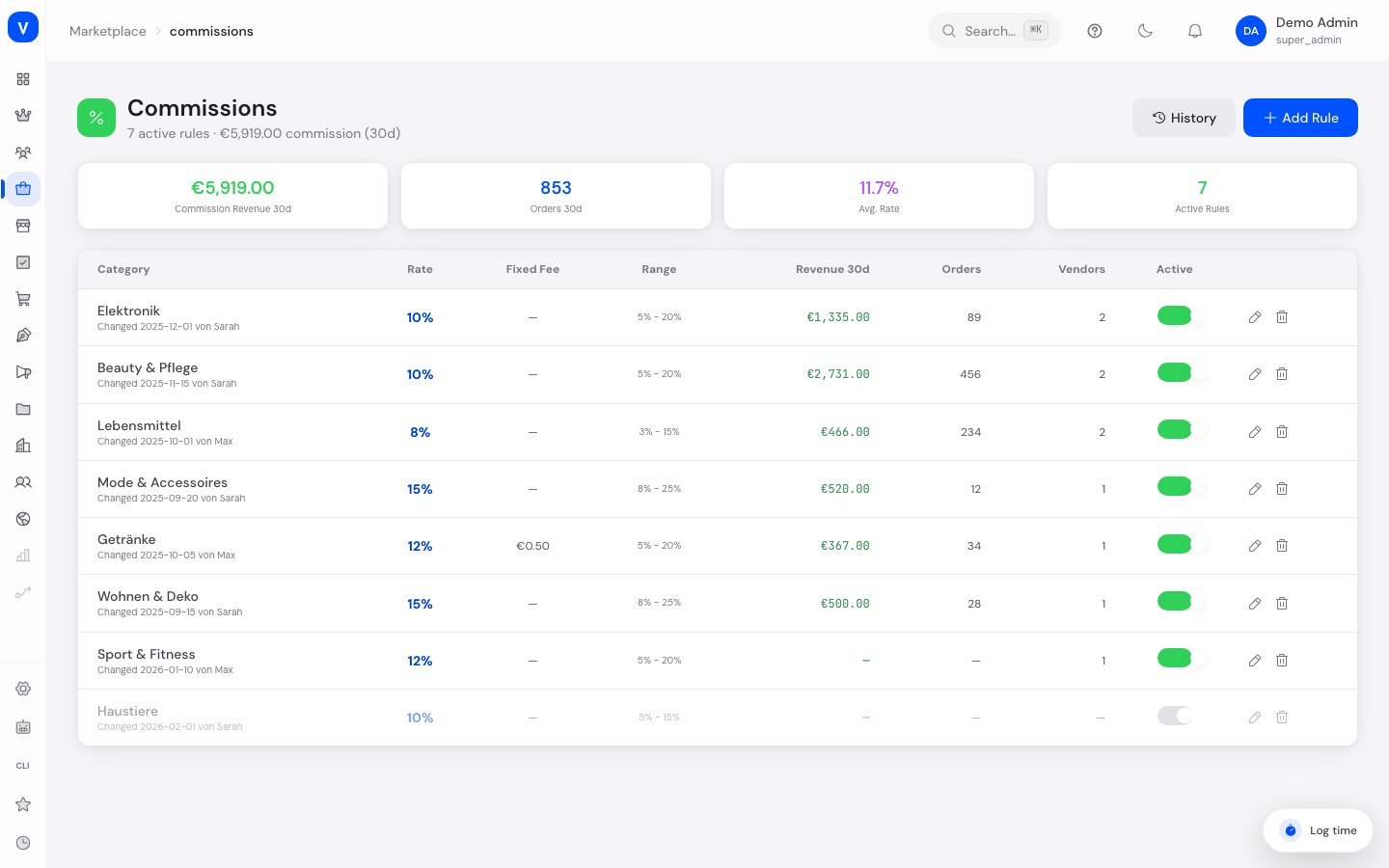
Commission rules define how much your marketplace earns per product category on each order. Here you maintain rates, fixed fees, and minimum/maximum values per category, and see how much revenue each rule has already generated.
/marketplace/commissionsWhat can I do here?
- View all commission rules with rate, fixed fee, range, and earned revenue
- Create a new commission rule for a category
- Edit existing rules (rate, fee, minimum/maximum)
- Activate/deactivate rules
- Delete rules
- View a rule's change history
Step by step
Create a new commission rule
- Click "Add Rule" at the top right.
- Select or type a Category.
- Enter Commission Rate (%), optionally a Fixed Fee (EUR), and Min. and Max. Rate (%).
- Turn on "Rule active" and click "Create." Very high rates trigger a warning that this may deter vendors.
Adjust a commission rule
- Open the rule via the edit icon in its row.
- Change the rate, fee, or minimum/maximum value.
- Click "Save." The change is logged (change history).
Deactivate or delete a commission rule
- Turn off "Active" in the row to temporarily suspend the rule without deleting it.
- To remove it permanently, open the rule and click "Delete Commission." Existing invoices remain unaffected.
Fields explained
| Field | Meaning | Notes/Effect |
|---|---|---|
| Category | Product category the rule applies to | One rule per category |
| Rate | Percentage commission rate | Applied to the order value |
| Fixed Fee | Additional flat amount per transaction | Added on top of the percentage commission |
| Range (Min./Max. Rate) | Allowed bandwidth for individual deviations | Limits how far individual vendor commissions may deviate |
| Revenue 30d | Commission revenue generated by this rule over the last 30 days | — |
| Orders 30d | Number of orders this rule was applied to | — |
| Vendors | Number of vendors subject to this rule | — |
| Active | Switch for whether the rule currently applies | Inactive rules are not applied to new orders |
| Changed | Date and name of the last person who made a change | For traceability |
Frequently asked questions
What happens to already-invoiced orders if I delete a rule?
Nothing — existing invoices remain unchanged. Deletion only affects future orders.
Why does a warning appear for high commission rates?
A very high rate can discourage vendors from selling in that category. The notice is informational only and doesn't prevent saving.
How is this different from the commission on the Categories page?
The commission rate on the Categories page is a simple default value per category. Here on the Commissions page you maintain detailed rules including a fixed fee, minimum/maximum, and history.