Social Media
Plan, publish, and analyze your posts on social media platforms like Instagram, Facebook, LinkedIn, and X — including an editorial calendar and engagement analytics.
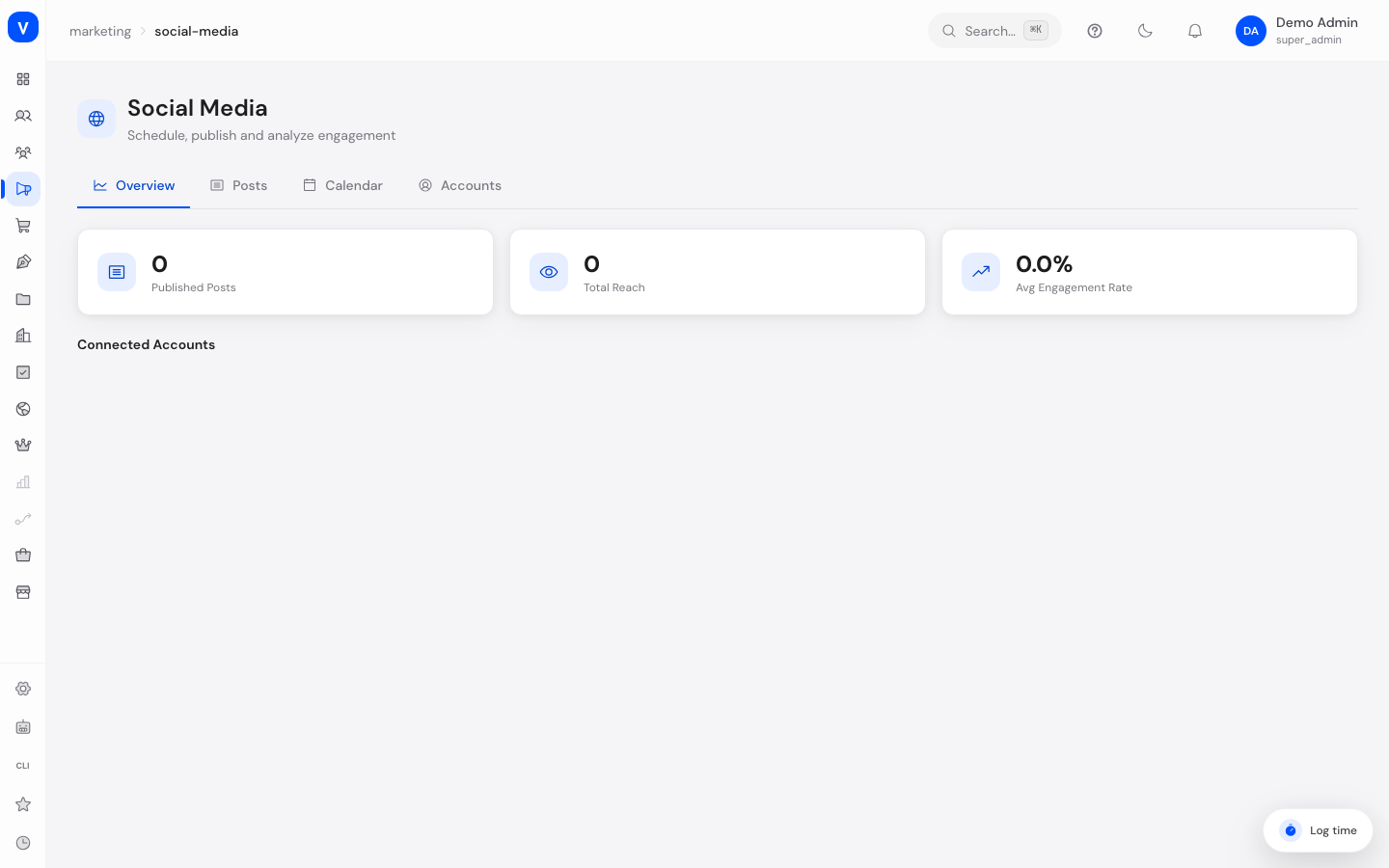
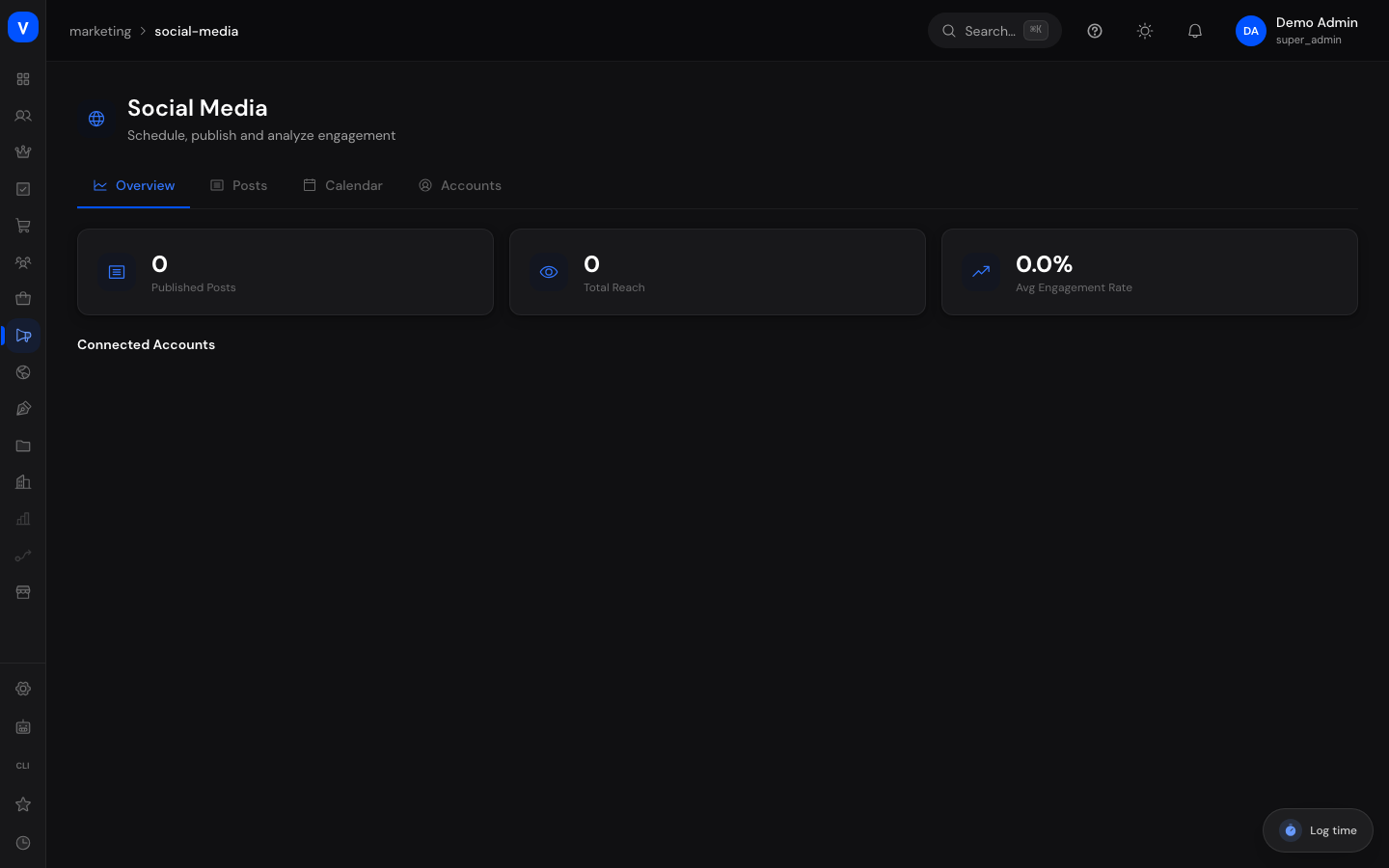
/marketing/social-mediaWhat can I do here?
- In the Overview tab, see how many posts have been published, total reach, and average engagement rate
- In the Posts tab, create new posts, filter by platform and status, and publish scheduled or draft posts
- In the Calendar tab, see which posts were published or are scheduled on which day
- In the Accounts tab, see the connection status of your social media accounts per platform
Step by step
- Open the "Posts" tab and click "Create Post".
- Choose the account, enter the content, select the post type (Text, Image, Video, Link), and optionally add media URLs.
- Optionally set a publish date to schedule the post — leave it blank to save it as a draft.
- Click "Create". Use the "Publish" button on a draft or scheduled post to trigger publishing manually. A confirmation appears first: a published post reaches the network and all of your followers, and cannot be pulled back out of its caches.
- Check the "Calendar" tab to see which day your posts appear on, and the "Overview" tab for engagement figures from the last 7 days.
Fields explained
| Field | Meaning | Notes/Effect |
|---|---|---|
| Published Posts | Number of posts already published | |
| Total Reach | Sum of impressions across all published posts | |
| Avg Engagement Rate | Average engagement rate across all published posts | |
| Followers | Number of followers/subscribers of the connected account | |
| Last Sync | Time of the last data refresh for this account | |
| Account | The social media account a post will be published through | |
| Content | The text of the post | |
| Post Type | Text, Image, Video, or Link | Determines which media fields are relevant |
| Media URLs | Comma-separated list of image/video URLs for the post | |
| Schedule (optional) | Date/time at which the post should be published | Leave blank to save as a draft |
| Reach (Impressions) / Likes / Comments / Shares / Clicks | Engagement metrics of a published post | Only visible for status "Published" |
| Engagement | Combined engagement rate of a single post |
Values & status
Post status
| Value | Meaning | What happens |
|---|---|---|
| Draft | Post is saved but neither scheduled nor published | Can be published manually at any time |
| Scheduled | Post has a publish date in the future | Publishes automatically at the scheduled time, or can be published manually beforehand |
| Published | Post is live on the platform | Engagement metrics are tracked |
| Failed | Publishing failed | Post can be retried |
Platform
| Value | Meaning |
|---|---|
| X / Twitter | |
| YouTube | |
| TikTok |
Account connection status (Accounts tab)
| Value | Meaning |
|---|---|
| Connected | Account is linked to SELLERLOGIC Commerce Services and ready to use |
| Not connected | This platform is not connected yet |
Frequently asked questions
Why can't I publish a post directly?
You need a connected and active account for the desired platform. Check the "Accounts" tab.
What happens to a scheduled post if I don't set a publish date?
Without a date, the post is saved as a draft and must be published manually.
Where do I see which day a post is set to appear?
In the "Calendar" tab — every day with scheduled or published posts shows a colored dot per platform.
Can I connect an account directly here?
The "Accounts" tab has a button to connect — the actual account linking happens through the respective platform.