Marketing Automations
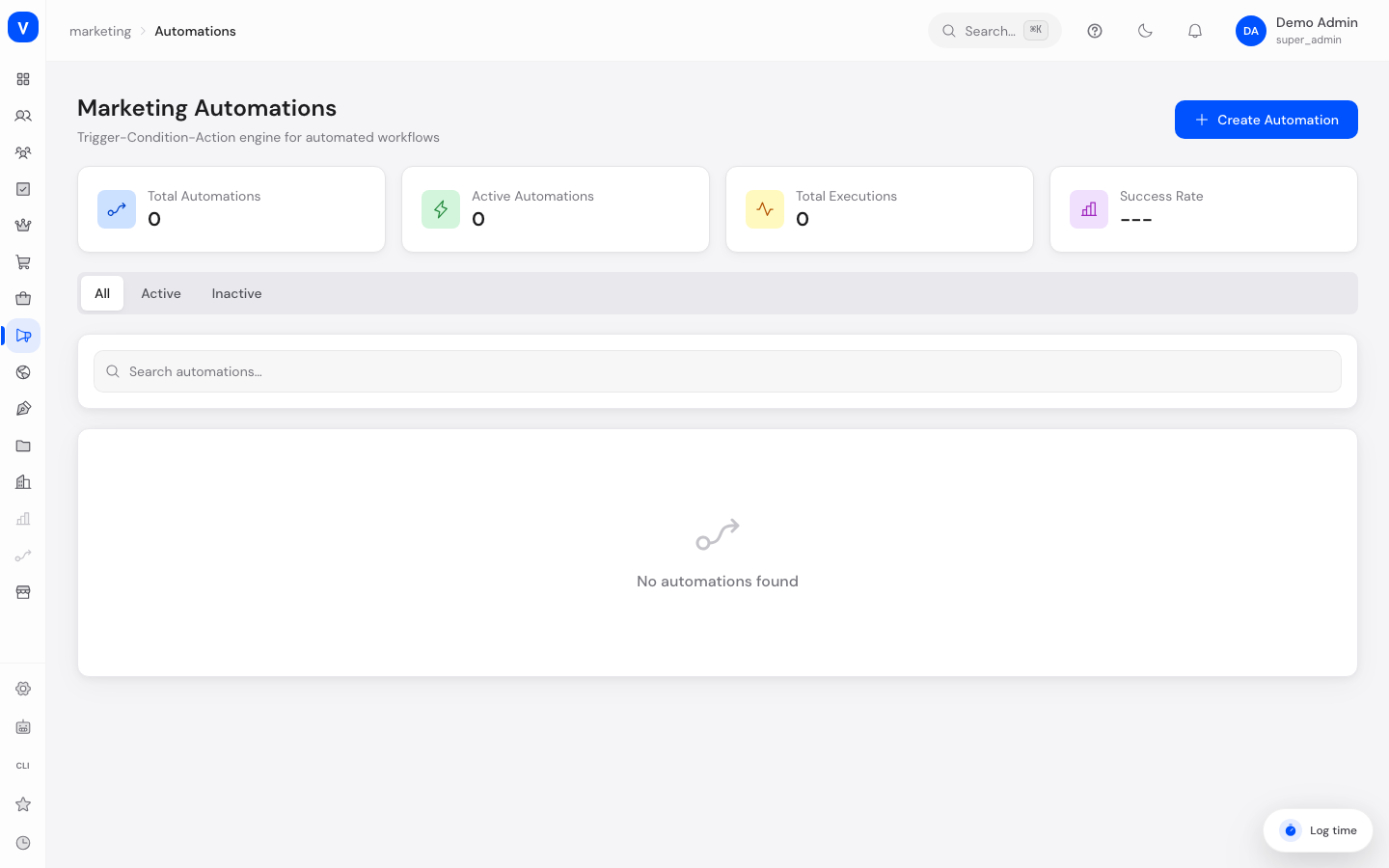
Marketing automations automatically carry out actions as soon as a specific event happens in your shop — for example, sending an email when a cart was abandoned, or adding a customer to a segment when they register.
/marketing/automationsWhat can I do here?
- Create automations that react to a triggering event
- Define conditions that must additionally be met for the automation to run
- Define one or more actions to run when triggered
- Activate/deactivate, test, edit, or delete automations
- View execution statistics (total, active automations, executions, success rate)
Step by step
- Click Create automation.
- General tab: Enter a name, optionally a description, a priority, and optionally an overall and per-customer execution limit as well as a validity period.
- Trigger tab: Select the triggering event (e.g. "Cart abandoned") and optionally a delay in minutes before the automation runs after the event.
- Conditions tab: Optionally define conditions (e.g. "total spent ≥ 100") that must additionally be met besides the trigger. Multiple conditions can be combined with AND/OR.
- Actions tab: Add one or more actions (e.g. "Send email") and fill in the corresponding fields.
- Save via Create automation. The automation is active by default afterward.
- Use the "..." menu at any time to test an automation (a dry run with no real effect), deactivate/activate, or delete it.
Fields explained
| Field | Meaning | Notes/Effect |
|---|---|---|
| Name | Name of the automation | Shown in the overview list |
| Description | Free text for further explanation | Informational only |
| Priority | Number controlling execution order when several automations match | Higher/lower values influence which automation applies first |
| Active | Toggle for whether the automation runs | Inactive automations are not executed |
| Max executions | Upper limit for how many times the automation may be triggered in total | Empty = unlimited |
| Max per customer | Upper limit for how many times the automation may be triggered per customer | Empty = unlimited |
| Valid from / Valid until | Period during which the automation is active | Outside this period, the automation is not triggered |
| Trigger event | Shop event that starts the automation | See list under "Values & status" |
| Delay (minutes) | Wait time between the event and the automation running | 0 = immediate execution |
| Match group (AND/OR) | Determines whether all or at least one condition must be met | Affects how strictly conditions are checked |
| Action type | Type of action to perform | See list under "Values & status" |
Values & status
Trigger events
| Value | Meaning |
|---|---|
| Checkout completed | A customer completed the checkout process |
| Order created | A new order was created |
| Order updated | An existing order was changed |
| Order cancelled | An order was cancelled |
| Customer registered | A new customer registered |
| Customer updated | Customer data was changed |
| Cart abandoned | A cart was left without completing a purchase |
| Cart created | A new cart was created |
| Cart updated | A cart was changed |
| Fulfillment shipped | An order was shipped |
| Return requested | A customer requested a return |
| Product created | A new product was created |
| Product updated | A product was changed |
| Product deleted | A product was deleted |
| Stock changed | A product's stock level changed |
Action types
| Value | Meaning |
|---|---|
| Send email | Sends an email based on a stored template |
| Send webhook | Sends the event data to an external webhook URL |
| Add tag | Adds a tag to the customer |
| Remove tag | Removes a tag from the customer |
| Add to segment | Adds the customer to a newsletter segment |
| Send notification | Generates an internal notification with a title and message |
| Wait | Pauses execution for a set number of minutes before subsequent actions run |
Automation status
| Value | Meaning | What happens |
|---|---|---|
| Active | Automation reacts to its trigger event | When the event occurs (and conditions are met), the actions run |
| Inactive | Automation is paused | No actions are triggered, even if the event occurs |
Frequently asked questions
What happens if I don't set any conditions?
Then the automation runs every time the triggering event occurs, with no further checks.
How can I test an automation without real customers noticing anything?
Use the Test function in the "..." menu. It checks whether the conditions are met and which actions would run, without actually sending them.
What does priority do when several automations match the same event?
Priority controls the order in which several matching automations are processed.
What is the delay useful for?
With a delay, you can, for example, send a "Cart abandoned" reminder email only after a few minutes or hours instead of reacting immediately.