Google Shopping Feed
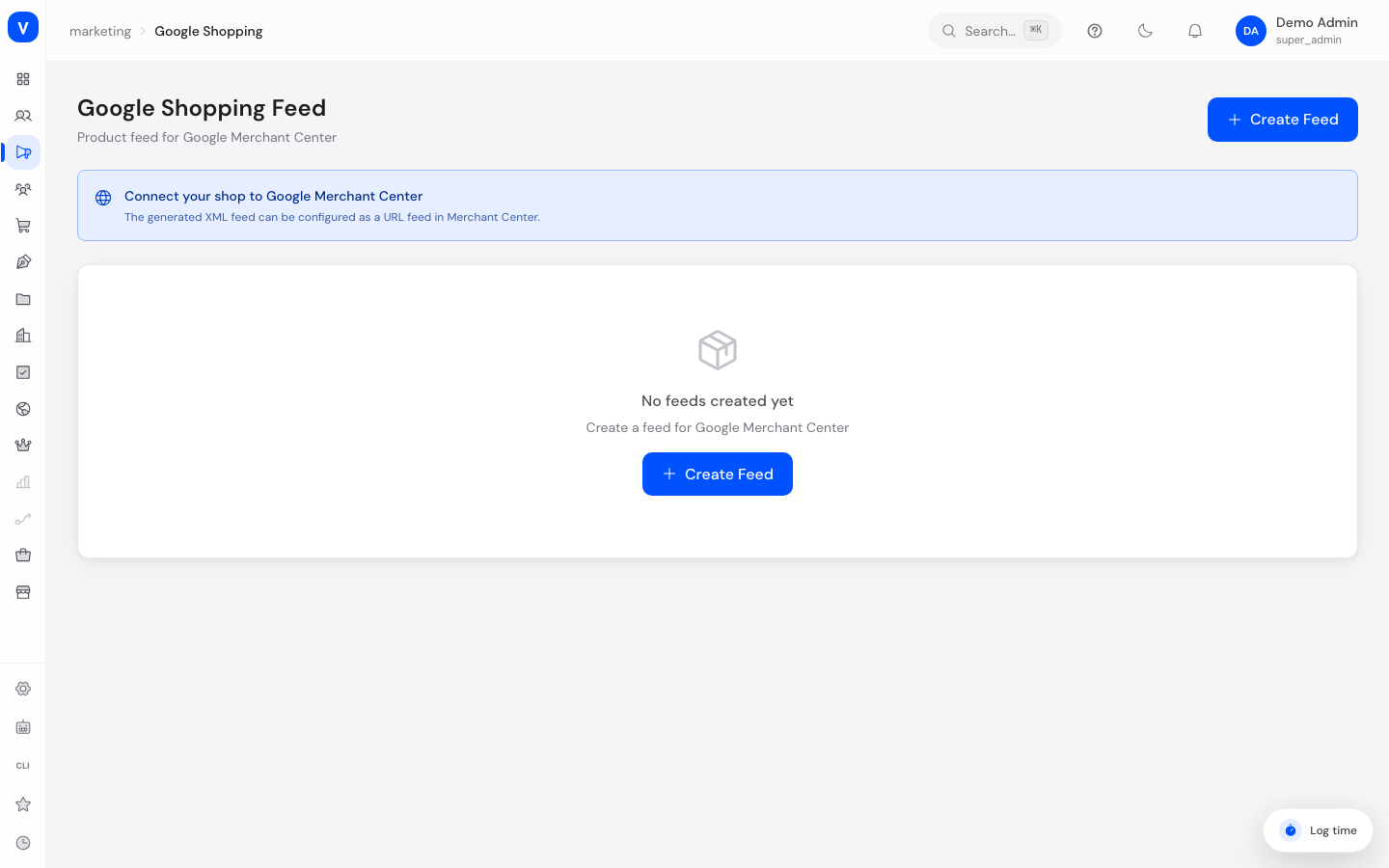
Here you make your products available for Google Shopping. SELLERLOGIC Commerce Services turns them into a product data file (XML feed) that you add to Google Merchant Center — after that, your products appear in Google Shopping search results and Shopping ads.
/marketing/google-shoppingWhat can I do here?
- Create one or more feeds for different countries/languages
- Edit feed settings (country, language, currency, default brand, shop URL)
- Maintain category mappings between your shop categories and Google product categories
- Regenerate the feed manually
- Download the finished XML feed to add it to Google Merchant Center
- Activate/deactivate or delete feeds
Step by step
- Click Create feed. SCS creates a new feed with a default name.
- Open Feed settings via the gear icon and enter target country, language, currency, default brand, and your shop URL. Save the settings.
- Optional: under Category mappings, map individual shop categories to the matching Google product categories so Google files your products correctly.
- Click Generate so SCS writes the current product list into the feed.
- Download the feed via the XML button, or add the feed URL directly in Google Merchant Center.
Fields explained
| Field | Meaning | Notes/Effect |
|---|---|---|
| Feed name | Internal name to recognize the feed | Only visible to you, does not appear on Google |
| Active | Toggle for whether the feed is actively used | Inactive feeds are still stored but no longer highlighted in everyday use |
| Target country | Country the feed is intended for (2-letter country code, e.g. DE) | Must match the country you set for this feed in Merchant Center |
| Language | Language code of the feed content (e.g. de) | Should match the shop language of the target market |
| Currency | Currency code (e.g. EUR) | Determines which currency prices are output in within the feed |
| Default brand | Brand name used when a product has no brand of its own | Helps satisfy Google's required "brand" field |
| Shop URL | Base URL of your shop | Used to build product links in the feed |
| Default Google category | Google product category used when no specific mapping exists | Only applies when no category mapping exists for the product category |
| Include out-of-stock products | Toggle for whether products without stock still appear in the feed | When enabled, Google may show the products as "out of stock" instead of hiding them entirely |
| Category ID / Google category | Mapping of one shop category to a Google product category | Overrides the default Google category for that category |
| Products | Number of products in the most recently generated feed | Only updates after the next "Generate" |
| Last generated | Timestamp of the last feed generation | Shows how current the data in the feed is |
Values & status
Feed status
| Value | Meaning | What happens |
|---|---|---|
| Active | The feed is maintained on an ongoing basis and intended for use in Merchant Center | Feed card shows a green status |
| Inactive | The feed is not currently in use | Feed card shows a neutral status; the feed remains stored and can be reactivated at any time |
Frequently asked questions
Why don't I see my products in Google Shopping yet?
After you generate the feed and add the feed URL to Google Merchant Center, Google reviews the data. Depending on Google, this can take some time before products appear in search results.
What happens if I don't enable "Include out-of-stock products"?
Then products without stock don't appear in the feed at all, and consequently won't show up on Google either.
Do I need a separate feed for every country?
Yes — if you serve multiple countries with different languages or currencies, it's best to create a separate feed for each country with the matching target country/language/currency.
What are category mappings for?
Google requires a matching product category for every product. Category mappings let you define which Google category belongs to which of your shop categories, instead of maintaining a category for every product individually.