Campaign Builder
With the Campaign Builder you design email campaigns using building blocks: you drag ready-made blocks (header, text, image, button, product, divider, social links, spacer, footer, columns) into your email and customize them individually.
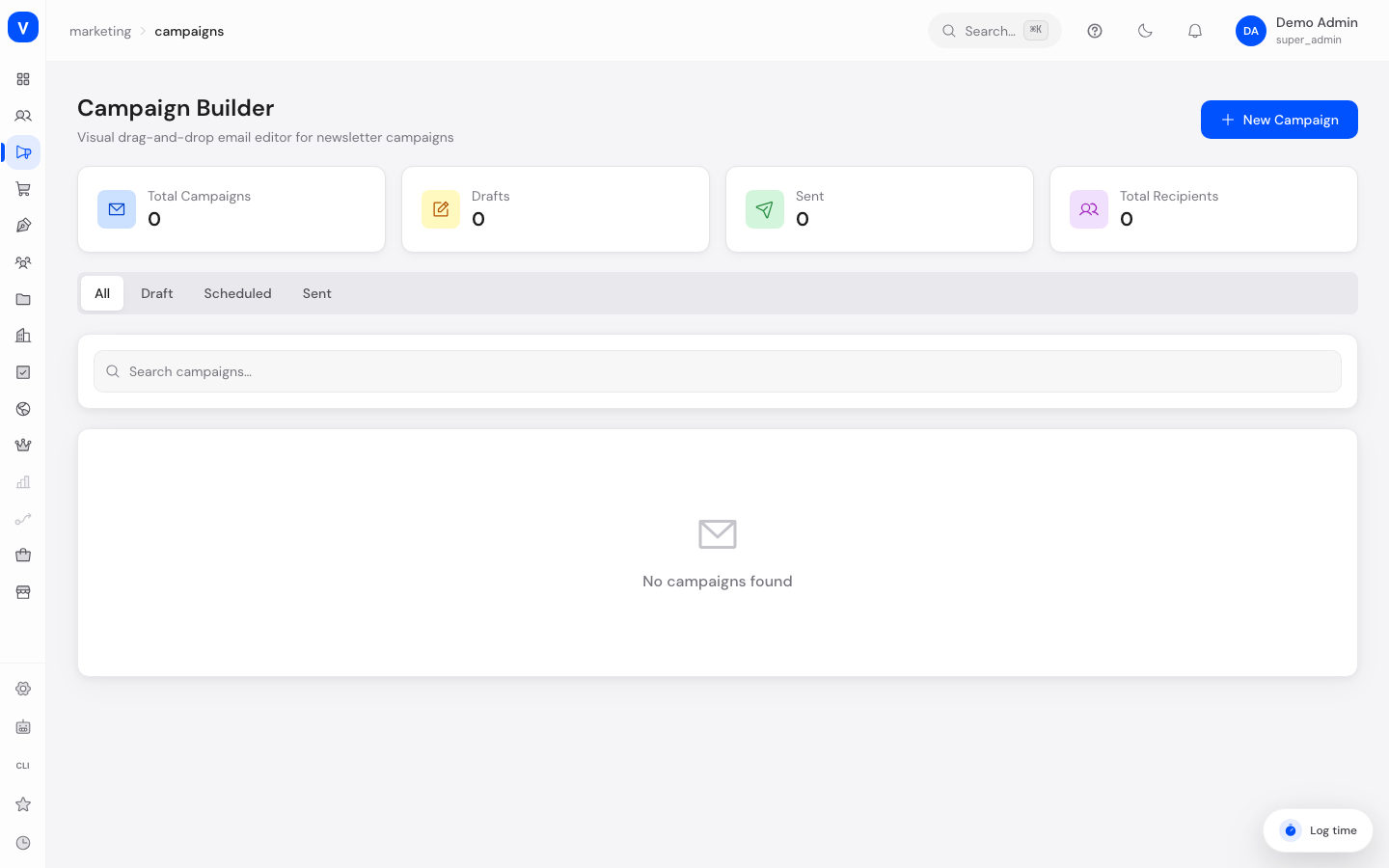
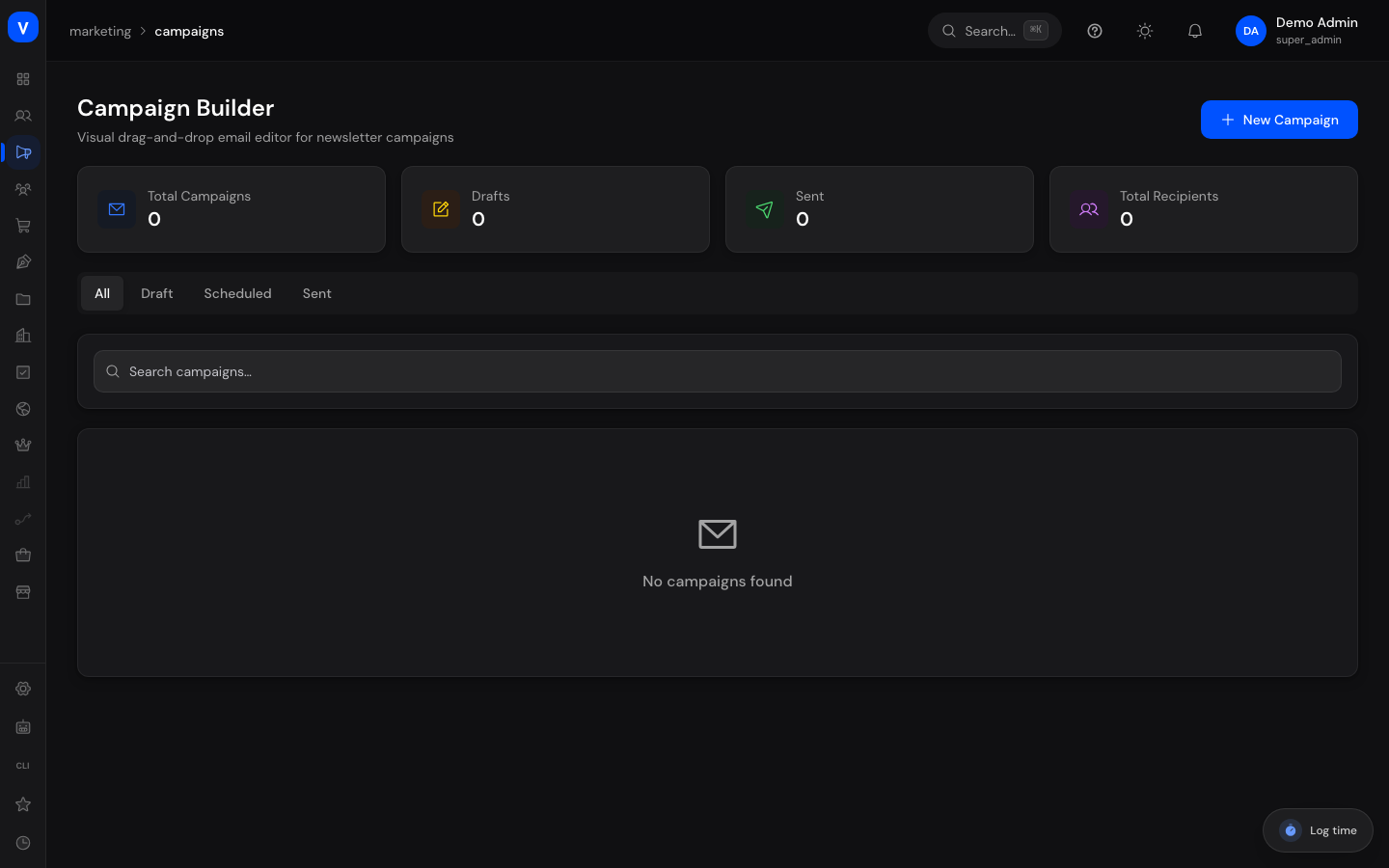
/marketing/campaignsWhat can I do here?
- Create new campaigns (name, subject, preview text, sender name, sender email)
- Design a campaign in the visual editor using the block palette
- Duplicate, delete, send, or send campaigns immediately
- Filter by status and search campaigns
- View metrics for campaigns, drafts, sent campaigns, and recipients
Step by step
- Click New campaign and enter the campaign name and subject (required fields), optionally preview text, sender name, and sender email.
- After creation, the editor opens automatically. Drag blocks from the palette (header, text, image, button, product, divider, social links, spacer, footer, columns) into your email.
- Select a block to adjust its properties (e.g. title, content, background color, text color, alignment, image URL, link URL) in the properties panel.
- Save your changes and return to the campaign overview via Back to list.
- In the list, use the "..." menu to click Send (for drafts) or Send now (for scheduled campaigns) to send the campaign.
Fields explained
| Field | Meaning | Notes/Effect |
|---|---|---|
| Campaign name | Internal name of the campaign | For your own overview only |
| Subject | Subject line of the sent email | Shown in the recipient's inbox |
| Preview text | Short preview text in the inbox | Appears next to the subject |
| Sender name | Displayed sender | Appears as the sender in the inbox |
| Sender email | Sender address of the campaign | Must be a valid, approved address |
| Recipients | Number of recipients of a campaign | Determined at send time |
| Open rate | Share of delivered emails that were opened | Calculated from delivered and opened emails |
Values & status
Campaign status
| Value | Meaning | What happens |
|---|---|---|
| Draft | Campaign is currently being created/edited | Can still be edited in the editor; can be sent via "Send" |
| Scheduled | Sending is planned for a later time | Can be triggered immediately via "Send now" |
| Sending | Sending is in progress | Campaign is in the middle of the send process |
| Sent | Campaign has been fully sent | Open rate and other metrics are available |
| Paused | Sending has been halted | Campaign can be edited further if needed |
Block types in the editor
| Value | Meaning |
|---|---|
| Header | Header area of the email (e.g. logo, title) |
| Text | Free text block |
| Image | Embedded image |
| Button | Clickable call-to-action button |
| Product | Block for displaying a product |
| Divider | Visual separator between sections |
| Social links | Links to social media profiles |
| Spacer | Empty space for visual structure |
| Footer | Footer area of the email (e.g. required disclosures, unsubscribe link) |
| Columns | Multi-column arrangement of content |
Frequently asked questions
What's the difference between the Campaign Builder and the Newsletter area?
The Campaign Builder is the visual block editor for designing the email layout of a single campaign. In the Newsletter area you additionally manage recipient segments and templates, and create campaigns via a guided wizard.
Can I still edit a campaign that has already been sent?
Use the "..." menu to duplicate a campaign to get an editable copy as a new draft.
How do I send a scheduled campaign immediately?
Open the campaign's "..." menu and select Send now.