Appointment Booking — Settings
This is where you set up the foundations of your appointment-booking feature: which products and appointment types are bookable, which staff and teams are available, which languages are offered, and which days (holidays) block bookings entirely.
You reach the configuration under Appointment Booking → Configuration. Every section has its own, meaningful address (for example …/appointments/configuration/staff for the staff members); search, page and sort within a section still live in the address, so a copied link shows the same view. Older bookmarks pointing at ?tab=… redirect to the new address automatically. The default section on opening is Appointment types - that is where setup begins.
The guided start
Above the tabs sits a checklist with the three steps without which your public booking page cannot offer anything:
- Create an appointment type - what can be booked, for example an initial consultation of 30 minutes.
- Add a staff member with working hours - the person who takes appointments and their working hours.
- Share your booking page - hand the address to your customers.
The order is not a suggestion but a dependency: only once an active appointment type and at least one staff member with working hours exist does your booking page show any free slots. A staff member without working hours effectively does not exist for the booking page - neither a language nor a free slot will appear. The checklist flags exactly that case as a warning instead of showing the step as done. Every open step has a button that takes you to the right place; the progress bar shows how many of the three steps are complete.
Sharing your booking page
Below the checklist sits the Your booking page card with the full address your customers book at - your workspace address plus /termine, or your own custom domain accordingly. You can
- put it on the clipboard with Copy address (for newsletters, email signatures or business cards),
- view it exactly as customers see it with Open,
- show it right here on the page with Preview.
It is the same address that appears in your appointment emails and in the embed code - there is only this one. If no workspace address is on file for your tenant yet, the card shows the way to the domain settings instead of a dead link. As long as the page offers no slots, the note sits right next to the link. How to embed the same page into your own website is described under Embed your booking page.
/appointments/configuration/types- This is the address you give to customers - in newsletters, email signatures or on business cards.
- https://example.invalid/termine
/appointments/configuration/typesWhat can I do here?
- Configure appointment types (kind, duration, buffer times, lead times)
- Pick bookable staff from your existing personnel records - or create a missing person in staff management directly from the dialog
- Give bookable staff a language, timezone, working hours, and a daily appointment limit
- Adopt teams from the personnel area and give them a shared working-hours template
- Add booking languages from your existing language set - without at least one language nobody can book an appointment
- Create or import holidays that block all booking slots
- Assign booking teams a calendar from your connected Google account whose appointments block the team's booking times
- Take approved leave, the holidays of a person's country, and their Google appointments as busy time automatically, via the bookable person's personnel record
- Copy, open and preview the address of your public booking page
Step by step
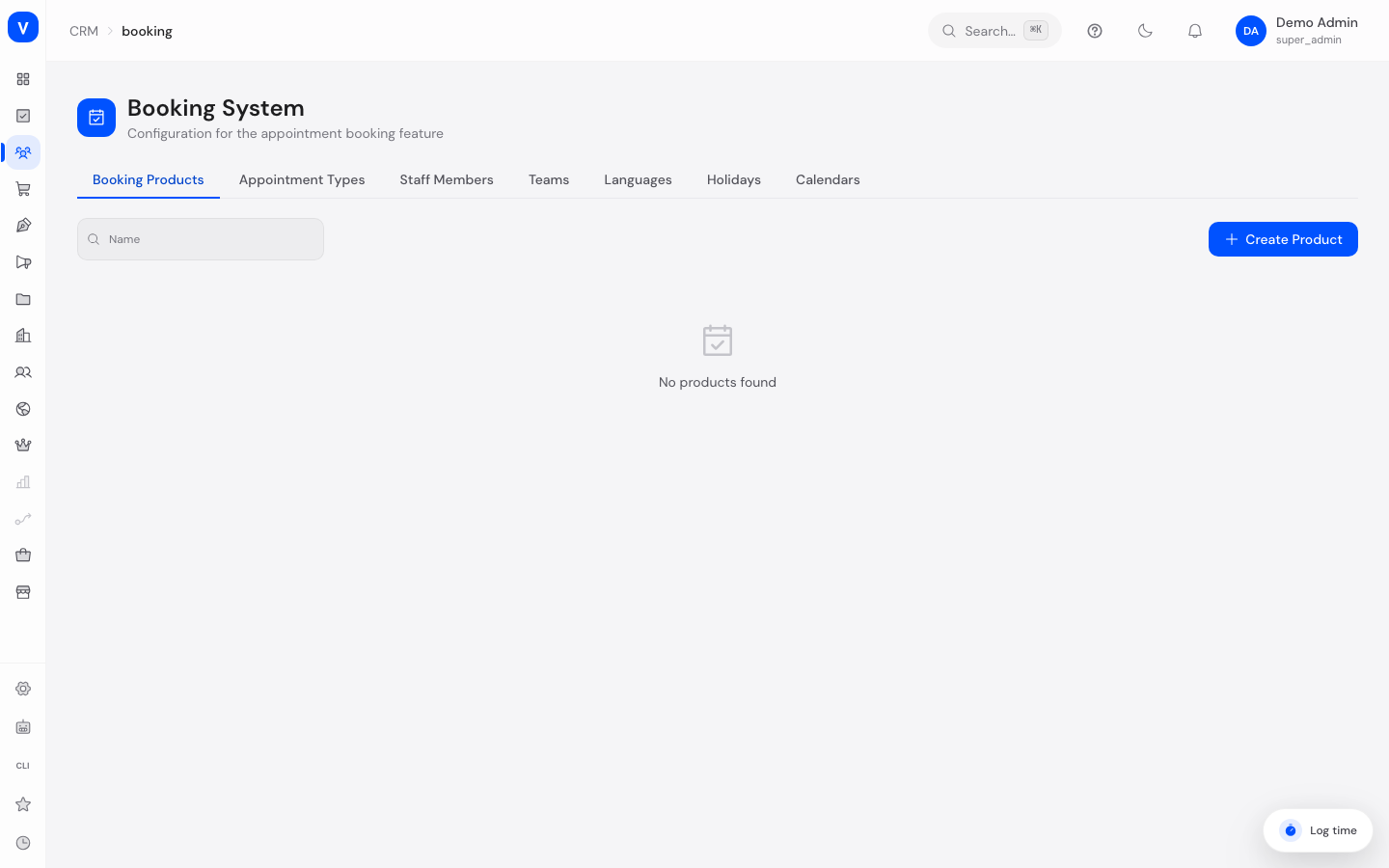
- Open Appointment Booking and work through the checklist at the top of the page. The tabs switch between Appointment Types, Staff, Teams, Languages, Holidays, Calendars, and Booking Products.
- Start in the Appointment Types tab and create the bookable services with duration, buffer, and lead times.
- In the Staff tab, use Person from staff management to pick the person who should take appointments. Their name and email address then come from the personnel record, so you do not type either again. Add languages, timezone, and working hours afterwards.
- If the person is not listed, create them with Create a new person straight from the dialog. The record is created in staff management and is then available across the whole system - so no second, appointments-only list appears. The button is shown only if you are allowed to manage personnel.
- If there is no personnel record for the person - an external consultant, say - leave the picker on Keep without a personnel record and enter name and email by hand as before.
- Optionally group staff in the Teams tab. There, use Team from staff management to adopt a team already maintained in the personnel area instead of creating it a second time. In the Calendars tab, assign each team a calendar. The list offers the calendars of your connected Google account - you pick them by name, you never have to type a calendar ID anywhere. Appointments from that calendar then block the booking times of every team member.
- In the Languages tab, check which languages appointments are offered in. German and English are there from the start, so there is nothing to add. To offer a further language, pick it from a searchable dropdown - nothing is typed in any more. Open the field, type a language name or code, and the list filters to the matching entries right away. The list offers exactly the language set you maintain under Settings → Languages; languages that are already active are marked as such and cannot be added a second time.
- In the Holidays tab, maintain the days on which no booking is possible at all - either one at a time or via import by country and year. Holidays and the personnel calendar now share the same data: what you add or import here also appears in the personnel area under Holiday calendar, and vice versa. For Appointment Booking, only your company's own country (from the workspace settings) counts - a holiday in another country does not close your booking flow. For people with a personnel record, the holidays of their own country are added automatically on top, day by day and independent of the company's country.
/appointments/appointmentsFields explained
| Field | Meaning | Notes/Effect |
|---|---|---|
| Name (Product) | Name of the product group | Used to organize appointment types |
| Name (Appointment Type) | Name of the bookable service | Shown to the customer in the booking widget |
| Durations (minutes) | Available appointment lengths | The customer picks one of these durations when booking |
| Buffer time (min.) | Gap between two appointments for the same staff member | Prevents back-to-back appointments with no break |
| Minimum lead time (hrs.) | How last-minute a booking can be made | Bookings within this window are not possible |
| Max. advance booking (days) | How far in advance a booking can be made | Prevents bookings far in the future |
| Linked products | Product groups the appointment type belongs to | Controls which widgets show the appointment type |
| Person from staff management | The person from your personnel records this appointment calendar belongs to | Only active people are offered; those who have left do not appear. Name and email then come from the personnel record and follow every change made there. A person can only hold one appointment calendar; entries already claimed are greyed out. With the picker on Keep without a personnel record, you enter name and email yourself as before. The selection also governs availability: approved leave, the holidays of that person's country, and their Google appointments block the booking times automatically |
| Name (Staff) | Display name in lists, emails, and reports | Read-only once a person is selected - change the name in the personnel record, not here |
| Email (Staff) | Staff member's contact email | Serves as the contact address in the admin area and as a criterion in the email rules. SCS sends no calendar invites to it. With a person selected it comes from the personnel record |
| Team from staff management | The personnel-area team this appointment team represents | The team name then comes from there. A personnel team can only be adopted once |
| Google Calendar ID | Identifier of this staff member's Google calendar | Filled automatically with the person's address during the Google Workspace sync. The field has no effect on availability - busy times from Google arrive either via Person from staff management or via the team's calendar |
| Daily appointment limit | Maximum appointments per day for this staff member | Prevents overbooking |
| Team | Assigned team | Used for shared working-hours templates |
| Timezone | Timezone of the staff member or team | Important for cross-timezone bookings. When you change a team's working hours, every team member automatically takes on the team's timezone too - a "09:00-17:00" template then means the same absolute time for every member, regardless of whatever timezone was previously set on that staff member individually |
| Calendar (Team) | The calendar the booking team works on | Picked from the calendars of your connected Google account. The assignment is stored and documents who works on which calendar; events in that calendar additionally block the booking times of every team member |
| Linked user/employee | The user account this bookable staff member belongs to | Only with this link does the person see their appointments under My Bookings. Without it, that page stays permanently empty for them. Entries already claimed elsewhere cannot be selected |
| Languages | Languages the staff member offers | The choices are the booking languages from the Languages tab. If none has been added yet, a hint pointing you to the Languages tab appears instead of a blank area |
| Working hours | Weekday + start/end time | Defines when the staff member is generally bookable |
| Code (Language) | Language code from your language set, in lower case - for example de or en, with a hyphen for regional variants (pt-br) |
Picked when you add the language, never typed. It is fixed afterwards: the code is what links the booking language to your language set |
| Name (Language) | Display name of the language | Comes from your language set when you add it and stays editable |
| Active (Language) | Whether the language is offered when booking | If no language is active, nobody can book an appointment |
| Name (Holiday) | Name of the holiday | - |
| Date (Holiday) | Calendar day of the holiday | No bookings are possible on that day |
| Country (Holiday) | Country of the holiday | Required when creating, fixed afterwards - a country change is a different holiday, not an update |
| Region (Holiday) | State/region, if the holiday doesn't apply nationwide | Picked from a list, never typed - avoids duplicates from different spellings of the same region |
| Nationwide | Whether the holiday applies to the whole country | Otherwise it only applies to the specified region |
Frequently asked questions
In what order should I configure these settings?
Recommended order: appointment types first, then staff, then optionally teams and the calendar assignment, and finally languages and holidays. Languages already come with German and English, so you only open that tab if you want to offer another language or switch one off.
Where do the booking languages come from?
From your own language set: the languages you maintain under Settings → Languages. There is no separate list to keep up to date any more. That is why the Languages tab lets you pick a language instead of typing a code - so code and name always match the rest of the system.
Do I have to add the languages by hand after the change?
No. Existing tenants had their languages carried over automatically, and newly created tenants start with their language set as well. If nothing was there, German and English are ready to use. Your existing bookable staff were also assigned the default language once - without that assignment no appointment would have been bookable even with the languages in place. If someone offers several languages, add them on the Staff tab; assignments that were already set were left untouched. Nothing needs to be done by hand.
Why can nobody book, even though appointment types and staff exist?
Every appointment is booked in a specific language, so without a booking language there is no bookable slot, no matter how complete the rest of the setup is. Your public booking page then says that no appointments are currently offered. In that case check the Languages tab: at least one language must exist and be set to Active, and at least one bookable staff member with working hours must offer it.
I want to offer a language that is not in the list.
Add it under Settings → Languages first. It is then available to add on the Languages tab. If nothing is left to pick, you have already added every language of your tenant.
Can I change the code of a language I have added?
No. The code is the link to your language set and stays fixed. The Name and the Active switch can be changed at any time.
I deleted a staff member by mistake - are they gone?
No. The bin icon in the Staff tab does not delete the entry for good, it sets it inactive. Tick Show deleted and it reappears dimmed in the list; the back arrow next to it restores the entry. Appointments already booked with that person are kept either way.
What is the Booking Products tab for?
Booking products were meant to group appointment types. They currently have no effect on your public booking page: the page reads appointment types only. Whatever you create there changes nothing for your customers - the tab says so explicitly at its top, which is also why it sits at the end of the tab bar. Wiring them to appointment types is scheduled as separate work. Start your setup in the Appointment types tab.
Where do I find the address of my booking page?
In the Your booking page card at the top of the setup. From there you copy it, open it, or show it in the preview. It is the same address that appears in your appointment emails and in the embed code: your workspace address plus /termine.
The card says no workspace address is on file. What do I do?
Then the address cannot be built, because the booking page lives on your workspace address. Configure it in the domain settings; the card links straight there. An invented link would be worse than none, so SCS deliberately shows none here.
The checklist does not tick off the staff step although staff members exist.
Then none of those staff members has working hours. Without working hours a staff member does not exist for the booking page - neither a language nor a free slot appears there. Open the staff member in the Staff tab and enter weekday and from/to times under Working hours.
What happens if I deactivate an appointment type instead of deleting it?
Deactivated appointment types no longer appear in booking widgets, but existing bookings that used them are preserved.
How do I import holidays for a whole country?
Use the import feature on the Holidays tab: enter the country (ISO code) and year - all nationwide and regional holidays for that country are added automatically. The same import also runs in the background for the personnel area, including a cross-check against a second official source; a holiday that already exists is never added twice.
What's the calendar assignment on the Calendars tab for?
It records which calendar a booking team works on. You pick the calendar by name from a list SCS fetches from your connected Google account. When availability is checked, the appointments of that calendar's members count as busy time for every member of the team. Only "busy from-to" is evaluated; titles, locations, and attendees are never read and never appear anywhere in the public booking flow.
How do I link a calendar that already exists in Google?
On the Calendars tab, open Add calendar and pick the calendar you want from the list. Calendars that are already linked are marked and cannot be picked twice. Alternatively, Create new shared calendar creates a fresh calendar in your Google account.
Why does a team say "Assigned calendar no longer exists"?
The assigned calendar was deleted, or the Google connection was disconnected. Pick another calendar and save - that clears the assignment.
I don't see any calendars to choose from. Why?
No Google account is connected. In that case the tab links straight to the Google connection setup; once it is in place, your calendars appear in the list.
Do I have to enter leave twice, once in HR and once in Appointment Booking?
No, provided the bookable person is connected to their personnel record under Person from staff management. Every approved absence request from HR then blocks that person's booking times automatically. The absences kept directly in Appointment Booking remain available for people without a personnel record, for example external consultants.
Why is one staff member bookable on a public holiday while another is not?
For linked people, holidays are resolved per person: what counts is the country and region of their holiday calendar in HR, and for an approved stay abroad even the country of that residence, day by day. A team with a colleague in Vienna and one in Munich is therefore only half closed on 3 October. The Holidays tab of Appointment Booking, by contrast, still applies to everyone at once - for your company's own country.
I see a holiday on the Holidays tab that I didn't create - where does it come from?
Holidays and the HR calendar now share the same data. A holiday imported or created in the personnel area (including automatically, through the daily holiday sync) therefore also shows up here, and vice versa. That's intentional: previously the two areas kept separate data, and a holiday HR already knew about (e.g. Good Friday) could remain an ordinary bookable day in Appointment Booking without anyone noticing.
How current are the Google appointments that are taken into account?
Synchronisation runs by itself in the background, at the interval you set per connection in the personnel area under Calendar integration (default: 60 minutes). The appointment module's Google Workspace page has nothing to do with it - there you only adopt users as bookable staff. An appointment entered moments ago may therefore not show up as busy time for up to one interval.