Email Rules (Booking)
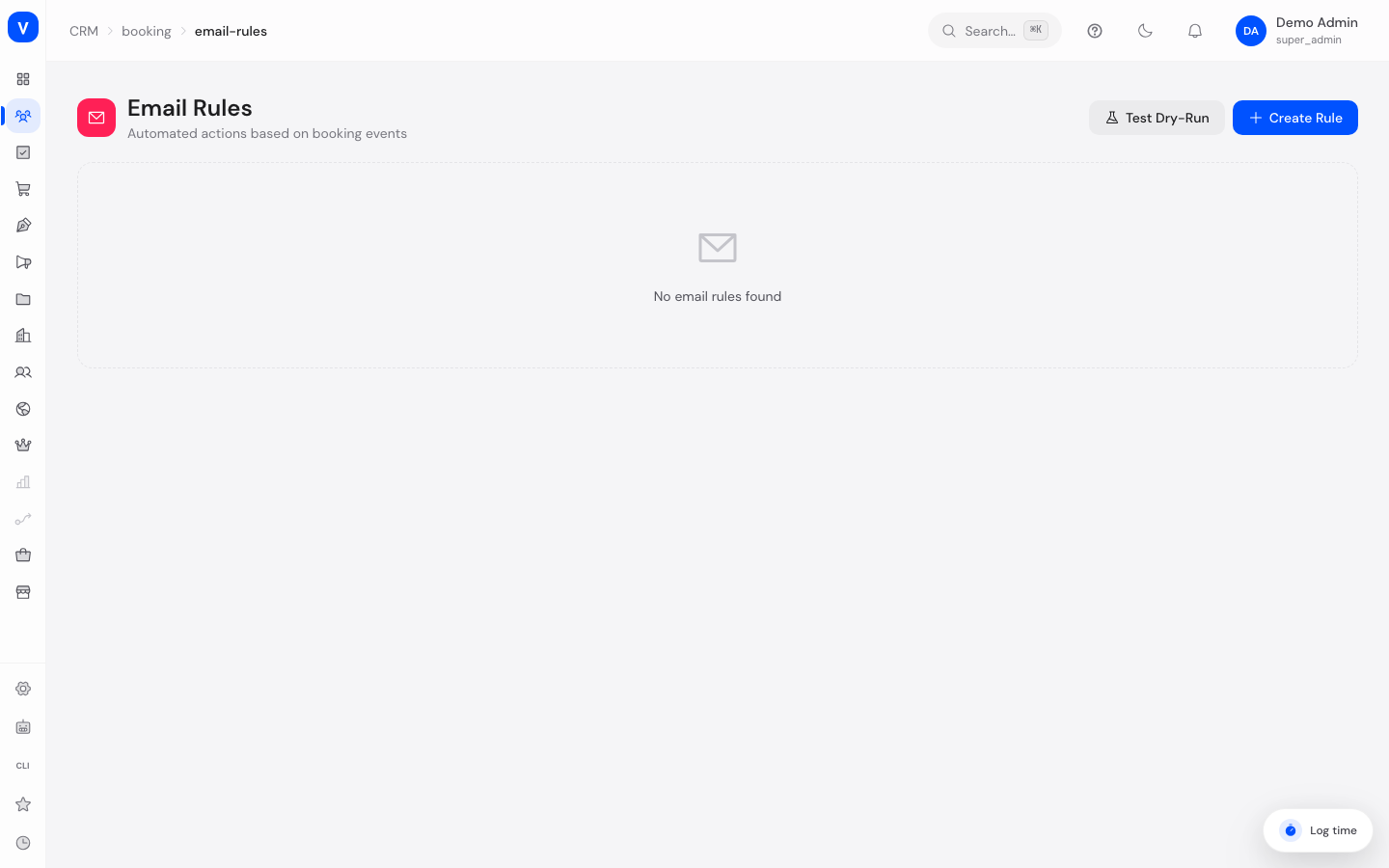
Email rules let you automate what happens on certain booking events — for example, tagging a booking with a label, assigning it to a specific staff member, or triggering a notification. Rules consist of conditions and actions.
What can I do here?
- Create a new rule with a name, priority, and conditions
- Combine multiple conditions with AND (all must match)
- Define one or more actions to run when the rule matches
- Decide whether further rules are checked after a match, or checking stops
- Test a rule with a dry run without actually applying it to real bookings
Step by step
- Click Create Rule, give it a name and a priority (lower numbers are checked first).
- In the Conditions section, add one or more conditions: field, operator, and value. All conditions must match (AND logic).
- In the Actions section, add one or more actions that should run when the rule matches.
- Enable Stop on match if needed, so lower-priority rules are no longer checked after this one matches.
- Before saving, use Test Dry Run to check with sample booking, customer, and staff data whether the rule behaves as expected.
/appointments/email-rules| Field | Operator | Value |
|---|---|---|
| Booking | equals | confirmed |
| Customer | contains | example.invalid |
/appointments/email-rulesFields explained
| Field | Meaning | Notes/Effect |
|---|---|---|
| Rule name | Name of the rule | Internal only |
| Priority | Order in which rules are checked | Lower number = checked first |
| Active | Whether the rule is applied at all | Inactive rules are skipped entirely |
| Stop on match | Whether further rules are checked after this one matches | Prevents multiple rules from firing at once |
| Field | The booking property being checked | See value list below |
| Operator | The type of comparison | See value list below |
| Value | The comparison value for the condition | Free text or number, depending on the field |
| Action type | What should happen on a match | See value list below |
| Label | Name used for "add label / remove label" | Free text, e.g. "vip" |
| Priority (action) | Priority assigned by "set priority" | — |
| Message | Text used by "send notification" | — |
Values & Status
Checkable fields
| Label | Meaning |
|---|---|
| booking.type | The booking's appointment type |
| booking.language | Booking language |
| booking.meeting_type | Meeting type (Google Meet or phone) |
| booking.status | Current booking status |
| customer.email | Customer's email address |
| customer.name | Customer's name |
| customer.cid | Customer's CRM contact ID |
| staff.email | Assigned staff member's email |
| staff.name | Assigned staff member's name |
Operators
| Label | Meaning |
|---|---|
| equals | Exactly matches the value |
| not_equals | Does not match the value |
| contains | Contains the value as a substring |
| not_contains | Does not contain the value |
| starts_with | Starts with the value |
| ends_with | Ends with the value |
| matches | Matches a pattern |
Action types
| Label | Meaning | What happens then |
|---|---|---|
| add_label | Add label | The booking gets the specified label |
| remove_label | Remove label | The specified label is removed from the booking |
| assign_staff | Assign staff | The booking is assigned to the specified staff member |
| set_priority | Set priority | The booking gets the specified priority |
| send_notification | Send notification | A notification with the configured message is triggered |
| skip | Skip | No further action is taken |
Frequently asked questions
In what order are multiple rules checked?
Rules are checked by priority — lower numbers first. If "Stop on match" is enabled, lower-priority rules are no longer checked after a match.
What exactly does the dry-run test do?
It simulates the rule against sample data you enter (booking, customer, staff) and shows whether the rule would match — without changing any real bookings.
Do these rules send emails directly?
The "Send notification" action triggers a notification; whether and how that becomes an actual email depends on further configuration.
Which timezone is the time in an appointment email stated in?
The timezone stored on the assigned staff member - the same one their working hours apply in. The email names the timezone in the text, for example "at 10:00 (CEST)". If no timezone is stored on the staff member, the system-wide default applies. If you write your own template, the placeholders {{appointmentTimezone}} (the full name, e.g. Europe/Berlin) and {{appointmentTimezoneLabel}} (the abbreviation, e.g. CEST) are available; the abbreviation is also already part of {{appointmentTime}}.