Booking Analytics
This page gives you an overview of how busy your appointment-booking team is. Booking Analytics shows the daily workload per staff member, open rescheduling requests, and statistics over a date range you choose.
What can I do here?
- See the daily workload of every bookable staff member for a specific date
- View bookings that need to be manually rescheduled (for example, because a staff member is absent)
- Pull metrics such as confirmed bookings, cancellations, no-shows, and average lead time for a date range
- Review detailed breakdowns by staff member, appointment type, weekday, and month
Step by step
- Open Booking Analytics and pick one of the four tabs at the top: Daily Workload, Reschedule Requests, Statistics, or Reporting.
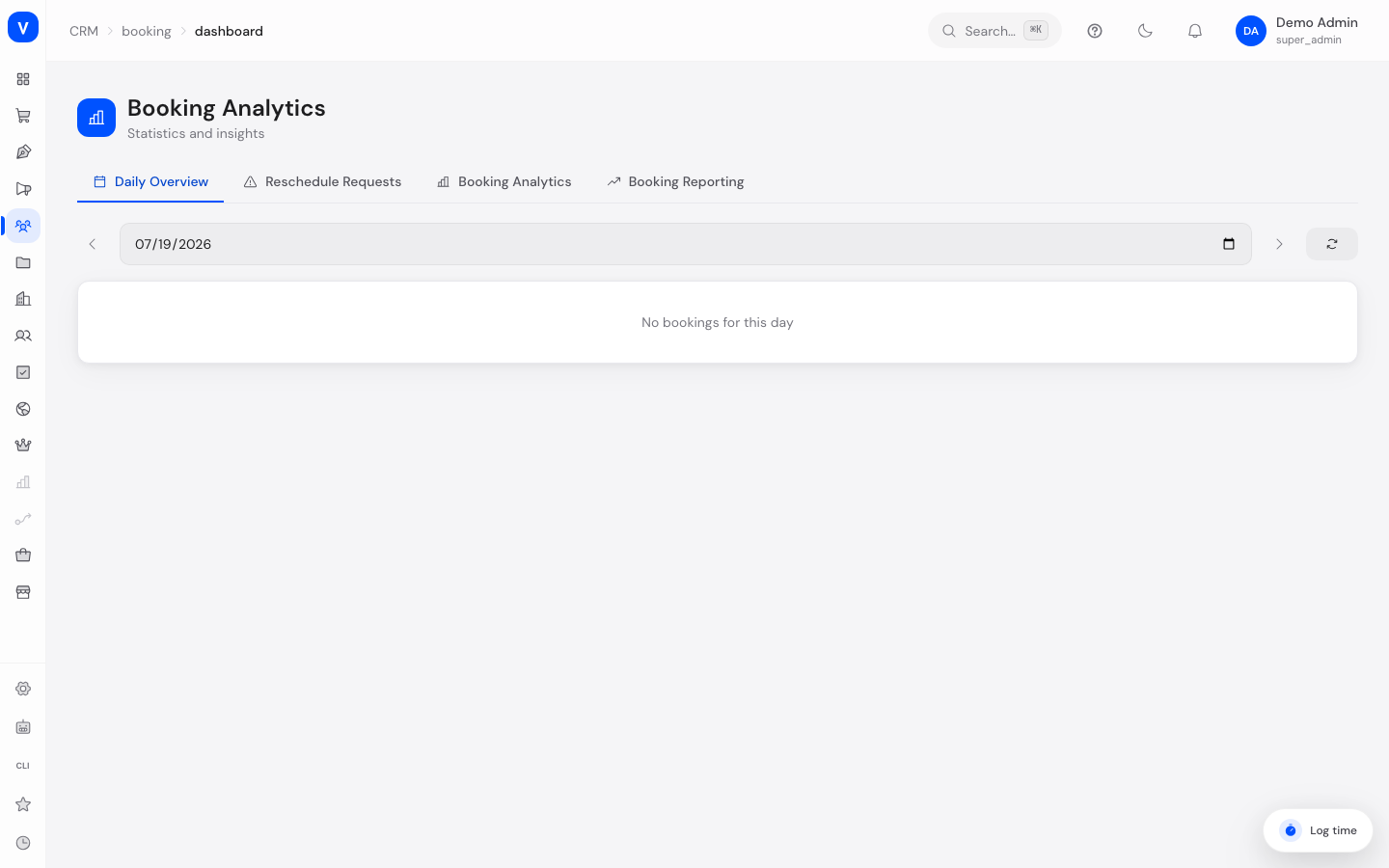
- In the Daily Workload tab, use the arrows or the date field to pick a day. You'll see a card per staff member listing all appointments that day.
- In the Statistics and Reporting tabs, narrow the date range using the "From" and "To" fields. Metrics and charts update automatically.
- In the Reschedule Requests tab, you see a list of all bookings that currently need to be manually rescheduled — from here, go to Booking Management to actually reschedule them.
/appointments/dashboard| Hour | Count |
|---|---|
| 09:00 | 28 |
| 10:00 | 34 |
| 11:00 | 21 |
| 14:00 | 30 |
| 16:00 | 17 |
/appointments/dashboardFields explained
| Field | Meaning | Notes/Effect |
|---|---|---|
| Confirmed Bookings | Number of appointments confirmed in the date range | Metric on the Statistics tab |
| Cancellations | Number of appointments cancelled in the date range | Metric on the Statistics tab |
| No-shows | Number of appointments where the customer never showed up | Metric on the Statistics tab |
| Avg. lead time | Average time between booking and appointment, in hours | Metric on the Statistics tab |
| Popular booking hours | Times of day booked most often | Chart on the Statistics tab |
| Cancellation rate | Share of cancelled bookings out of all bookings | Metric on the Reporting tab |
| Avg. duration | Average appointment length in minutes | Metric on the Reporting tab |
| Staff timeline | Workload per staff member over time | Chart on the Reporting tab |
| By appointment type | Distribution of bookings across configured appointment types | Breakdown on the Reporting tab |
| Weekdays | Distribution of bookings across weekdays | Breakdown on the Reporting tab |
| Monthly trend | Booking volume per month | Breakdown on the Reporting tab |
Frequently asked questions
Why don't I see any appointments in the daily workload view?
Either there are no bookings for the selected day, or no bookable staff have appointments configured for that day yet. Double-check the date, and check Booking Management if needed.
What does "reschedule requests" mean?
These are bookings whose original staff member is no longer available (for example due to an absence) and for which no automatic replacement could be found. They need to be manually rescheduled.
Can I reschedule an appointment directly from here?
No, Booking Analytics is a read-only reporting page. Open Booking Management and use the "Reschedule" action there instead.