Booking Widgets
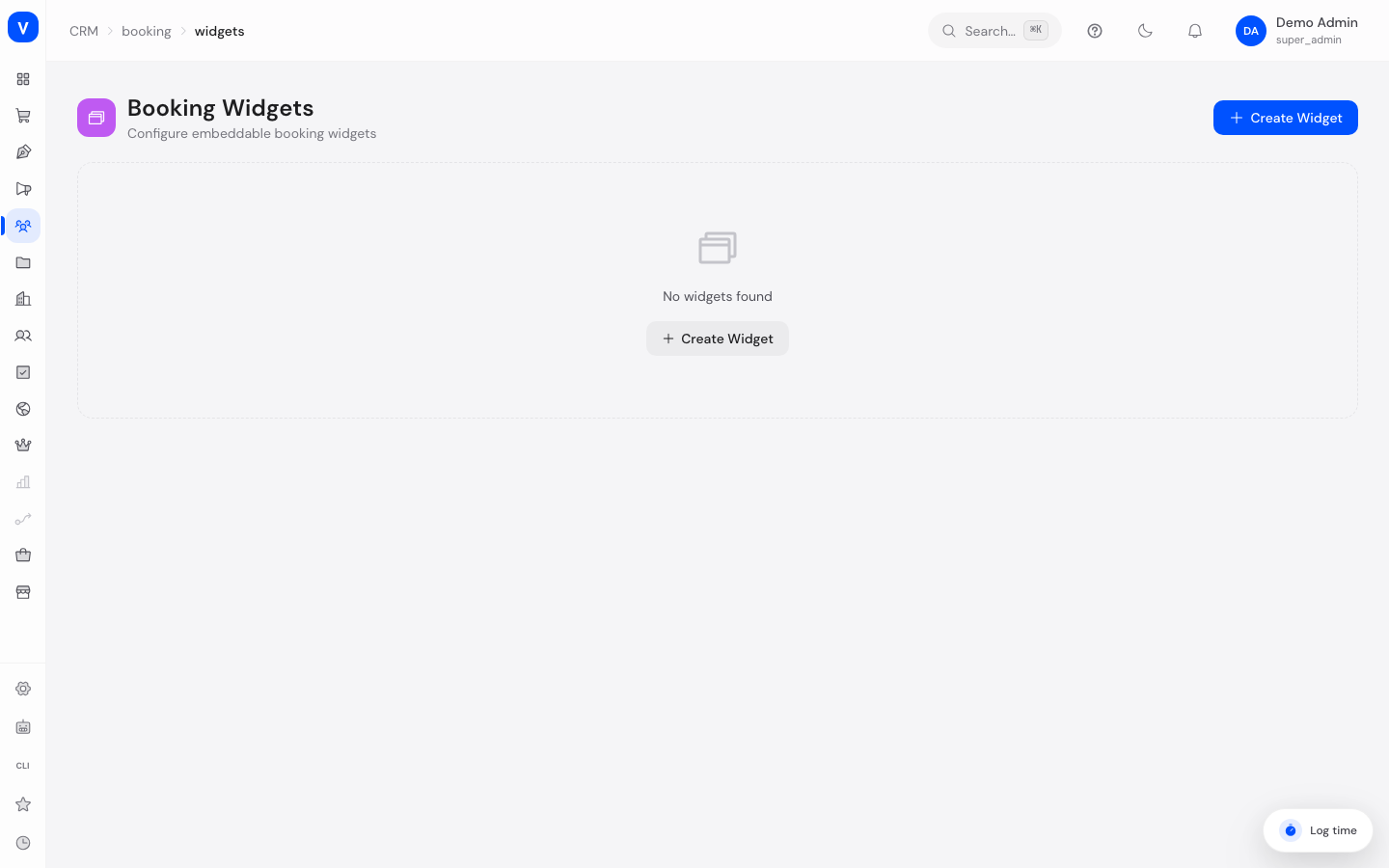
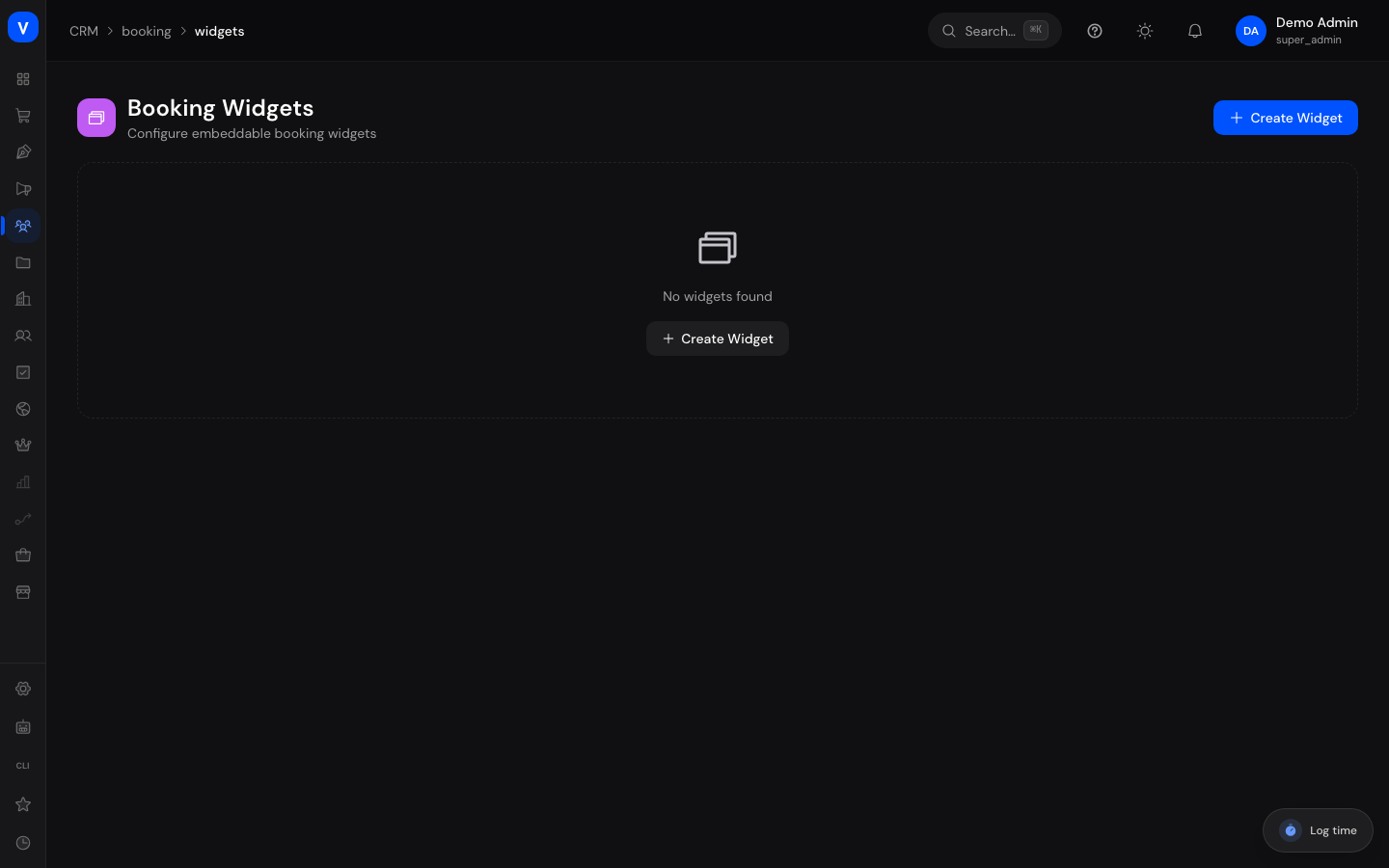
Booking widgets are embeddable booking forms you can place on your website or in emails so customers can book appointments themselves. This page is where you create and design these widgets.
What can I do here?
- Create a new booking widget and name it
- Adjust its appearance (primary color, height, corner radius, header)
- Choose which appointment types and meeting types are offered in the widget
- Show or hide the language selector in the widget
- Copy a widget's embed code to add it to a website
- Or skip embedding entirely and share the direct link to your own booking page (see "Frequently asked questions")
Step by step
- Click Create Widget, give it an internal name and a display title.
- In the Appointment Types section, choose which bookable services should be available in the widget.
- In the Meeting Types section, decide whether appointments can happen via Google Meet and/or phone.
- In the Appearance section, adjust the primary color, height, and corner radius, and decide whether the header and language selector are shown.
- Save the widget, then open Embed Code to copy the code and paste it into your website.
/appointments/widgets- Meeting Types
- Google Meet
- Meeting Types
- Phone
- Appointment Types
- 3
/appointments/widgetsFields explained
| Field | Meaning | Notes/Effect |
|---|---|---|
| Internal name | Name used to recognize the widget in the admin area | Never shown to the customer |
| Display title | Heading that appears inside the widget itself | Visible to the customer |
| Primary color | Accent color of the widget | Lets you match your brand |
| Height (px) | Fixed height of the embedded widget | Affects how it looks on the target page |
| Corner radius (px) | Rounding of the widget's corners | Styling option |
| Show language selector | Whether the customer can pick the booking language themselves | If "No", a language is used automatically |
| Hide header | Whether the widget's header is hidden | Useful when embedding into already-styled pages |
| Embed code | One line of HTML to paste into an external website | A <script> call that inserts the booking form itself and grows with it |
Values & Status
Meeting type
| Label | Plain meaning | What happens then |
|---|---|---|
| Google Meet | The appointment happens as a video call | The appointment is marked as a video call. SCS does not create a Meet link itself - if one is stored on the appointment, it appears in the appointment overview and in the customer portal |
| Phone | The appointment happens as a phone call | No video link; a phone number may be recorded instead |
Frequently asked questions
How many widgets can I create?
You can create as many widgets as you need for different purposes, e.g. one per landing page or campaign.
Can customers book without an embedded widget?
Yes. The widget shows the same public booking page that is also reachable directly - it merely embeds it into your page. You can use the link to that page just as well in an email, a signature, or on a business card.
Can I switch between light and dark?
On the direct link to your own booking page, a light/dark switch sits in the top right corner that your customers can operate themselves - the page is light by default and stays that way unless someone switches it. The embedded widget on your website does not show this switch: it continues to follow the appearance of your own page.
The embedded widget shows an error page or stays too small - what should I do?
Both were defects fixed on 5 August 2026; there is nothing for you to change. The widget now points at the correct booking page and adjusts its height to the content again. The height set under "Height (px)" is only the starting value before the content loads. If your widget still shows an error page, clear the browser cache of the embedding page once - the embed code is cached for up to five minutes.
What is the address of my booking page?
Your workspace address plus /termine. On the address that comes with your workspace that is https://your-shop-name.scs.sellerlogic.com/termine; if you have set up your own domain, it is https://www.your-domain.com/termine accordingly. This is the address to use in newsletters, email signatures, on business cards and for links from other websites - it stays the same whether you add or delete widgets.
Do I have to switch the booking page on somewhere?
No. As soon as at least one appointment type is active, the page is reachable and your shop additionally shows a Book appointment menu entry. Deactivate all appointment types and the entry disappears again. If you would rather have it elsewhere in your menu, add it yourself in the shop menu pointing to /termine - the shop then shows only your own entry.
How does a customer get back to their appointment later?
Through the personal link in the confirmation. It always matches the address the booking was made on: …/termine/b/… for a booking made through your shop.
What does the customer see after booking?
A confirmation with the date, time and type of the appointment, plus a personal link they can use later to reschedule or cancel it themselves. The confirmation email contains the same link.
Do I need to re-paste the embed code after making a change?
No, the embed code itself usually doesn't change — widget changes automatically apply to the already-embedded version.
What happens if I remove an appointment type from the widget?
It no longer appears as a booking option in the widget; existing bookings remain unchanged.