Booking Management
This page lists every appointment booked through your booking widgets - with customer, appointment type, assigned staff member, and status. From here you cancel bookings, reschedule them, read the customer's message, and leave internal notes.
What can I do here?
- Search all bookings and filter by status, staff member, appointment type, and date range
- Cancel a booking (with an optional reason)
- Reschedule a booking to a new date, time, or staff member
- Read the message the customer wrote while booking
- Add an internal note to a booking that is only visible internally
Step by step
Open Booking Management and use the filter bar (status, staff, appointment type, date range, search by name/email) to find the bookings you need.
To cancel a booking, click "Cancel" on its row, optionally enter a reason, and confirm. Regular cancellation deadlines are not enforced here — the cancellation happens immediately.
To reschedule a booking, click "Reschedule". Pick the date first - the times of that day then appear below it, in the same shape the customer sees when booking. Free times are clickable; taken ones stay visible, carry the reason ("taken", "absent", "daily limit reached", "too short notice") and cannot be selected. If nothing is free that day, the dialog says so in words - you never face an empty area. You can also change the duration and the staff member; either reloads the day's times to match. Regular booking policies do not apply here either. Below the times, a hint shows which timezone they are meant in - the (possibly newly selected) staff member's. If no timezone is set for the staff member, your own browser timezone is used instead and labelled as such.
The dialog keeps its state in the address bar: copy the link and a colleague opens the same day with the same time selected.
To read the customer message and leave an internal note, click "Edit Notes" on the row. The drawer shows the customer's message at the top, word for word - deliberately not editable, because it is the customer's own statement - and the field for your internal note below it. If the customer wrote nothing, the upper section is omitted entirely.
In the list, bookings carrying a customer message are marked with a small speech-bubble icon next to the customer name.
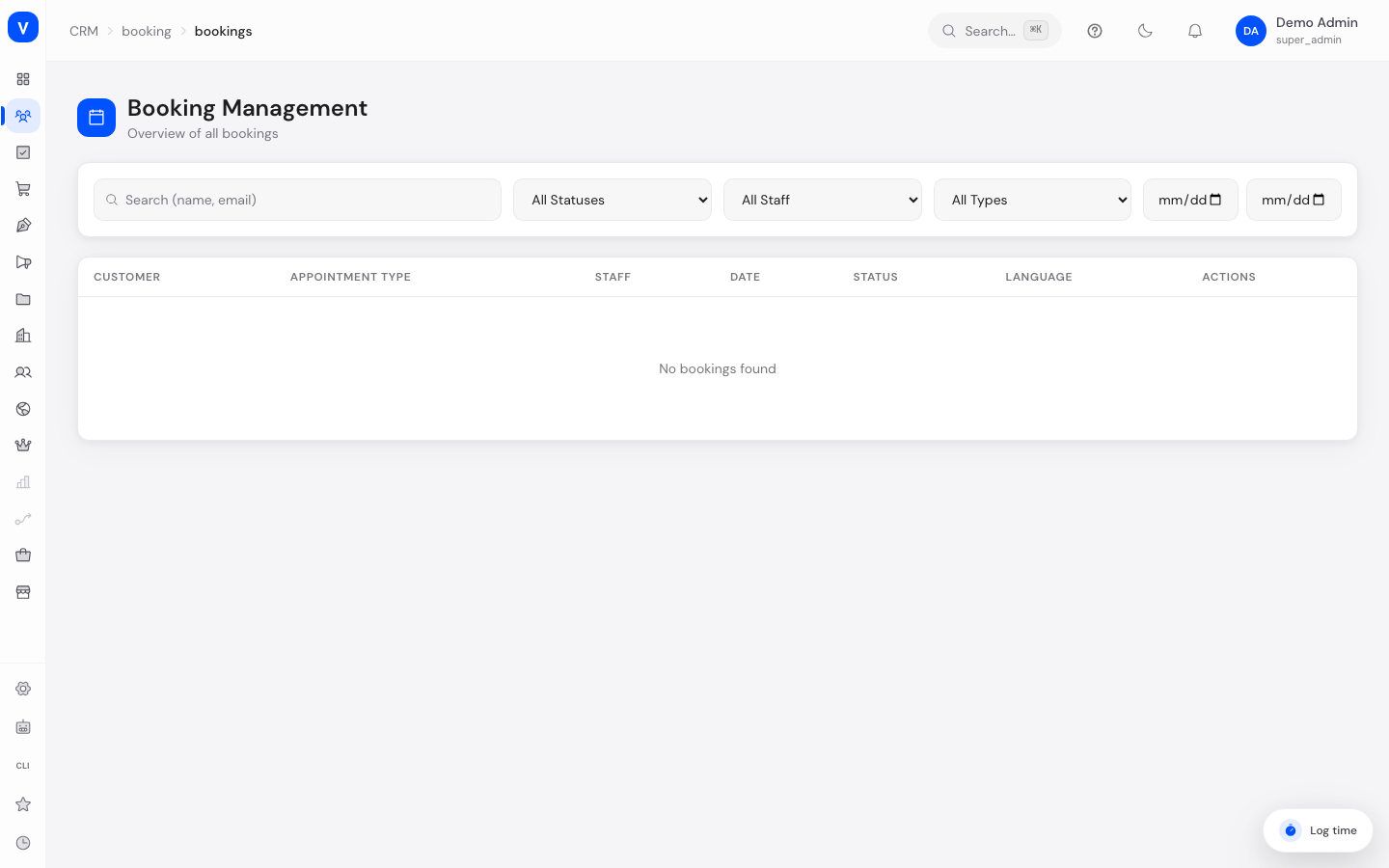
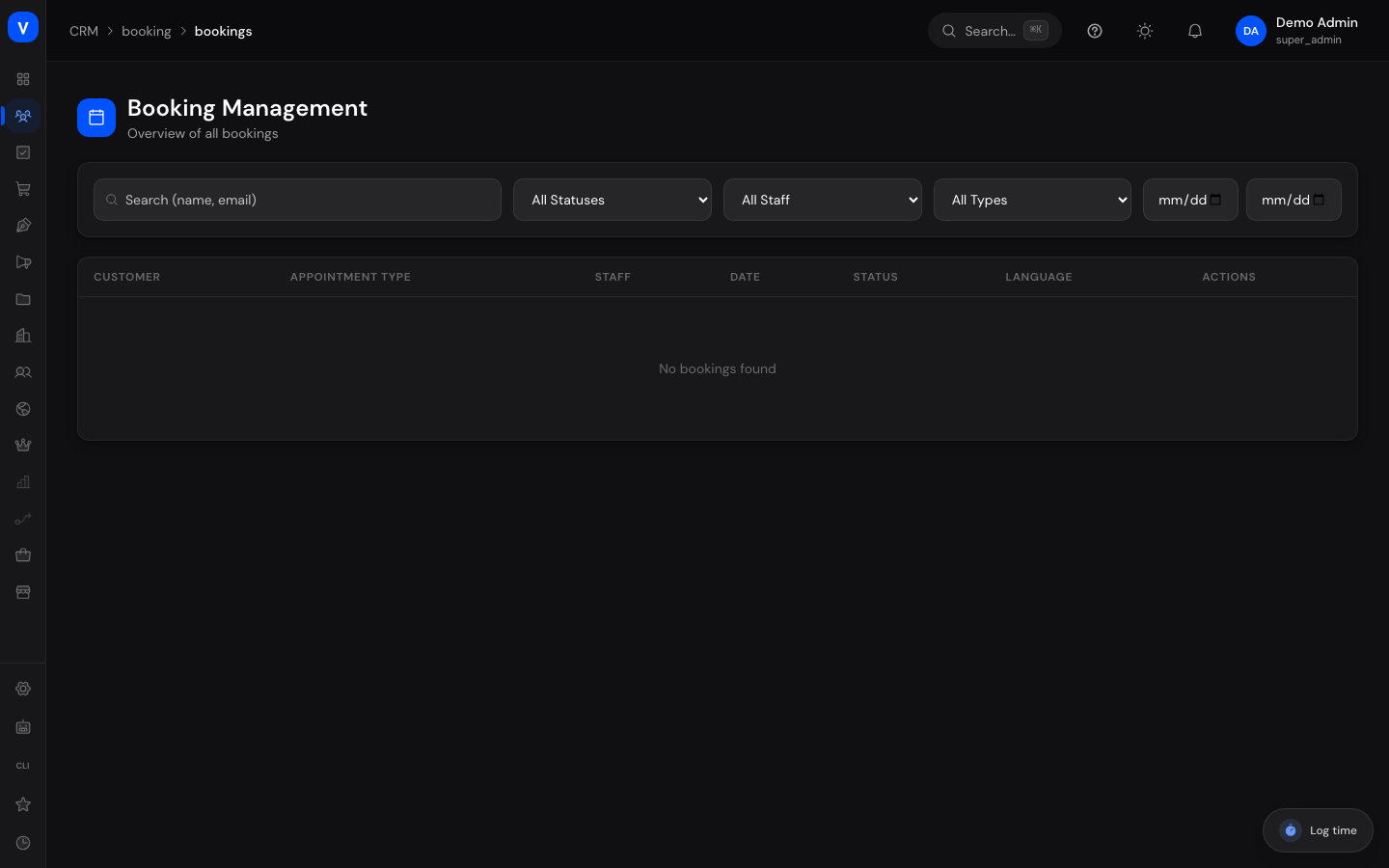
/appointments/list/appointments/listFields explained
| Field | Meaning | Notes/Effect |
|---|---|---|
| Customer | Name and email of the person who booked | — |
| Appointment Type | The booked appointment type (e.g. consultation) | See Appointment Booking — Settings |
| Staff | Assigned bookable staff member | Can be changed via reschedule |
| Date | Date and time of the appointment, in your own timezone | The timezone abbreviation (e.g. "CEST") is shown next to the time so it is clear which time is meant |
| Language | Language the appointment was booked in | Affects things like the calendar invite |
| Status | Current state of the booking | See value list below |
| Cancellation reason | Optional free text entered when cancelling | Internal only |
| Customer message | Free text the customer wrote in the booking form under "Your message" | Read-only, never editable - it is the customer's own statement |
| Internal note | Internal free text about the booking | Visible only to staff, never to the customer |
Values & Status
Booking status
| Label | Plain meaning | What happens then |
|---|---|---|
| Confirmed | The appointment is valid and scheduled | Appears normally in every overview |
| Cancelled | The appointment was called off | The slot becomes available again; the customer no longer receives reminders |
| Needs reschedule | The original staff member is no longer available (e.g. an absence) and no automatic replacement could be found | Shows up in Booking Analytics under "Reschedule Requests"; must be rescheduled manually |
| No-show | The customer did not show up for the appointment | For reporting purposes only, no automatic follow-up action |
Frequently asked questions
Is the customer automatically notified of a cancellation or reschedule?
That depends on the configured Email Rules. Without a matching rule, no automatic notification is sent.
What happens to the freed-up time slot after a cancellation?
The time slot becomes available for new bookings again.
Can I restore a booking I already cancelled?
No, a cancellation is final. Create a new booking through the corresponding booking widget instead.
Who can see the internal note?
Only staff with access to Booking Management in the admin area - the customer never sees this note.
Why can I not change the customer's message?
Because it is the customer's own words. If it were overwritable, nobody could later tell what the customer actually said. Your own remarks belong in the internal note directly below it.
An older booking now shows a message I was never shown before.
That is expected. The messages were stored from the start, they were simply displayed nowhere. Showing them makes every previously received message visible too - nothing had to be migrated.
Which timezone are the times offered when rescheduling meant in?
The timezone shown below them - normally the assigned staff member's, because their working hours are what defines the day in the first place. Not yours, and not the tenant's. If no timezone is set for that staff member, your browser timezone is used and named as such. The offered time and the saved one come from the same source, so they cannot drift apart.
Why can I not click a time that is shown?
Because it is not free then. The reason is printed under the time: another appointment ("taken"), an absence or a blocked calendar entry ("absent"), the staff member's daily limit ("daily limit reached"), or the appointment type's minimum lead time ("too short notice"). The time is deliberately kept on screen rather than omitted - so you can see that the day is full, instead of seeing what looks like a short working day.