Task Types
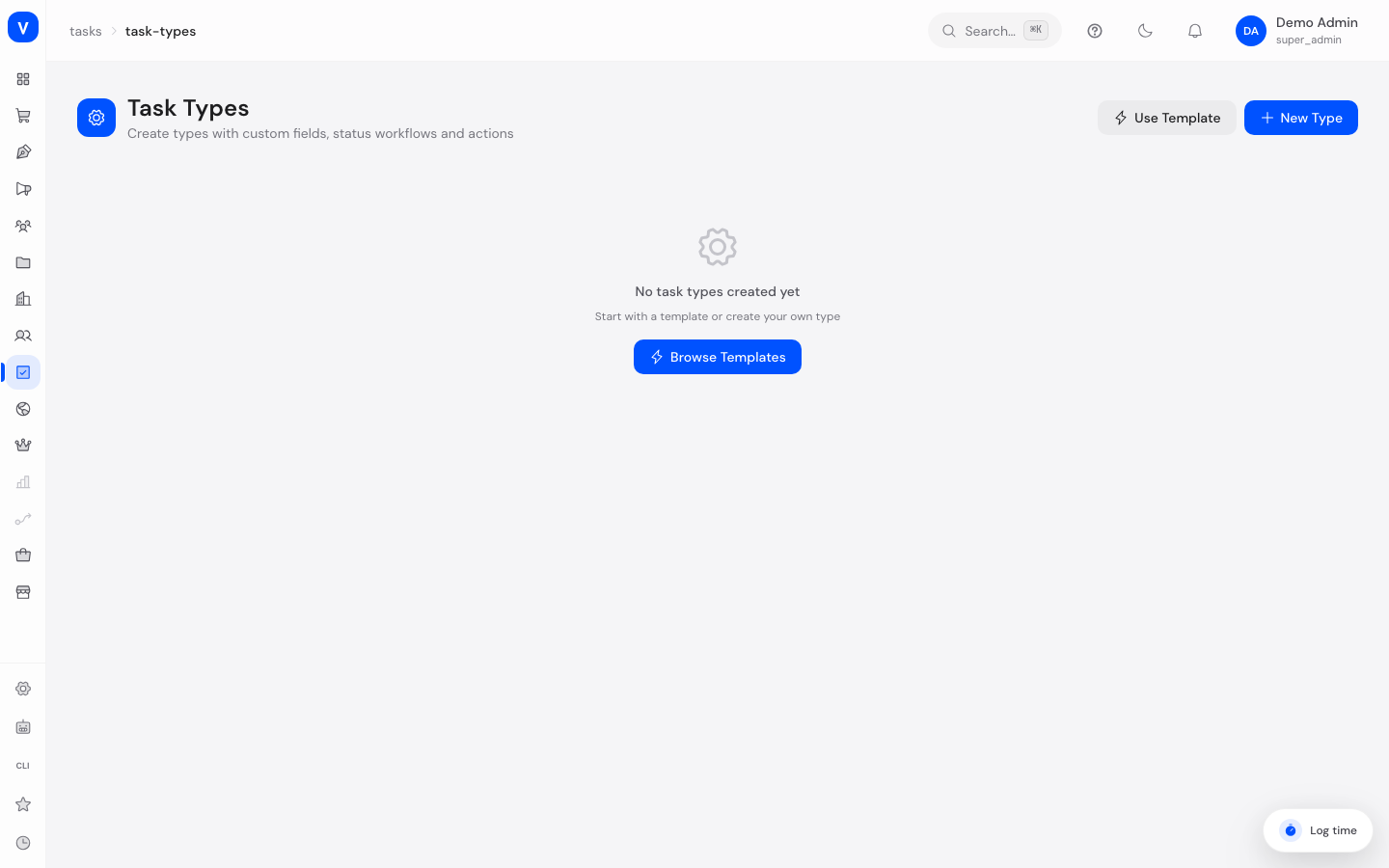
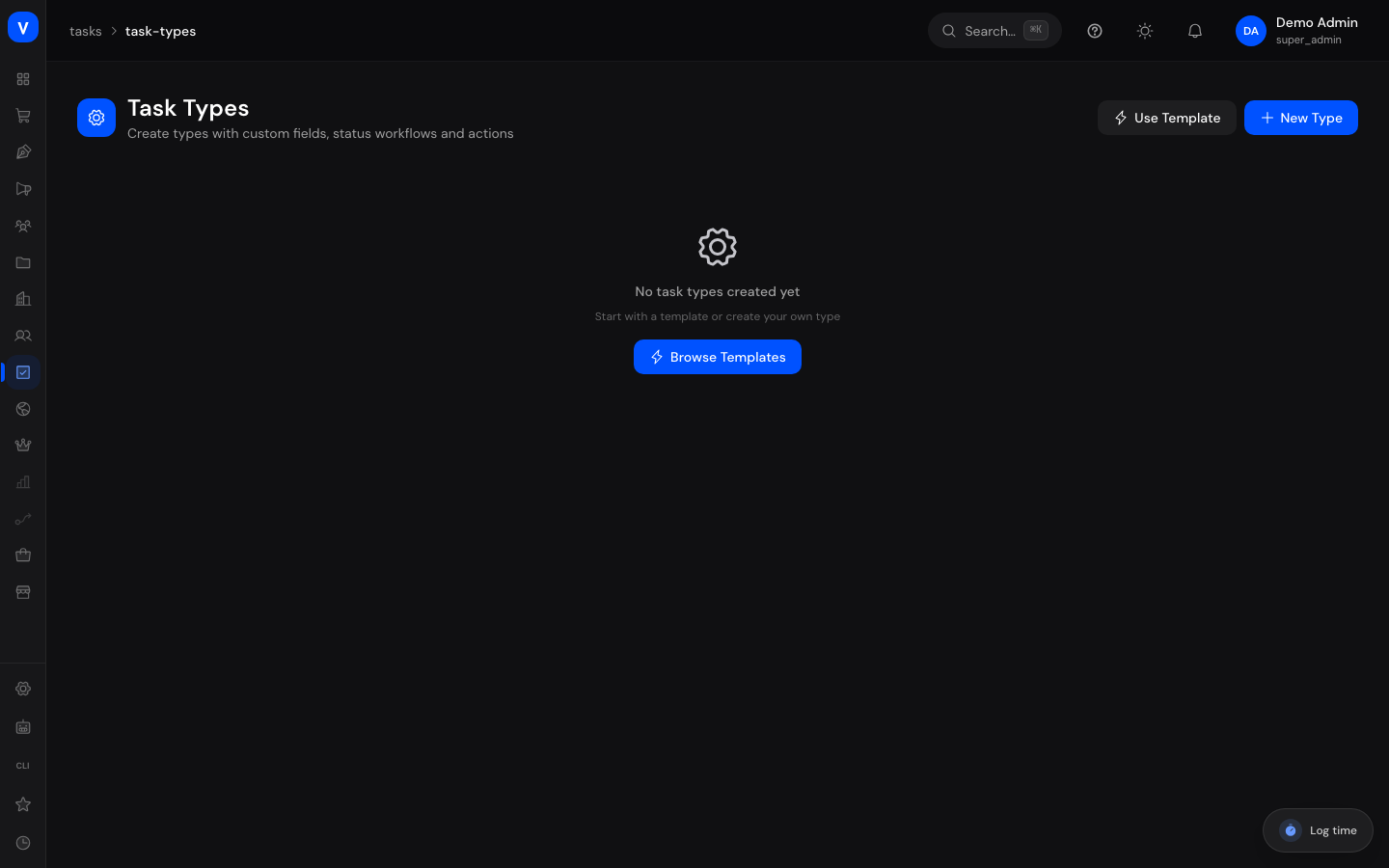
Task types let you define your own templates for recurring workflows — such as "Call", "Complaint", or "Approval" — including custom fields, an individual status workflow, and actions that fire automatically on a status change.
What can I do here?
- Create a new task type from scratch or from a ready-made template
- Define additional fields that only apply to this type
- Set up a custom status workflow with allowed transitions
- Attach actions that run automatically on a specific status transition
- Activate or deactivate task types
Step by step
Create a task type from a template
- Click Use Template, choose one of the ready-made templates with matching fields and workflow.
- After creation, you can adjust the type at any time.
Create a custom task type
- Click New Type, enter a name, description, color, category, and a default priority.
- Switch to the Fields tab and use Add Field to add extra input fields with a type (number, dropdown, multi-select, date, checklist, currency). Mark fields as required where needed.
- Switch to the Workflow tab, define the status definitions with a class (Open/Active/Done/Cancelled), and set the default (starting) status.
- Use Add Transition to add allowed changes between two statuses, give it button text, and optionally attach actions that run automatically on this transition.
- Save the task type.
/tasks/task-typesIllustration
Workflow
SettingsFieldsWorkflow
| Status | Class | Default Status (Start) |
|---|---|---|
| Accepted | Open | ✓Active |
| In progress | Active | •Inactive |
| Shipped | Done | •Inactive |
| From | To | Button Text |
|---|---|---|
| Accepted | In progress | Start |
| In progress | Shipped | Submit |
/tasks/task-typesFields explained
| Field | Meaning | Notes/Effect |
|---|---|---|
| Name | Name of the task type | Appears as an option when creating a task |
| Color | Color marker for the type | For visual distinction |
| Category | Broad classification (Sales, Support, General, Internal) | For filtering/reporting |
| Default priority | Priority automatically assigned to new tasks of this type | — |
| Field (custom) | Additional input field that only applies to this task type | Its type determines the input control |
| Required | Whether the field must be filled before saving | — |
| Status definition | A possible status within this type's workflow | Every status belongs to a class |
| Class (status) | Broad category of a status | See value list below |
| Default status | Status new tasks of this type start with | — |
| Transition (from/to) | Allowed change from one status to another | Only defined transitions are selectable on the task |
| Button text | Label of the button for this transition | Appears on the task detail view |
| Action(s) | Steps executed automatically on this transition | E.g. send a notification |
Values & Status
Field type
| Label | Meaning |
|---|---|
| Number | Numeric input |
| Dropdown | Choice from a fixed list |
| Multi-select | Multiple values selectable at once |
| Date | Date picker |
| Checklist | List of items to check off |
| Currency | Monetary amount |
Status class
| Label | Meaning |
|---|---|
| Open | The task hasn't been started yet |
| Active | The task is being worked on |
| Done | The task is completed |
| Cancelled | The task is no longer being pursued |
Frequently asked questions
Where do I pick a task type when creating a task?
Task types are offered as an option when creating a task in Tasks, provided some have been defined for the relevant area.
What happens if I deactivate a task type?
Existing tasks of that type remain unchanged, but the type is no longer available for new tasks.
Can I remove a status transition later?
Yes, defined transitions can be edited or removed at any time on the Workflow tab — this only affects future status changes, not ones that already happened.