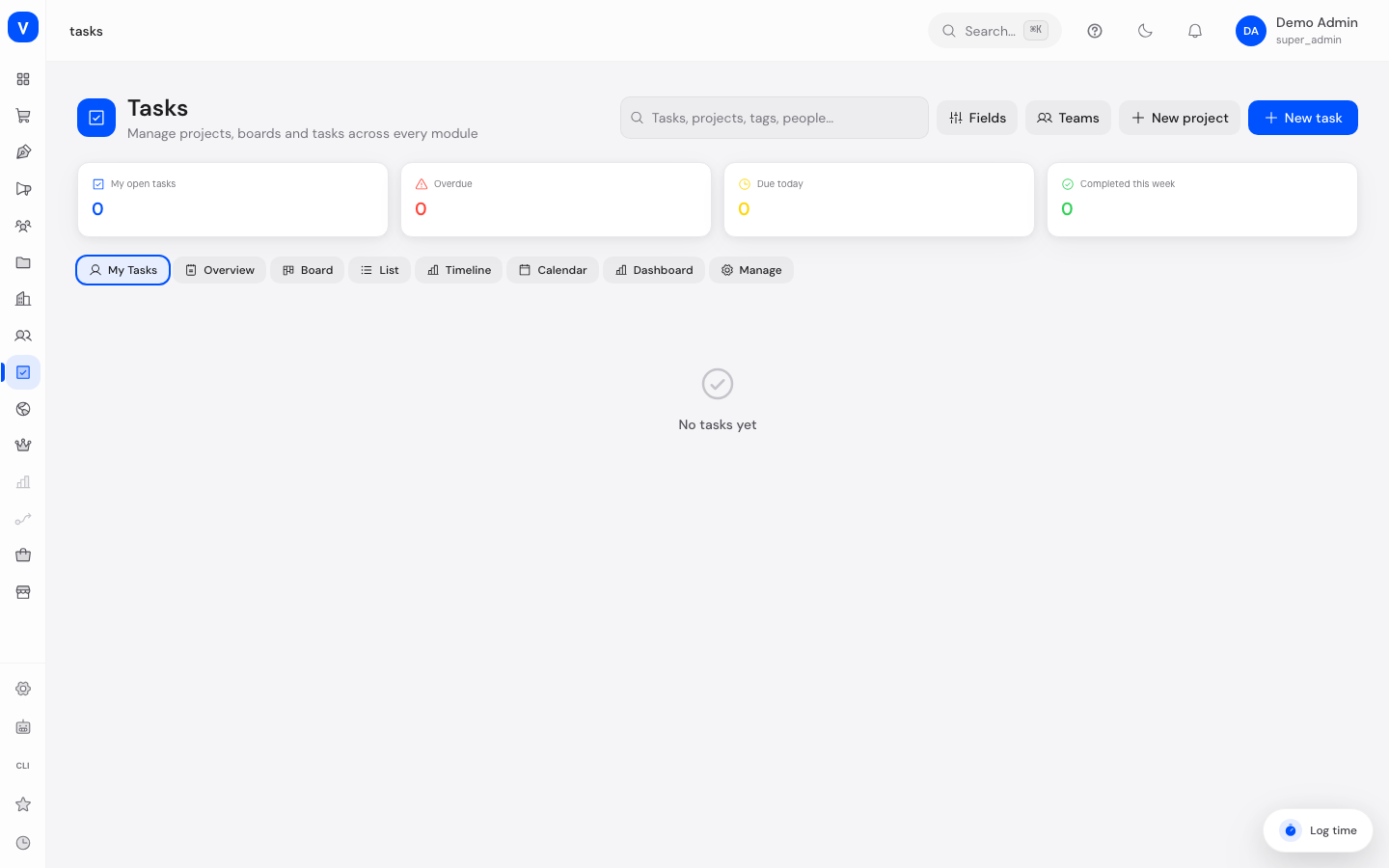
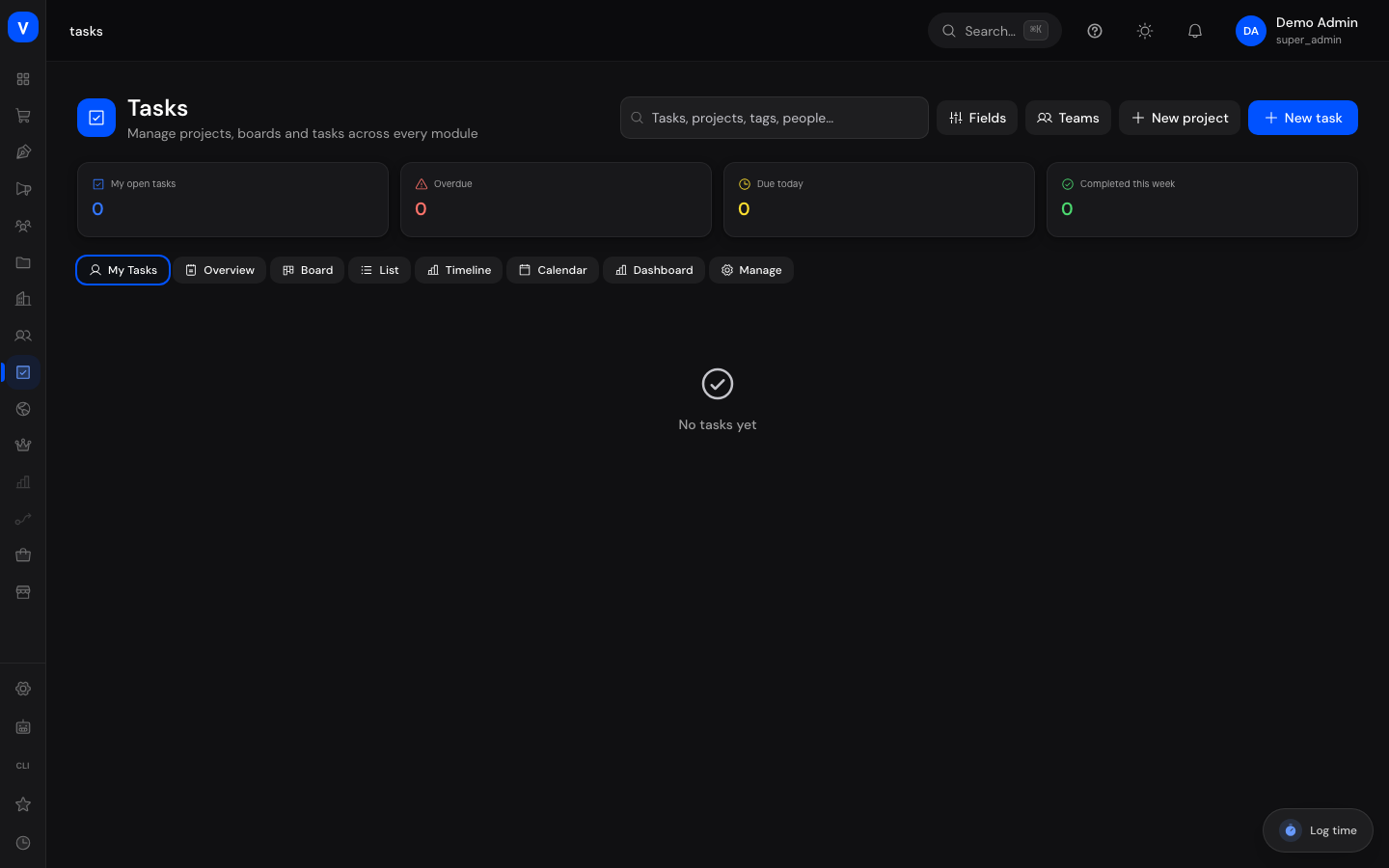
"Tasks" is the central module for project and task management in SELLERLOGIC Commerce Services — the built-in replacement for Asana. Here you organize work in projects (boards), track tasks in various views, and keep an eye on each project's progress.
What can I do here?
Select a project (board) and view its tasks in different views: Overview, Board, List, Timeline, Calendar, Dashboard
Create new tasks and new projects
Complete, reopen, or delete tasks
Share a project with colleagues and assign access rights
Set a project's current status and review its status history
With admin rights, manage custom fields, tags, templates, and teams across projects
Step by step
Open a project and switch views
Select a project from the project list at the top.
Switch between the views Overview (brief, roles, milestones, status), Board (Kanban columns), List (filterable table with grouping), Timeline (Gantt-style timeline), Calendar (by due date), and Dashboard (metrics and charts).
Use My Tasks to see only your own assigned tasks across projects.
Create a new task
Click New Task or use quick-add in the Board/List view.
Enter title, description, assignee, due date, priority, and optionally tags or a linked customer.
Save the task — it appears immediately in the selected project or section.
Share a project
Open a project and click Share.
Set the visibility: public in the workspace, private to team, or fully private.
Add individual staff with a role (Admin, Editor, Commenter, Viewer).
Set and track project status
In a project's Overview, open the Current Status section, or go to the direct link to a project's status page.
Click Set Status, choose a status type, a title, and optionally details.
Publish the update — it appears in the Status History and is visible to everyone with access to the project.
View: /tasks
Illustration
List
ListBoardCalendar
Title
Assignee
Due date
Priority
Status
Review the quote
A. Example
12 Aug 2026
High
iIn Progress
Clean up the test data
M. Sample
14 Aug 2026
Normal
•Pending
Add a manual page
Unassigned
20 Aug 2026
Low
•Pending
Sign off the release
T. Example
05 Aug 2026
Urgent
✓Completed
Rebuilt excerpt of the view: /tasks
Illustration
Project status & history
Status
✓On track
Title
On track for the August sign-off
Details
Two of three milestones have been signed off.
Status history
01 Aug 2026
✓On track
Status history
18 Jul 2026
!At risk
Rebuilt excerpt of the view: /tasks/projects/:projectId/status
Task lifecycle
flowchart LR
  A[Pending] --> B[In Progress]
  B --> C[Completed]
  B --> D[Cancelled]
  C -->|Reopen| B
Fields explained
Field
Meaning
Notes/Effect
Title
Name of the task
Required
Description
Detailed explanation, supports simple formatting
—
Project
The board the task is organized in
A task can belong to multiple projects (multi-homing)
People additionally involved in the task without being responsible
Receive notifications
Visibility (project)
Who can see the project
See value list below
Status type (project)
Overall current state of a project
See value list below
Values & Status
Task status
Label
Plain meaning
What happens then
Pending
The task was created but not started yet
Shows as open in all views
In Progress
Work on the task is underway
—
Completed
The task is finished
Counts as completed in statistics; can be reopened
Cancelled
The task is no longer being pursued
No longer shown in default views for open tasks
Priority
Label
Meaning
Low
Can wait
Normal
Default priority
High
Should be handled with priority
Urgent
Requires immediate attention
Project visibility
Label
Plain meaning
What happens then
Public in workspace
All users in the workspace can see the project
Widest reach
Private to team
Only the assigned team has access
For team-internal projects
Private
Only individually invited members have access
Highest confidentiality
Project status type
Label
Meaning
On track
The project is running as planned
At risk
There are risks that could jeopardize the schedule
Off track
The project is already behind schedule
On hold
Work on the project is currently paused
Complete
The project is finished
Frequently asked questions
What's the difference between "Tasks" (/tasks) and "Projects" (/projects)? "Tasks" is the Asana-style board system for team and customer work with Kanban, lists, and timeline. The separate Projects page is an independent module for budget- and time-tracking-oriented project management with milestones and team roles.
Can a task appear in multiple projects at the same time? Yes, via multi-homing a task can belong to multiple projects — useful when it's relevant to more than one team.
Where do I manage custom fields, tags, or templates that apply across all projects? Via the "Manage" tab (only visible with the right permission) alongside the Overview/Board/List/Timeline/Calendar/Dashboard views.
What's the direct link to a project's status page for? It lets you share or bookmark a single project's current status directly, without first navigating through the project list.