Portfolios
A portfolio groups several projects together so you can track their status at a glance — for example, all projects belonging to a specific campaign or customer area.
What can I do here?
- Create and name a new portfolio
- Add projects to a portfolio or remove them from it
- Set the portfolio's visibility and default access level
- Add members with an individual access level
- Jump directly to the status of a project contained in the portfolio
Step by step
Create and populate a portfolio
- Click New Portfolio, give it a name, optionally choose a color and an owner.
- Set the visibility (public to workspace, private to team, or private) and the default access level for new members.
- Open the portfolio and switch to the Projects tab.
- Click Add Project and choose one of the available projects.
Manage members
- In the portfolio, switch to the Members tab.
- Click Add Member, search for the person, and assign an access level.
- To remove a member, use Remove Member on their row.
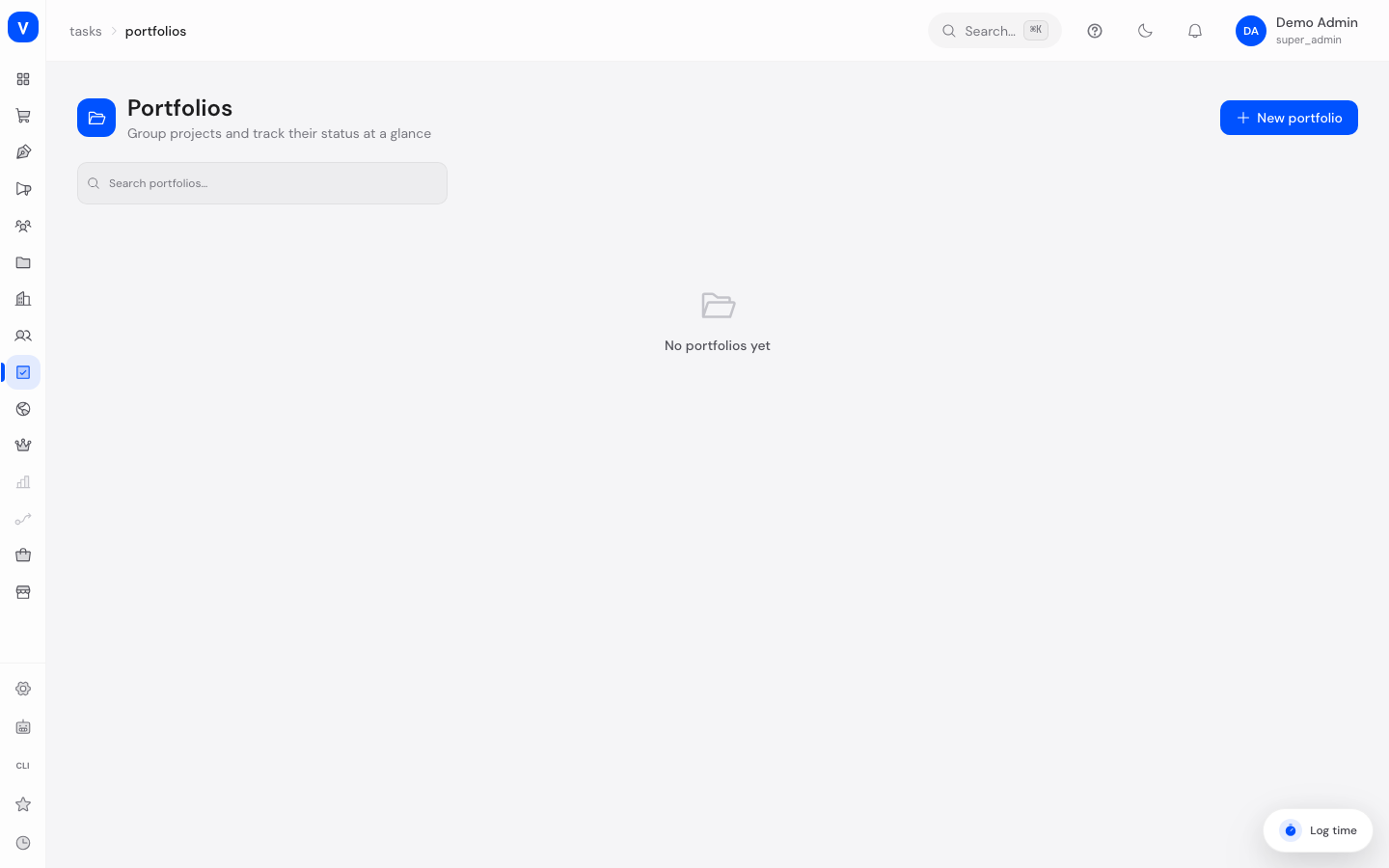
/tasks/portfoliosIllustration
Portfolios
ProjectsMembers
| Project | Owner | Privacy |
|---|---|---|
| Sample delivery project | A. Example | Visible to workspace |
| Sample migration project | M. Sample | Visible to team |
| Sample manual project | No owner | Private |
/tasks/portfolios/:idFields explained
| Field | Meaning | Notes/Effect |
|---|---|---|
| Name | Name of the portfolio | E.g. "Q3 Growth Initiatives" |
| Color | Color marker | For faster visual distinction |
| Owner | Person responsible for the portfolio | — |
| Visibility | Who can see the portfolio | See value list below |
| Default access level | Access level automatically assigned to new members | Can be overridden per member |
| Projects in portfolio | Number of linked projects | Projects themselves aren't deleted when removed from the portfolio |
| Members | Number of people with access to the portfolio | — |
| Access level (member) | An individual's specific permission in the portfolio | See value list below |
Values & Status
Visibility
| Label | Meaning |
|---|---|
| Public to workspace | All users in the workspace can see the portfolio |
| Private to team | Only the assigned team has access |
| Private | Only explicitly added members have access |
Access level
| Label | Meaning |
|---|---|
| Admin | Full control, including managing members and deleting the portfolio |
| Editor | Can add/remove projects, but not manage members |
| Commenter | Can comment, but not make structural changes |
| Viewer | Read-only access |
Frequently asked questions
What happens to a project if I remove it from a portfolio?
Only the link to the portfolio is removed — the project itself, along with all its tasks, remains fully intact.
Can a project belong to multiple portfolios at once?
Yes, a project can belong to any number of portfolios.
What happens when I delete a portfolio?
The portfolio itself is deleted; the projects it contained remain unchanged and are not deleted.